



News & Updates


Will AI replace lawyers? Artificial intelligence (AI) will not replace lawyers, but it is fundamentally changing how they get legal work done. As AI becomes more embedded in research, document review, and client intake, firms are increasingly automating many traditional legal tasks. This article examines whether AI can truly replace lawyers, which legal functions are most affected, how law firms are using AI today, and what these trends mean for associate attorneys navigating an AI-driven legal industry.
AI is already reshaping how your firm gets work done. It’s changing how you handle research, drafting, intake, billing pressure, and the future of associate work.
For many firms, the real question is how to use AI without disrupting the way they already work. Firms are figuring out where AI adds value and where attorneys still need to stay hands-on, while navigating how these tools change the work without changing who’s ultimately responsible.
In this guide, we’ll examine where AI affects legal tasks, why associate attorneys feel the most pressure, how firms are using AI today, and what the next 12-24 months are likely to bring.
Will AI Replace Lawyers or Just Change the Job?
The short answer is no: AI will not replace lawyers. What it can do is automate or accelerate certain tasks lawyers have traditionally handled manually, and that distinction matters.
When people ask, "Will lawyers be replaced by AI?" or "Can AI replace lawyers?" they are usually reacting to how quickly these tools have improved at summarizing information, reviewing documents, and generating draft language.
But those capabilities are not the same as practicing law. Lawyers are still responsible for legal judgment, ethical obligations, advocacy, and client outcomes. And courts, clients, and regulators continue to hold licensed attorneys accountable.
A better question is: “Which parts of your work is AI already automating, and what does that mean for you?”
Why Associate Attorneys Feel Most at Risk
If any group in the profession feels exposed by AI, it is associate attorneys. Associates often spend a large share of their time on high-volume, repeatable work:
- Document review
- Contract comparison
- Drafting from templates
- Follow-up tied to matters in progress
Those are also the kinds of tasks AI is taking on.
It’s no surprise that many associates feel pressure as these tasks shift. Many associates are already under pressure to be faster, more accurate, and easier to justify to cost-conscious clients.
But "most exposed" does not mean associates are the most likely to be replaced. It means the tasks that make up their role are among the first to be reshaped by AI, while expectations for more substantive work rise earlier.
Legal Tasks AI Can Replace or Automate
AI is most effective at handling structured, repetitive, text-heavy, and rules-based work that slows your team down.
Legal research and case summarization
AI is already changing the first layer of legal research. Attorneys can use it for a faster first pass to:
- Scan cases, statutes, and regulations quickly
- Summarize large volumes of text
- Highlight recurring themes
- Spot potential issues faster
That means less time gathering information and more time testing whether the output is accurate, relevant, and persuasive. These are the kinds of outputs that actually move cases forward.
Contract review and document analysis
Contract review is another area where AI can help. AI can be useful in due diligence, compliance review, procurement workflows, and any matter involving large volumes of contracts or standard language, including:
- Identifying clauses
- Comparing language across document sets
- Flagging deviations from standard terms
- Surfacing inconsistencies that manual review might otherwise miss
Many firms are also exploring legal document automation software to streamline repetitive drafting and review tasks while keeping attorneys in control of the final output.
Intake, qualification, and administrative work
Some of the fastest wins come from automating intake and follow-up with predefined criteria, so no potential client gets lost. These are areas where automation and AI can reduce a major administrative burden:
- Client intake
- Lead qualification and routing
- Follow-up
- Automated scheduling and reminders
Legal Tasks AI Cannot Replace
For all the attention on automation, there are still core parts of legal practice that AI cannot replace.
AI cannot replace certain legal tasks
Legal work often involves high-stakes decisions where the details matter, and the right call isn’t always obvious. Many matters require attorneys to navigate uncertainty, emotional dynamics, and practical risk in ways that go beyond pattern recognition.
Lawyers do more than surface information. They interpret ambiguity, weigh tradeoffs, and make recommendations when the answer is not obvious. AI can help organize information and support analysis, but legal judgment still depends on attorneys.
Advocacy and negotiation
Legal advocacy is deeply human. Whether in court, at a mediation table, or in a negotiation, persuasion depends on judgment, timing, credibility, listening, and adaptation.
Strong advocates read tone, pressure, resistance, leverage, and opportunity. AI can assist with preparation, but it cannot respond to the human dynamics that shape negotiation and advocacy in the moment.
Ethical responsibility and accountability
The biggest boundary in legal practice around AI use is accountability. Lawyers have ethical duties to clients, courts, and the profession, including competence, confidentiality, candor, supervision, and professional judgment.
Those duties still rest with attorneys. They must verify the work, protect client information, exercise judgment, and stand behind the advice they give.
How Law Firms Are Using AI Today
Law firms are using AI in several practical ways today. It supports legal work by improving intake and connecting workflows inside a legal client relationship management (CRM) system.
AI as an assistant, not a replacement
In many firms, AI is being used to accelerate research, support drafting, improve consistency, and reduce time spent on routine tasks. It helps attorneys work more efficiently, but they still have to review outputs, make decisions, and stand behind the final work product.
AI in client intake, lead qualification, and routing
One of the clearest applications of AI for law firms is in client intake. AI can help firms improve the quality of information they collect, apply qualification criteria more consistently, and move leads through the right next steps with less manual effort.
For example, AI can:
- Evaluate urgency: Identify inquiries that may need faster attention based on timing, case type, or stated circumstances.
- Screen for practice fit: Help determine whether a matter aligns with the firm’s services before teams spend time reviewing it.
- Assess lead quality: Apply defined qualification standards consistently to help teams focus on stronger opportunities. Tools like QualifyAI support this process by helping firms automate intake screening and matter qualification without crossing into the realm of legal advice.
- Collect intake information: Use custom forms and structured workflows to gather client details and create more complete records from the start.
- Route inquiries intelligently: Sort leads by priority, stage, or next step and direct them to the right person or process.
- Automate follow-up: Trigger responses, reminders, and outreach to ensure promising leads do not stall due to delayed communication.
- Support scheduling: Move qualified leads into consultations with less back-and-forth and fewer manual touchpoints.
- Reduce administrative drag: Improve upstream intake so attorneys spend less time on triage and more time on billable work.
AI paired with legal CRM workflows
AI becomes more useful when it works inside a broader system. That works best when legal CRM software and legal software integrations connect intake, follow-up, and client information into a single centralized system.
When intake data flows directly into a centralized CRM, follow-up can happen automatically, and attorneys can work from more complete, organized information.
What Will Actually Change for Associate Attorneys in the Next 12-24 Months
The table below illustrates which legal tasks firms are already automating, which are likely to change in the next 12-24 months, and which still depend on human judgment.
| Legal task category | Examples of tasks | Level of AI impact | Timeline |
|---|---|---|---|
| Intake and administrative work | Intake data collection, lead qualification, follow-up, and scheduling | High | Already happening |
| Legal research and summarization | First-pass case law research, statute summaries, issue spotting | High | Already happening |
| Contract review and analysis | Clause identification, risk flagging, document comparison | High | Already happening |
| Drafting standard legal documents | Routine motions, template-based agreements with attorney review | Medium | 12-24 months |
| Litigation prep and discovery support | Document organization, evidence tagging, timeline creation | Medium | 12-24 months |
| Intake decision support | Applying firm-defined qualification rules without legal advice | Medium | Already happening |
| Legal judgment and strategy | Case strategy, risk assessment, application of law to facts | Low | Unlikely to be replaced |
| Client counseling and advocacy | Client advice, negotiation, courtroom advocacy | Low | Unlikely to be replaced |
| Ethical and professional accountability | Malpractice liability, ethical judgment, licensing responsibility | None | Not replaceable |
Fewer low-value tasks, higher expectations
Associates will likely spend less time on intake administration, document work, and other repetitive tasks that can be standardized. As a result, firms may expect associates to handle more substantive work earlier.
As routine work takes up less of the role, firms may place greater value on analytical skills, precision, and the ability to take on client-facing responsibility.
Faster feedback loops
AI-assisted systems can make performance more visible. When workflows are digitized and standardized, firms can see turnaround times, follow-up completion, response rates, matter progression, and other indicators sooner.
Faster feedback loops help strong associates stand out while also making expectations around consistency and execution clearer across the board.
Increased leverage for AI-literate associates
The associates who benefit most from AI will be the ones who adopt it quickly and use it responsibly. That starts with understanding how to prompt, review, verify, and refine outputs. It also involves knowing where automation adds value and where it introduces risk.
The real advantage comes from turning saved time into stronger work, not just faster work.
The real risks of AI in legal practice
AI can create leverage, but only if you understand the risks that come with it. Key concerns include:
- Hallucinations and inaccurate outputs: AI can produce confident-sounding errors, including fabricated citations, misread authority, or oversimplified legal distinctions. In legal work, every output requires attorney verification.
- Confidentiality and data privacy: Firms must handle client information carefully, and not every AI tool is appropriate for legal workflows. Tools can create risk when firms do not understand how data is processed, stored, or reused. That is why firms need clear policies, controlled workflows, and tools built for legal use cases.
- Unauthorized practice of law: AI cannot independently provide legal advice. Firms can use AI to support intake, qualification, and internal workflows, but if implementation crosses into unsupervised legal advice, the risk becomes regulatory exposure.
- Over-reliance and skill atrophy: Attorneys still need to build judgment, pattern recognition, and analytical strength. If AI is responsible for too much thinking, it can result in weaker legal reasoning over time.
How Associate Attorneys Can Future-Proof Their Careers
The strongest position is knowing where AI supports your legal work and where your judgment still matters most.
Focus on high-judgment legal work
The more your value depends on strategy, counseling, nuanced analysis, negotiation, and client communication, the harder you are to replace. Look for opportunities to build skills in asking better questions, improving communication, and taking ownership of recommendations.
Become AI-literate, not AI-dependent
Lawyers do not need to become AI experts. They need to understand how AI fits into their day-to-day workflows.
Learning how to evaluate outputs, identify weak reasoning, spot missing context, and supervise automated processes will better equip you to leverage AI without becoming dependent on it.
Use AI to protect billable work
AI should protect time for more meaningful work. When firms automate low-value administrative steps, intake bottlenecks, or repetitive drafting processes, you can focus your time where it adds the most value: analysis, advocacy, and client service.
The Future of Law in an AI-Driven Legal Profession
AI isn’t changing who’s responsible for legal work. It’s changing how efficiently you can get that work done.
For attorneys, AI is most useful when it automates administrative tasks and streamlines intake, follow-up, and qualification, allowing them to spend more time on substantive legal work.
As a legal CRM, Lawmatics helps firms automate intake, follow-up, and qualification through custom automations. You receive better information and fewer administrative bottlenecks, so you can spend more time practicing law.
To see how AI-supported intake fits into a modern Legal CRM, request a demo.
FAQ
Will AI replace lawyers entirely?
No. AI can automate parts of legal work, but it cannot replace legal judgment, ethical accountability, or advocacy. Lawyers are still responsible for advising clients, applying the law to specific facts, and standing behind the decisions and filings.
Are associate attorneys more vulnerable to AI?
Associate attorneys are more affected by AI-driven task automation because early-career roles often include more routine, document-heavy, and process-driven work. With AI, the structure of their work is changing, with more emphasis on analysis, judgment, and client-facing readiness.
Can AI practice law on its own?
No. AI cannot practice law independently or provide legal advice without attorney oversight. It can support research, intake, and administrative workflows, but licensed attorneys are still responsible for verifying outputs, protecting client information, and exercising professional judgment.
What legal work is safest from AI?
Legal work that depends on strategy, advocacy, negotiation, and client counseling is the least likely to be automated. These responsibilities require judgment, persuasion, relationship management, and the ability to respond to nuanced facts and human dynamics.
Should lawyers be worried about AI?
Lawyers should prepare for change, but not assume AI is replacing the profession. Firms and attorneys who learn how to use AI responsibly will be in a stronger position than those who ignore it.
The legal industry is in the midst of a rapidly changing technology landscape. Until relatively recently, lawyers have lacked software solutions built specifically for the unique needs of their industry, including nuanced timekeeping, billing, document security, and data collection. Lawmatics CEO Matt Spiegel recently joined the podcast Everything Except the Law to share how legal-specific software like Lawmatics can address two critical issues for legal businesses: saving time and acquiring more business.
Save time
The most direct way to save time is to have a legal software that can do your work for you. Automations save so much time that they’ve essentially become mandatory for a modern law firm. An average firm that uses Lawmatics saves 15 to 20 hours a week because they automate tedious tasks like appointment confirmations.
Increase business
In addition to saving time, automations increase your capacity beyond what you could ever do with human power alone. Take this example from Matt’s experience as a criminal defense attorney in California: you represent a client who is charged with a DUI. That client has potential to become repeat business because they want the DUI expunged from their record after California’s three year waiting period. It wouldn’t be practical for you to manually track such a timeline, stay in contact, and maintain necessary records for all of your clients with that kind of repeat potential. An automation system like Lawmatics does all that work for you. It can even automatically email that client to let them know they’ve become eligible for expungement. A CRM system like Lawmatics provides all kinds of data, like insights into how maximizing your capacity to handle repeat business increases the ratio of revenue to your client acquisition cost. You can define key progress indicators (KPI) that are relevant to your firm’s business model, and make sure you’re spending your money in the most effective way possible: what types of cases provide the most revenue, what types of cases cost the most to acquire, what marketing efforts provide the most bang for your buck. Those KPIs are essential in making strategic decisions for optimizing your firm’s business.
Key takeaway
Legal tech platforms like Lawmatics are a necessity for managing the back-end, administrative functions of your firm. They’re also necessary for creating a great experience for your clients. An automated follow-up system won’t increase repeat business if your clients have a bad experience the first time around. A CRM as powerful as Lawmatics can make each client feel like they’re your only client. Instantly confirm appointments with personalized automated emails and SMS messages. Stay top of mind with newsletters. Provide comprehensive and easily digestible billing statements. Analyze your marketing performance with detailed analytics and KPIs.If you don’t use a system like Lawmatics yet, a new era of success for your firm is still waiting. Get started by booking a free Lawmatics demo today.
Podcast transcript
Matt Spiegel
What Lawmatics does and what I think any law firm needs to have this day and age is an automation platform, right? Is automating things that are mundane, the processes that happen all the time. I got to be honest, Nick, it's crazy to me the amount of time that our customers are saving. I had no idea. Our average law firm, which has like three to five lawyers in it, right? They're saving a total of 15 to 20 hours per week.
Nick Werker
That's insane.
Matt Spiegel
Over 50% of the firms were saving that kind of a time. So automation is mandatory now.
Nick Werker
Hey everyone, welcome back to Answering Legal's Everything Except the Law Podcast. As always, I am your host, Nick Werker. If this is your first time tuning in, this is the podcast where we share expert advice on all the parts of running a law firm that attorneys weren't exactly trained for back in law school. Now in this episode, we're going to be taking a closer look at Lawmatics, one of the most popular CRM platforms for lawyers for good reason. If your practice is looking to boost its efficiency, client engagement, and number of new prospects overall, you're definitely going to want to stick around and learn more about Lawmatics. Luckily for us providing us all the details on Lawmatics today will be the platform's founder and CEO, Matt Spiegel. Matt, thank you so much for joining us today.
Matt Spiegel
Yeah, likewise Nick. Very excited to chat with you.
Nick Werker
Yeah, been looking forward to this. So can you tell our audience a little bit about Lawmatics, how the platform originally came to be? Where'd you come from?
Matt Spiegel
Yeah, good question. I guess, and the background is relevant to the discussion, but I'm a lawyer, so I cut my teeth at a big law firm and then started my own law firm. And ultimately the idea for Lawmatics or the concept of Lawmatics really came from research that we were doing at my previous company. So my previous company, which I founded out of my own law firm is My Case. So one of the biggest practice management companies out there still. I started that company in 2010 and I left the company in 2015. And so it was really, at My Case, we were dealing with thousands and thousands of law firms and doing a lot of research and trying to understand not necessarily what lawyers needed or what problems they needed to solve now, but how were they thinking, right? What was top of mind for them when it comes to their business?And really at that moment we saw the kernel of an idea and that idea was that lawyers were starting to think about their law firms as businesses and not just law firms. But this was not a mainstream idea yet. This was just sort of, like I said, it was a kernel. And this was in 2014. So then we fast forward to 2017 when I was looking to come back into the legal tech world and I just thought that the market was now ready. I thought that this idea that started as, in its infancy in 2014 was now picking up steam. And lawyers were really starting to think about their business and not just the law firm. And so we started Lawmatics really as a tool to help you focus on the business of your law firm and not on the practice of law or the management of the cases.
Nick Werker
So I'm personally curious, what was it like to... What made you... I know you said that you saw the evolution, because I agree with you, I remember that timeline in 2017 kind of being, I would say the turning point that I remember that lawyers were ready to take on technology and really build up their firms as a business. But what made you come back and what was it like leaving My Case?
Matt Spiegel
Well, so I left My Case in 2015 and then I went and just messed around for a while. I did things that were very unrelated to tech, and I guess I thought that that's what I wanted to do. I actually just took on as CEO, running a consumer electronics company, I guess is the best way to describe it. It was kind of like Nest, right? The camera product, it was like that. So it was a hardware and a software company and I thought that was what I wanted and it was just really hard and not for me. So what drove me back to legal was really just, it was time for me to start my own business again, my own startup. And I just realized that this was a space that I knew very, very well and it just kind of drew me back.And so I think that was one of the problems I had with being in the consumer tech space. I'm a consumer, but I don't know, that doesn't make me an expert. It doesn't put me in that space necessarily. And I wasn't necessarily as passionate about it. And I think the passion is really important. And so coming back into legal tech was kind of an easy transition for me, but I think I felt very strongly that, and you probably can sympathize with this, as entrepreneurs or I guess business owners in the tech world, we use tools to help us run.... We live die by tools to help us run our business. We live and die by CRM tools or business analytics tools, business intelligence tools, things like Salesforce or HubSpot or whatever dashboarding software we use. And that's been the way that we've run our businesses for 20 years.But legal wasn't quite there, but now you saw that legal was wanting to go that route and we're like, "Wait a second, they don't have these tools that we've used forever." And so it seemed just very natural to just take the best of the tools that we use and try to put it into a platform that an industry that has been technologically slow could actually use.
Nick Werker
So I couldn't agree with you more and that's why, so I want to talk about specifically Lawmatics. So you leave in 2015, you come back in 2017. I'm sure that at the reentry point in 2017, because I remember trying to get integrated with a bunch of the platforms that were around and they didn't... I could have used them. And that doesn't say much for running a law firm because I don't run a law firm. I run a pretty big corporation. So I want to ask why do lawyers need a platform like Lawmatics and why is it so important for them to invest in a quality CRM? Because it's not one of those things that is so prevalent that everybody knows which one to get and how to customize it for themselves. What is it specifically that lawyers need that Lawmatics can address?
Matt Spiegel
Well, so this is a really good, I think this is just a good holistic discussion, right? Because one, the tools to do this, you and I just talked about how we've been using tools like this for 20 years. Well, there's no reason why a lawyer couldn't use the same tool. So these tools have been around forever. It kind of highlights the fact that lawyers need software that is built for them. It's a professional service industry like legal, I think just needs products that are tailored to their way of being, right? To their processes to... They have nuanced time being, tracking your time billing. Those are important things.Signing documents, maintaining the security of documents, gathering large pieces of information, collecting data from a particular client. There's unique things that a professional service industry like legal needs. And so you look at, well, why haven't lawyers just adopted other software out there? Well, the reason is because those softwares haven't been tailored to their needs. And this is the same for any software. Forget, just forget CRM, forget Lawmatics. It's anything, right? There's a reason why lawyers use My Case or Cleo and not Fresh Books or some general platform that is designed to do invoicing, right? It's because they need things, they need trust accounting, they need certain things that are more specific to the legal world. And so every lawyer should want a software that helps them measure their business and engage their contacts, their leads and their contacts more.One thing that's really critical to remember I think, is that it's about 75% of all law firms business comes from referrals. And that's not just other lawyers, it's your own clients. So what I see, I'm sure you see the same thing, but what I see in working with so many law firms, the lowest hanging fruit, the part that lawyers are screwing up the most, is they're sitting on this gold mine of business. They've got thousands of clients that they've helped in the past and then they're not doing [inaudible 00:10:10] to engage them once their matter's over. That matters over and they're like, "All right, see ya." Right? Five years later when that person knows somebody who needs a lawyer for the same practice area, it's been five years, maybe they remember you, maybe they don't. You haven't been nurturing them, you haven't been making sure that you stay top of mind. There's so much missed opportunity. And you can't do that without software. You can't do a good job of that nurturing without software.
Nick Werker
It's not like you and me, where we get one customer and the customer stays for whatever. I think my average customer stays for two years, right? I don't really have to live and die by referrals because my customers aren't just one off things. I build a relationship with each individual customer. So it is funny to hear that you're sitting... It's funny to hear how law firms have to run differently as a business, but how it's all the same principles. If you could automate this process, you'd make so much more money just by simply nurturing the clients that you already have and telling them, Hey, when you run into a friend or a colleague or a coworker or so on and so forth in the future who needs my help don't hesitate to send them to me. And you can automate that. You can automate that by emailing them, by keeping in contact, by engaging them, by educating them. The possibilities are endless.I do want to talk about... I hate to say that the past few years have been chaotic, but I don't want to say chaotic. I want to say the past few years we've seen a great amount of change and really a shift in the mindset of law firms in their willingness to adopt software and technology for their firms. But from the source, I want to hear what type of feedback have you gotten from users of your software during this time? What are users and what are lawyers saying about Lawmatics? What have they been able to accomplish over the last few years?
Matt Spiegel
Well, first of all, I think that at least now in the legal industry, because look, I've been in the legal tech industry since late 2009. So I've been with it through thick and thin. And we started with My Case in the days when it was me, it was Jack at Cleo, it was Larry at Rocket Matter. And we were just sort of getting this whole cloud thing going. They even started it before we came along. And now at least the idea of the cloud and even practice management in the cloud is table stakes. People are okay with that. By being okay with that it's like they've accepted all other types of platforms. And so it's nice we're not having to educate people on this is why you need to use web based software anymore. We've kind of crossed that chasm. So that's very helpful because when I was starting My Case, it was not that we had to educate the whole community on, "Hey, it's okay, it's safe to use the cloud. In fact, it's safer to use the cloud than whatever it is that you're using currently."So we don't have that problem anymore. But what we've heard, really what we've heard through the last, for the few years, during the pandemic obviously, I think that's also been a good push for law firms. They almost had to use technology. If they didn't use technology before, they almost were forced to just by nature of the circumstances and by nature of what their clients now wanted of them. And what I mean is maybe they didn't want to use Zoom because they were afraid of it, right? Now they're forced to. So we've seen that forcing of technology on top of the idea that it's okay to use technology now being very commonplace. So that part of it I think has been great and wonderful for the industry as a whole.For us, what we're really seeing and what people tell us about using a software like Lawmatics, which is actually pretty incredible, it's two things. There are two value props. And actually, I'll take a step back here because it's important and I think, curious if you'll agree with me on this one. I think there are two value props as a service provider that you can deliver to a law firm. And it's really only two. You're either going to save that law firm time, which is going to... Time is money, or you're going to get them more business some way. But at the end of the day, that's really kind of it, those are only really kind of the two value props that you can provide. It's the very rare company that provides both. You guys actually interestingly, you guys probably provide both, right?
Nick Werker
Yeah. I don't want to be that guy and say that, but...
Matt Spiegel
No. But you do because you're obviously saving them a ton of time by taking phone calls off the table, letting someone else handle that. But you're also then answering the call and you're situated in a way that you're going to help them convert and get that lead, that potential new client connected quicker and hopefully a higher percentage close. Right?
Nick Werker
Yeah. And we don't generate new business. We don't help them make more money, but we do help them capitalize on the opportunities that their marketing...
Matt Spiegel
That's exactly...
Nick Werker
And goodwill have already generated.
Matt Spiegel
Yeah, that's exactly right. Lawmatics delivers on the same two value props in the same way. The amount of time... So what Lawmatics does, and what I think any law firm needs to have this day and age is an automation platform, is automating things that are mundane, the processes that happen all the time. I got to be honest, Nick, it's crazy to me the amount of time that our customers are saving. I had no idea. I actually thought that it would be the other way around, that our bigger value prop would be all the new business that we're getting because of our conversion, the intake process. We're going to help you convert more leads and we're going to nurture your past clients and that's going to bring in heaps of business. And that's true, that happens. But what's astounding is the amount of time we are looking at, we surveyed our users and our average law firm, which has three to five lawyers in it, they're saving a total of 15 to 20 hours per week.
Nick Werker
That's insane.
Matt Spiegel
And I was completely floored. And so we double checked all the data because I thought that there was, people were just clicking the wrong thing. But it was over 50% of the firms were saving that kind of a time. So automation is mandatory now. And the best example I give to tie some of the stuff we were talking about earlier together, and I ask this question all the time is, "Okay," so I have a room of lawyers and I say, "All right, who has more than 500 past clients?" Everybody raises their hand. I say, "Awesome. How many of you are communicating with all of them on their birthday?"And then all of the hands go down, right? Because how the hell are you going to do that? How are you going to send an email to every one of... You have 2000 past clients. How are you going to send an email to them on their birthday? Well, you can do it with an automation platform. It just does it for you, right? It's such an easy concept to kind of understand. And if you don't understand how sending an email to your past clients on their birthday can help you get business, then I'm not sure that we can really help you. It should be pretty easy to understand how valuable that could be.
Nick Werker
I like the idea that, because I don't do that. I don't email clients on their birthday, but I do have other automations that happen when clients reach certain milestones or.
Matt Spiegel
Yeah, exactly.
Nick Werker
It's just automated. So...
Matt Spiegel
I used to do criminal defense, and in California, when you get a misdemeanor, you can get it expunged from your record in three years. So if I get a DUI, I can't wait for that three year mark because I really want to get that thing expunged, right? That's huge. You need a lawyer's help to get it expunged. And as a criminal offense lawyer, I would charge 1,500 bucks to do an expungement, right? Here's the problem. How am I going to remember when everyone needs their expungement? I'm going to set a little calendar date three years out, and I'm going to look at my... "Oh, it's time to contact this." No, but how awesome would it have been when I was practicing criminal defense if I already have their conviction date, I'm keeping track of it in my software. So how awesome would it be if just two years and nine months after their conviction date, it just automatically sent the person an email saying, "Hey, guess what, come back. It's time to do your expungement." It would've been a printing press. I would've just been printing money.
Nick Werker
And how much money do you save on lead generation? Because you've already converted that person as a customer. They're already comfortable working with you. You don't have to go out and find new expungements. You already have pending expungements. That's your...
Matt Spiegel
That's exactly right. And it's value. So this brings us to a discussion, which I'd love to have with you, and you'll probably like it too, I guess. But the other big thing about a software Lawmatics and we haven't talked about yet is metrics, KPIs. I believe truly that if you cannot measure a marketing source that you are spending money on, then you shouldn't do it. And it might be working really well for you and taking it off the table might kill your business, but if you can't measure what's working, you shouldn't do it at all. Right? And so to come back to one of the most important metrics, I think is acquisition cost. These are things, you and me, Nick, we know that like the back of our hand, we live and die by CAC, customer acquisition cost. But lawyers don't even know what that is, but they should.If your average revenue from a customer, from a client at a law firm is 2,500 bucks, but you're spending $5,000 to get that client in marketing, well that doesn't work. So to come back to this example where it's like, all right, let's say you spent $500 to get that DUI client and you made $5,000 from them for the case. Well now if you go get another $1,500 from them, that just increases the ratio of your cost of acquisition to the revenue side, which is really, really good, big metric to pay attention to. But these metrics, these KPIs are so critical. We're trying to introduce these business defining metrics to law firms that they typically don't measure.
Nick Werker
We will be right back after this short ad.Speaker 3:When a client calls, they're really looking for immediate service. Because we have Answering Legal and we're able to see every client message and we're able to contact our clients immediately. My name is Margo Gannes and I'm a partner at Gannes and Musico. We started using Answering Legal because we were unable to answer all of our phone calls. Answering Legal has allowed my firm to get hired on numerous clients that we never would have. We get messages throughout the night and on the weekends, sometimes we're in court or we're dealing with other clients. And because of Answering Legal, my partner and I are able to address any client concerns or any new clients immediately. And it's really increased our business. Answering Legal has allowed us to service our clients in a way that their needs are met and their phone calls are answered, and we're able to spend more time doing the things that are necessary for our clients.
Nick Werker
I want to pose a question to you because I have a feeling that the answer is yes, and it seems like from what I know about Lawmatics, that the KPIs are really strong, but the insights that you can glean from the KPIs are really strong. I want to do this with a story because this is a true story. So about a week ago, a very, very, very close friend of mine called me up and he's like, "Hey, you do marketing, right?" And I said, "Yes, I do marketing." And he said, "Well, I'm trying to find another income stream..." In so many words, this guy used to be a high end waiter, he has a day job, but he just wants to make more money for his family, he needs more money. He's like, "I've been writing freelancing online, but that's not really sustainable. And I'm looking to do... I do SAT tutoring and I can do tutoring virtually, and I'm really good at it."And so I'm talking to him about, I was like, "Yeah, I could. I'll do it for you, man. I'll set up your website, I'll set up a calendar, they can book, I'll host it. Don't even worry about it. I'll do the whole thing." And he's like, "Oh, but what about Google? Can I spend money on Google? I have a friend who spends money on Google." And I was like "Off the top of my head, I don't know if each of those clicks that we would generate for you is going to be more or less or profitable for you based on what you try. I know nothing about your business. I can't tell you if you're going to make more money than it's going to cost me to bring you a client. On the flip side is I can't even tell you what it would cost in any space on what it would would cost you, nor the amount of time that it would take either you or me to generate an ad or..."So I want to know, because I think that this is kind of true, is lawyers have different types of cases that might take a certain amount of time. So the return on spend or the revenue that you might make versus the amount of time that it takes you to complete that case could be different. And each different medium has a different cost. So is there a way to cross reference all of that and see where I should be spending more money here to get this type of criminal defense case, and I should be spending more money over here to get this type of criminal defense case, because this one might take me a little bit more time, but the spend on this platform is way lower. So can you optimize where you should spend-
Matt Spiegel
Absolutely.
Nick Werker
... Your money on?
Matt Spiegel
Absolutely. Again, this is where... And we can geek out over metrics and stuff, but my view is you need to be able to slice and dice. You need to be able to slice and dice your data however you want. I view it as you need to be able to ask whatever question you want of your data. So if I want to ask that question, which is like, "Okay, which type of criminal defense case is more valuable to my business?" You should be able to ask that question of your data and get an answer. And I think that's pretty fundamental. I mean, well, most fundamental would be just general source tracking. I'm spending this much money on an AdWords campaign and this is the ROI that I'm getting. But being able to slice and dice that ROI and analyze the revenue that you're generating from a particular matter, a particular type of case, and how much time you're spending on it, these are all things that you should be able to look at in many different ways.
Nick Werker
Yeah, you're right. I just geeked out and tried to ask you a complicated question because I get excited about... Because I have that... I can do that. I can find a certain type of law firm that I get from this certain type of ad and they only use... Obviously I want people to use more minutes, but I find a certain... I can only find, say I charge by the minute, I can find bigger customers in one place, but I find a lot more smaller customers in another place. And what's more valuable to me and how much does it cost to obtain each one? And where should I be doing that? So I just get nerdy.
Matt Spiegel
I mean I'll be like... I mean, you should see our data. I'll be like, "Hey listen, I want to know what... Is a lead more valuable if it comes from Google after 4:00 PM on a full moon."
Nick Werker
Yep.
Matt Spiegel
Right? I mean, we'll get crazy with our data.
Nick Werker
I run into that problem a lot too, where I'm like, "Am I overthinking this? Am I putting too much? Is it just random?" There's no trend for the full moon, but I want to know.
Matt Spiegel
It's really, to me it's all about, you do have to be a little careful, I think is good advice to share with law firms. It's like you want to make sure that you have some statistical relevancy. So if you're looking at a particular data set and you're trying to drill down into numbers and your sample set is two cases or something, it might not be statistically relevant. So you want to make sure you have enough sample set that you're getting data to make a decision off of, right?
Nick Werker
Totally. Don't change your entire strategy because you've got one big whale or... You know what I'm saying? And don't quit before the miracle happens too.
Matt Spiegel
That's exactly right.
Nick Werker
You have to give yourself, I would say, ample opportunity in order to and sample size, what's statistically relevant for my stats people out there in order to make decisions. But I want to talk about clients because I think we sort of give lawyers in the past six to 12 months, a lot of people are like, "Oh, lawyers are doing so good. They've caught up, they took on the technology, they did this." But I give more credit to the law firms that have become what I'll call client centric. And what I think is becoming a term now. How have the expectations of legal clients evolved in the recent years and why might law firms need a platform like Lawmatics in order to meet those expectations?
Matt Spiegel
So look, this is my bread and butter. This is what, when I go around and talk to bar associations, this is what I talk about. It's about thinking about customer service. I think customer service can outweigh performance in the courtroom or results in matters. It's just as simple as that. And so you need to take a look at the customer experience, the service that you provide. I call it the path to delightenment, which is looking at this client journey and trying to figure out every step of the journey, what opportunities do I have to delight my client or my potential client? And that's starts from the very get go. When they call, do you answer right away?It's as simple as that. And it goes all the way through how you communicate with them, how you make them feel. You got to remember something. And almost everybody who's listening to this, and almost every one of our customers and probably every one of your customers, Nick, they do a certain type of law. It's going to be personal injury, it's going to be bankruptcy, it's going to be criminal defense, it's going to be estate planning, it's going to be family law, it's going to be immigration. That's like majority of it. The case that you are representing them on, this is the most important thing happening in their life.
Nick Werker
That's right.
Matt Spiegel
Categorically. To you, it's just another matter. Put yourself in their shoes. This is the most important thing happening in their life. How do you think they want to be treated? Put yourself in their shoes and think about it that way. And it will change the way you think about customer experience, customer service and what you do at your firm I think.
Nick Werker
I love that synopsis. And at the risk of being chastised by my friends and colleagues and my family members, I'm a very anecdotal person. I like to tell stories. I play a lot of slow pitch softball. Because that's what I'm capable of, not no shame to my slow pitch guys out there.
Matt Spiegel
I love it.
Nick Werker
But I've always worked under the assumption that it's really easy to market a good product. And over the years people will compliment me, "Oh, you're doing a great job marketing this, that." And I'm like, "Nah, dude. It's so easy to market a good product." It's because we have a good product and it's not necessarily the truth. In essence, all that I offer is a call center. And yes, my people really, I do believe in my people. And that's my point is that the people who run this organization top to bottom are superior. And that's what customer service is it's a person to person connection. So when I play softball, they have these bats are made out of this crazy material. You hit the ball and it makes the ball go farther. And if you can get an extra 20, 30 feet out of a hit that turns a ball, that somebody catches into a home run. So you want to maximize the amount of feet that you can hit a ball. And there are bat companies out there that make the best bats on the market.
Matt Spiegel
And there are people that will pop a top off that bat and shave it so that you get even more...
Nick Werker
Oh, they'll shave it. Oh, that's dangerous. But these companies, there's one specific, I'm not going to name them because I don't want to be sued because I don't know if they'll come after me. This is a small podcast, but I'm not going to do that. They make the best bat on the market and they have the worst customer service of anybody I've... Like, it's almost as bad as airplane like airlines, right? Well, you're calling them up and be like, "Hey, my bat it cracked, it did this, it did that." So on and so forth. And they tell you, "Sell it." Right? "We're not going to replace it, try to get the money." They're insane. So yeah, they might have a great product, but if their customer service is terrible, I'm not going to buy, even if I get the extra... I don't care how good of a lawyer you are, if somebody calls you up and you say, "I'm the best, blah, blah, blah, blah, blah." No, you're a jerk, right?
Matt Spiegel
Totally.
Nick Werker
Your customer service sucks. I can't get ahold of you. I don't know what to expect. I'm not going to hire you, right? Because I have a level of expectation that I need you to meet. So you summarize that beautifully. I want to ask you, because I think most lawyers have a general idea of the benefits that they get from a CRM like yours. Not totally the automation and the analytics, but I think we've covered that. I do want to ask you, are there any under the radar features that Lawmatics provides that attorneys should be aware of?
Matt Spiegel
I think... Well, it's hard because it depends on the firm. I think that email marketing is under the radar to a lot of firms, even though it shouldn't be, right? And Lawmatics provides all that, email campaigns, newsletters, all that kind of action is handled inside of Lawmatics. So while it's not under the radar to us, it may be under the radar to a lot of law firms out there. Lawmatics now offers some time and billing components. So we've kind of gone down that road a little bit. It's certainly not nearly as robust as My Case or a Cleo is, but to a lot of law firms out there, it's plenty. And it actually just allows you to live in Lawmatics for the entire life cycle, which is a pretty cool thing.
Nick Werker
Well, and the more data that you can collect inside of Lawmatics, the more robust that your insights can be, right?
Matt Spiegel
That's exactly right.
Nick Werker
You need an email, but it's all right there. You can cross reference that with the whole entire life cycle of a lead, to a customer, to a returning customer.
Matt Spiegel
And just the fact that we're an automation platform and we have this beautiful automation engine means that anything we do, we can plug into that engine, which means things like time and billing and a lot of other things, document management, all that stuff can just be automated.
Nick Werker
So I'm going to selfishly ask you for a sneak peek. Is there anything that you can tell us about platform development? Something coming out, maybe?
Matt Spiegel
We are this week, so I'm not sure when this is going to go, but this week or next week we're going to launch a feature that seems small, but it's maybe one of the biggest features we can launch in a while, which is we're giving... So Lawmatics has booking platform built in, so you can send out a link and people can book meetings with you. We're now going to have the ability to tie that to a required payment. So if you want to charge for a consultation, which so many people are doing now, you could limit it so that they can't actually reserve that appointment until they've made a payment. And that all goes through our platform. It's automated and it's really fantastic. So that's one that we're really excited about.Another one that we're in the process of releasing right now... So email is a really tricky thing. Lawmatics is ESP, it's an email service provider. Getting email delivered, man, it keeps me up at night. It's not... When you have thousands of law firms and they're all sending... I mean we're sending millions and millions of emails every month. Making sure that that gets delivered is really hard. One way that we can solve that though is by sending email through someone's own outbox. Not the mass emails. That's going to get you black...We don't want to get you blacklisted. So we don't want to all of a sudden have 5,000 emails go from your outbox in Google. But the critical emails in Lawmatics like sending out an invoice or sending out a document that needs to be signed or sending out a form that needs to be filled out or a booking link, very easy to send those directly through your outbox. So now you're not even... You worry not about sending through Lawmatics IP, the IP address and spam issues or anything like that. It's literally you sit down at your computer and hit compose. It goes through your own outbox.
Nick Werker
Interesting.
Matt Spiegel
This is a really big feature and we actually will be releasing the feature for mass campaigns. What we do in that situation is we throttle it. So we only send one email every 30 seconds. So it could take a while, but at least you know that you're going to have no issues with deliverability. So this is, these are the things that we think of sometimes. It's not a super sexy feature that actually makes the most impact.
Nick Werker
Totally understand. I'm excited for that. I like the idea of throttling because I need email throttling, so I don't know how, but I'm going to hit you up for help. So instead of asking like, "Oh, why should lawyers... Where should they go to get, to check out Lawmatics?" For anybody who's listening to this, who's interested in trying Lawmatics, can you sort of explain the process of getting started using the platform?
Matt Spiegel
So this is an area that we care a lot about. So we put a lot of effort into onboarding. So when you come onto Lawmatics, the thing is it's a Ferrari, right? But not everybody knows how to drive a stick shift in a Ferrari. So we will really walk through and we will help you think about your processes and help you develop the automations that you really want. It would be unfair of us to sit a lawyer down and say like, "Hey, just go do email marketing." Not going to know what to do. So we really help and an onboarding process for us can, it takes 30 to 45 days. We really spend time working with you and making sure that you're going to be set up for success on the platform.
Nick Werker
Love it. Matt, I would like to thank you so much for joining me on the show today. Really appreciate you being here.
Matt Spiegel
Yeah, Nick, thank you so much for having me. It's good to talk one on one, but I look forward to being on more panels with you too like we've done in the past.
Nick Werker
Yeah, same here. So for anybody who's listening, we hope you enjoyed this conversation. We will be back with another episode of Everything Except the Law soon. Be sure to check out previous episodes on the show on Apple Podcast, Spotify, Anchor, the Answering Legal YouTube channel. Links to everything covered in today's conversation can be found in the description of this episode, including the link to get started with Lawmatics. We hope to see you next time everyone.

No matter the size of your firm or the practice areas you serve, professional networking is an important aspect of growing your business. While growing your professional network is important, we know that you are accustomed to dealing with competing priorities and this one may sometimes take a back seat to other more pressing items.Lawmatics is just the tool to aid you in not only tracking referrals, but also interpreting insights into your network and making informed business decisions based on them. With the help of automations, you are able to “set and forget” an all-encompassing process for building and strengthening your referral relationships.In order to make the most of your referral tracking efforts in Lawmatics there are several things you first need to account for. You’ve probably heard the phrase “garbage in, garbage out” when it comes to entering and interpreting data. This phrase certainly applies here: without clean data going into the system, you will not reap the benefits of the helpful insights that can come out. When all of these elements of referral tracking come together, you will wind up with the key pieces of data you need to determine where and how to best invest in your referral network. Lawmatics not only makes these results easy to produce, but also simple to interpret and take action upon. By the end of this tutorial you will be able to provide a better experience for both new referral clients and referral partners, leading to more conversions, more referrals, and more bottom line.
Setting Up Marketing Sources
Your first step in tracking referrals is to familiarize yourself with and make any adjustments to the marketing settings in Lawmatics. To get started, click on the “Settings” gear icon near the top right corner and then select “Marketing Sources” from the left sidebar. If you are brand new to Lawmatics, you will only see one source here, and that is Referrals. Take the time to add any other sources from which your firm may get leads.Let’s focus on that built-in Referrals source. This source is different from any of the other custom sources you may create in that it will allow you to track individual referrers under this source rather than tracking a subset of campaigns.

Notice how in the image above, you see a list of names under the Referral source. To make the most of this feature, we suggest importing a list of all your firm’s referral partners using our mass import feature.It’s recommended to use a tag to label these contacts as referral partners, so before you import your list, format your spreadsheet as shown in the image below:

Feel free to include any additional fields such as phone number, company name, birthdate, etc. Then go to the “Import” page found on the left sidebar in settings to run your import. We’ll dive deeper into how you go about actually using and populating this data in your CRM in the section of this tutorial.You may have noticed that the built-in Referrals field does not necessarily differentiate between attorney referrals, client referrals, and any other type that may come into your firm. If this is something you would like to track, we suggest making a custom field for this data. Try to avoid creating additional custom marketing sources for these different types of referrals as they won’t follow the same format as the built-in Referrals field.Your custom field for tracking referral type may look something like this:
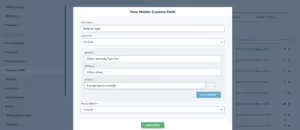
Now you’ll be able to select not only who referred the new PNC, but also which of these categories they fall into.Last but not least, if you also would like to track other attorneys that you may refer matters OUT to, we suggest setting up a custom field for this as well. This is completely optional, but is something that we recommend if you would like to view any statistics on this data down the road. That custom field will look something like this:
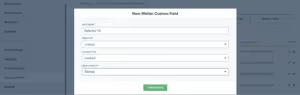
By making it a lookup type field, you will be able to select from any of those contacts that you have imported in from the spreadsheet example above (or any other contact in your CRM).All of these steps are setting you up to avoid the “garbage in, garbage out” debacle that can happen so often with CRMs. Take this a step further by reading onto the next section.
Populating Data in Your CRM
With referral tracking setup taken care of, refer to the following best practices when populating actual referral data into the CRM. There are several methods by which data can be entered, the first of which is the matter profile.
Matter Profile
Remember that Source and Campaign are both built-in fields in Lawmatics designed for data entry and we do not recommend making custom fields for tracking referrals except for the “type” and “referred TO” fields explained above. When you go to a matter’s profile, click on the “Details” tab to view all data fields for this matter, and then click “Edit” at the bottom right to populate or change any data. You will find both the Source and Campaign fields under the “Matter Information” section on the page. Note that once you select “Referrals” as the Marketing Source, the Campaign field label will update to display “Referrer” instead, as shown below.
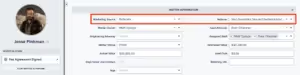
In the “Referrer” field, you will be able to select from any contacts in your CRM. Simply begin typing their name or email address and the contact will appear in the drop down. Remember the import we discussed earlier? Any of those referral partners that you imported in will be available to search for in this drop down list.The reason for populating this data via drop down list rather than having you type in the name is to normalize the data for future reporting purposes, avoiding any misspellings or name variations. You’ll be able to easily generate lists of which referrers brought in which matters along with any other data points, covered in the reporting section of this tutorial still to come.
Custom Forms
In addition to populating data directly in the matter profile, you can also capture this information in a custom form. This can be very useful if you use an internal intake form for leads calling in, a staff notes form, or really any other variation of an intake form for collecting initial information.The main thing to keep in mind when collecting this data via form is to once again make sure you are using the proper built-in fields. You will find the fields for Source and Campaign (remember, this field changes to Referrer when Referrals is selected as the source but it is still technically called Campaign) in the Standard Fields section in the form builder. Drag and drop the fields onto the form, as shown below.

If you are using an internal form for the intake process you may also wish to include the “Referred TO” or “Referral Type” custom fields that you created in the first section above. However, remember that lookup fields can only be used on internal forms, which applies to your “Referred TO” contact lookup field.
Automate the Referral Process
You now have everything in place to effectively track your referral data. Take your setup to the next level by adding automation to the process. There are many different ways that automation can be implemented into your referral tracking, here we will discuss a few suggestions from the Lawmaticians.
Thank the Referrer
One of the best and most simple ways to strengthen your referral relationship is to thank someone for sending a referral your way. Without Lawmatics it may seem tedious and labor-intensive to keep tabs on who referred each lead and to actually go about thanking the correct referral once the lead hires your firm. An automation can make this a quick and easy step in your process.In the example below you will see that we have created an automation that triggers when a lead changes to the Hired status, only if their source is Referral and a Referrer (Campaign) has been populated. We are then assigning a task to call and thank that referrer.
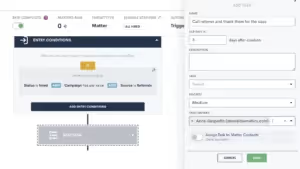
Depending on your process, you may find a different automation trigger or action item works better for you. Feel free to customize this so that it best suits your firm. However you decide to set it up, the small step of thanking this referral partner can greatly strengthen and solidify your relationship to that person.
Refer a Matter Out
If you commonly refer matters out to other law firms, you may like to set up an email template for sending the matter’s information to this partner. Begin by going to the Emails page under the Assets tab and create a new email.When creating this email template you will need to keep something in mind regarding field merge. This email template will either merge in the matter’s information or the recipient’s information, but it will not merge in both. Most commonly, you wish to have the matter’s name, phone number, email address, and any other pertinent information merged in as opposed to the referral partner’s information.To accomplish this, note how we have addressed the email Dear Friend as opposed to using the referral partner’s name, since the name merged in will be the matter’s name.
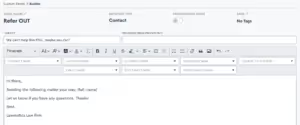
When you build this email template into an automation, it is crucial to make sure you select the email recipient, as well as the merge data from option accordingly. This is demonstrated in the example below.
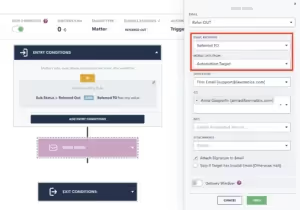
This tells the system to send the email to the contact selected in the Referred TO field, but any merge fields in the email will display the automation target (the matter)’s information.You will see that we have implemented a custom sub-status of Referred Out as the trigger for this automation. This is a great way to set up future reporting on how many leads were referred out of your firm and to whom they were referred.
Referral Reporting and Analytics
Lawmatics custom reporting puts you in the driver seat to slice and dice your data any way that will prove insightful for your firm. While there are infinite ways to customize a referral report, here we’ll walk through some of the basic steps.
Create a Custom Report
You’ll find the reporting feature under the Insights tab at the top of your page. Once you create your report, you will begin by adding columns and filters. Below you will find a sample report showing some columns and a filter that we would recommend for tracking marketing sources. Feel free to add any additional columns or remove any of these on your report as you see fit.
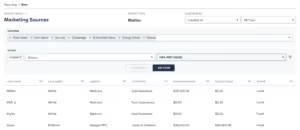
Filter the Report
Note that we have filtered this report if Source Has Any Value. This will show us our referrals in comparison to other marketing sources as well, if you wish to only see referrals on this report, simply select Source Is Equal To Referrals.
Add Grouping
If you do keep the filter that we have demonstrated in the image above, then we recommend grouping the report based on the source field. This will blanket your Referrals together, and show you the total number versus your other marketing sources.

Now we are seeing valuable information on our referral performance. First, we see that four matters came from referrals versus less for the other two sources shown. We also see the referrer Saul Goodman brought us two leads, where our other referrers only referred one each. Looks like it might be time to take Saul out to lunch and build that relationship.
Analytics Page
In addition to custom reporting, you can also utilize the Analytics page, also found under the insights tab, to gain insights into your referral performance. First, use the provided source stats graph to visually see where Referrals stack up against your other marketing sources.

When you scroll to the bottom of the Analytics page, you will also notice the Stats by Source section. Expand the campaigns on the Referrals source, as shown below, to see an abundance of data on each referral partner, including any money you have spent on that person as well as how much revenue they have brought in to your firm.
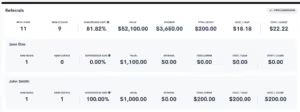
Whether you are customizing a report or taking advantage of our built-in graphs and calculations, Lawmatics has all the tools you need to make informed decisions on how to best manage and strengthen your referral partnerships.
Conclusion
While you may or may not enjoy networking, there is no doubt that it is an essential part of running a successful law firm. With these referral tracking tips Lawmatics helps you streamline this once-tedious and time consuming element of your practice.One key takeaway from this tutorial is the importance of creating a strong foundational setup for your referral tracking. If you aren’t populating data into the system correctly then you won’t end up reaping all the benefits. When you put good data into your CRM, you will come out with good insightful reporting on that data. Use these insights to determine where to invest further in your referral network.Like everything in Lawmatics, once you add automation to the referral process you will up your game to the next level by removing any need for manual labor. Not only will you save time, but you will also create stronger relationships with referral partners than you ever have before through the use of automated thank you’s and check-ins.Worry less about managing the business side of things, and create more space to think about your clients and practicing law. We’d love to hear how you use Lawmatics to track referrals and how it has helped build your relationships, email us at support@lawmatics.com to share!
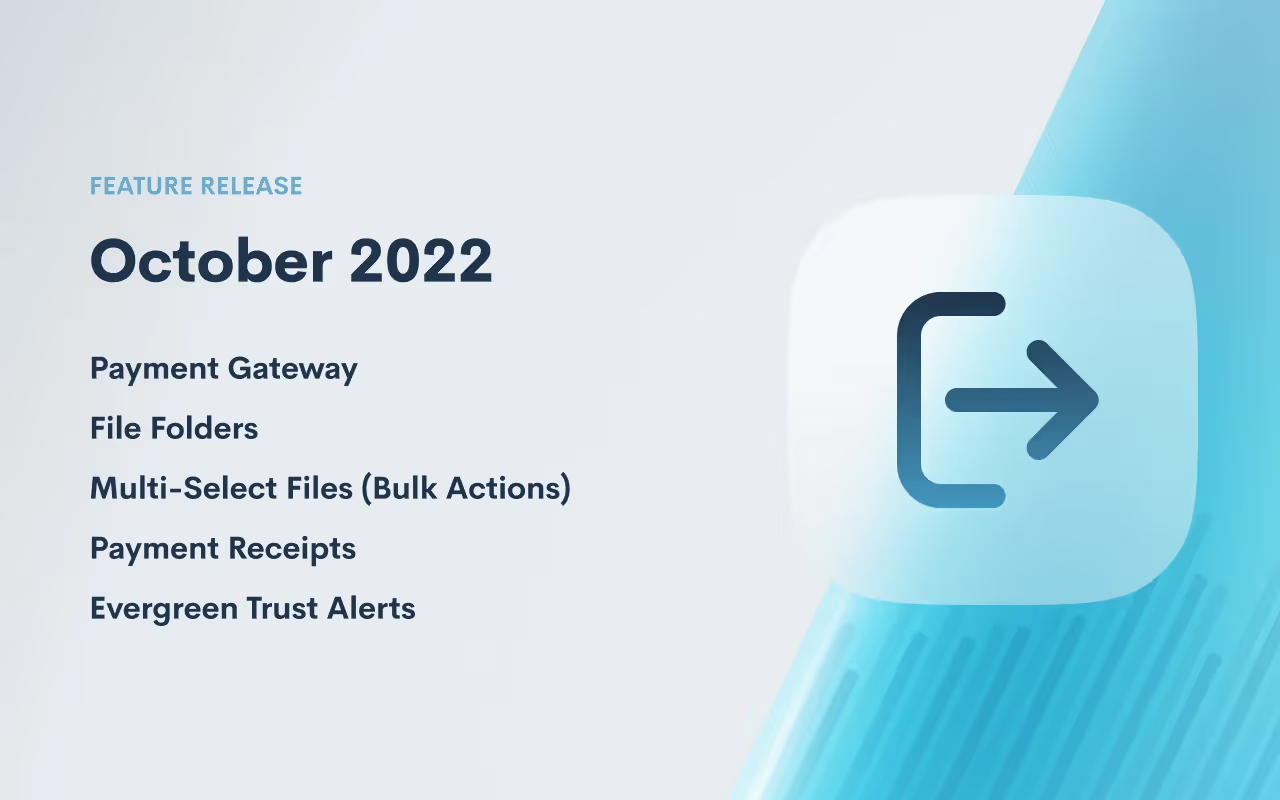
As we find ourselves in the midst of sweater weather and pumpkin spice season, Lawmatics has another new round of feature releases that we hope kicks off your autumn season with a loud and celebratory bang.
Payment Gateway
Collecting payment for consultation fees just got a whole lot easier with the addition of the LMPay Gateway in custom forms and booking forms. Add this advanced field to your consultation forms to make it easy for clients to schedule an appointment and pay for a consultation in one fell swoop.
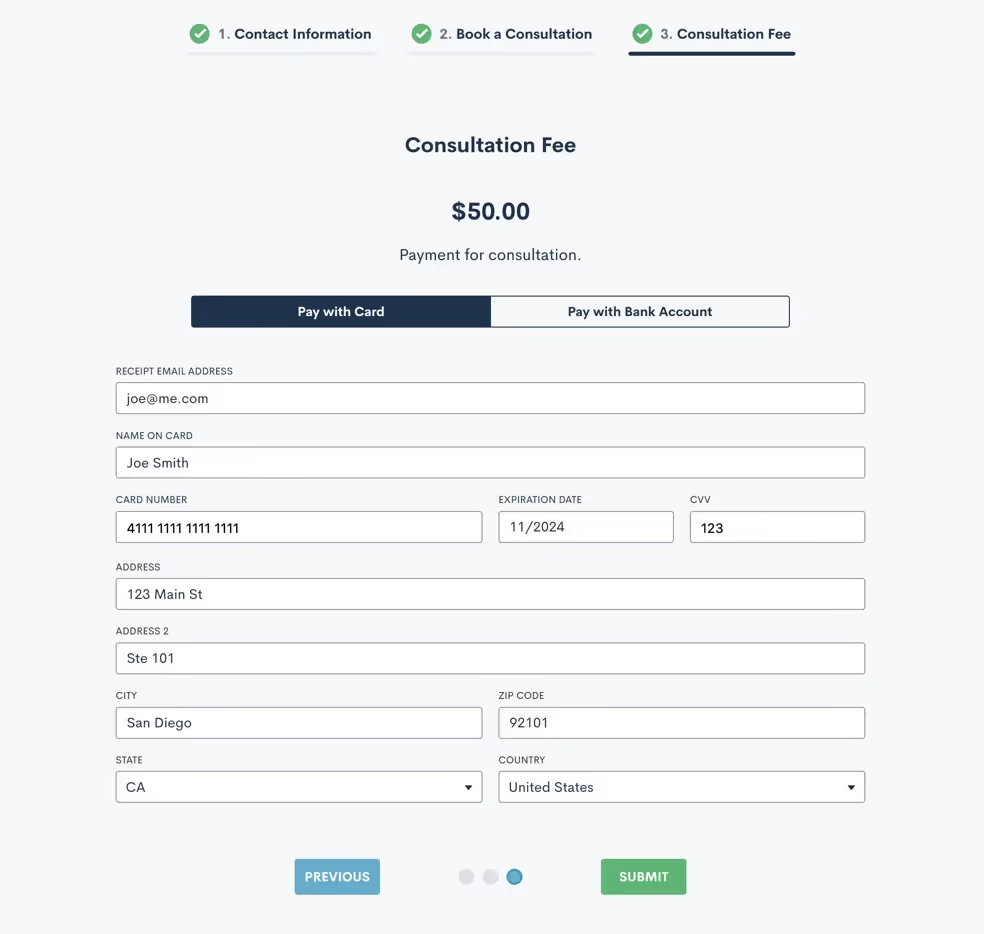
To start using this feature, email us at support@lawmatics.com and request LMPay activation.
File Folders
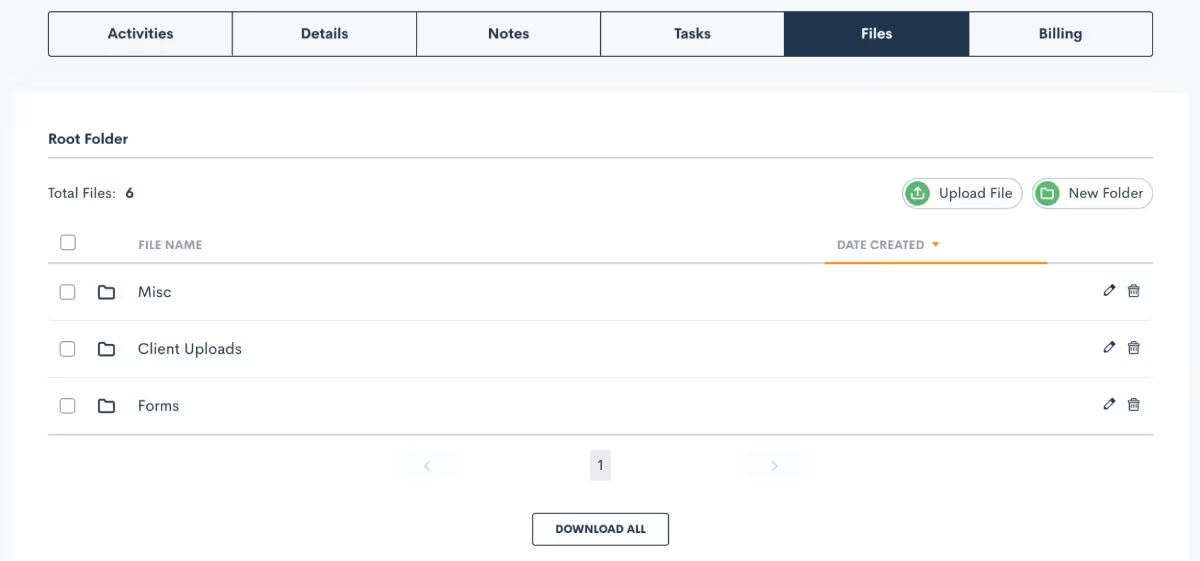
Lawmatics is a great tool for securely storing important files and documents from your firm’s many matters. With this huge improvement to our file storage system you can now create custom folders within a matter’s files tab and move files between folders as needed.Click here to learn more about using file folders.
Multi-Select Files (Bulk Actions)
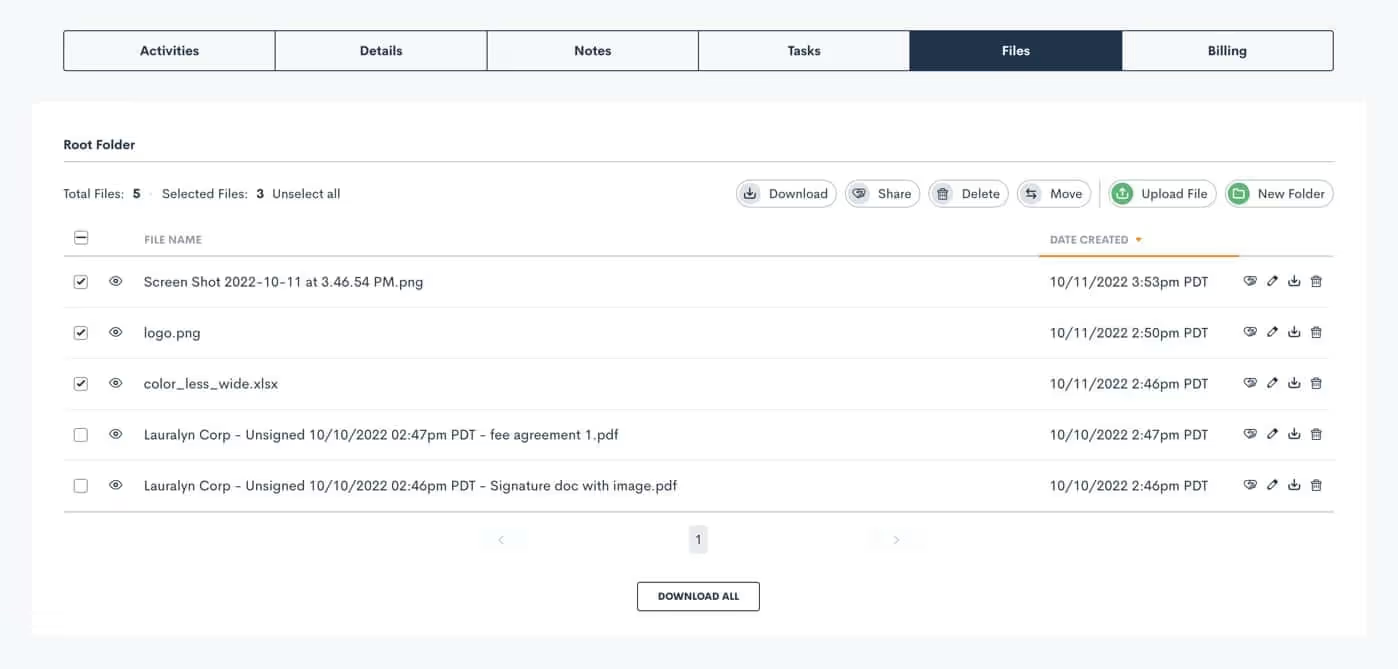
In addition to creating folders for your matter files, you can now bulk select files with the option to download or delete multiple files at once, saving you the time of managing files one by one. It’s easy. Simply select the box adjacent to the file name and click on the action of your choice.For additional information on our file request feature, click here.
Payment Receipts
We are thrilled to share yet another feature addition to LM Pay: Automatic Payment Receipts. Create custom receipt email templates for each type of invoice, such as consultation fee vs. retainer fee, and then select whether or not you would like to include the official receipt as a PDF attachment (sample shown below). Once you have created a receipt template for any particular invoice type, said receipt will automatically be delivered upon successful payment. This is yet another way of delighting your clients every step of the way, sans any heavy lifting.

To learn more about creating custom receipt templates, click here.
Evergreen Trust Alerts

With our time and billing features you can use Lawmatics to manage your firm's trust account (IOLTA). Our new Evergreen Trust Alerts give you the option to set a minimum trust balance notification, making it easy to take action when a matter’s trust balance dips below the minimum you have specified . To use this feature, turn on the toggle on the ‘Minimum Trust Balance Alert’, as shown above, and then click the edit pencil on the far right to set the minimum balance for a particular matter.Read up on Trust Accounting in Lawmatics here.—Thanks for checking out the latest features from the Lawmaticians. We hope you enjoy these cozy days of fall, and stay tuned for more exciting releases to come!
Lawmatics CEO Matt Spiegel joined Adriana Linares on the podcast New Solo. They discussed the purpose of a CRM (client relationship management) software and why client relationships matter, even after a matter has concluded. Here are some highlights:
Why do I need a CRM for my law firm?
In any kind of consumer-driven law, from family law to personal injury, your client’s matter is likely the single most important thing going on in their life. With a client relationship management software, your firm can make each client feel like they have your full attention.Whether you’re a large or solo firm, relationships matter. A previous client might return with new business or refer a new client, so continue communication after their matter has concluded. Consider sending a newsletter or even personalized birthday cards to keep in touch. A CRM brings clients within reach and keeps them there.With a CRM like Lawmatics, you can create an intake process customized to your firm and practice area. Automations enable you to engage new leads immediately after they reach out — whether you’re in court, bed, or the Bahamas. Track and bill your time, send documents, analyze your marketing results, and free up valuable time. No matter your firm size, a CRM is critical to increasing bandwidth.
What’s the difference between a CRM and case management software?
A CRM and case management software are not necessarily the same thing. The difference lies in the specific features a software offers.Practice management primarily focuses on features like time & billing and document management. These tools are cornerstones of the work that goes into managing an active case. A CRM has tools needed to manage a client regardless of the status of their matter or how many matters they have. It focuses on features like client communication, emails, forms, and marketing.To put it simply, practice management tools help you practice law; a CRM helps you run the business. If no one software has every feature you want, research what softwares or platforms integrate to create a seamless solution for your firm.
What should my law firm’s intake process look like?
Any law firm’s client intake process should be easily repeatable and consistent. It should also plan for contingencies.What if a new lead contacts your firm but doesn’t follow through with scheduling a consultation? What if they ghost your firm after their consultation? Not every new client will have a perfectly linear intake path, so your firm’s intake process should anticipate different branches of a client’s journey. Identify the spots where a lead might fall through the cracks, and make a plan to re-engage them.
Takeaways
Running a law firm is a lot of work. Between working active cases, consulting potential new clients, organizing marketing efforts, and taking care of administrative business, a modern law firm isn’t built to run manually. As much as possible, get your CRM or case management software to do your work for you. Automations can not only make your intake process more efficient and consistent, they give your firm the bandwidth it needs to anticipate and respond to any contingency.If you’re evaluating your firm’s processes around client relationship management, ask yourself three questions: is my intake process consistent? Have I planned for contingencies? Is this as efficient as possible? If you answer ‘no’ to any of these questions, then it’s probably time to look for a CRM.
Podcast transcript
Adriana Linares
Hi everyone, it's time for another episode of New Solo on the Legal Talk Network. My name is Adriana Linares, I'm your hostess, I hope with the mostest, thanks for joining me today. We are going to have another round of wine questions with my guests today.If you have listened to our last episode, I was having a little bit of fun because I've been taking a professional wine course in New Orleans. I want everybody to know I graduated top of my class. I'm going to quiz my guest today. Matt Spiegel. Hi Matt.
Matt Spiegel
Hi Adriana. How are you?
Adriana Linares
I'm great. What do you do. Where do you work? I'm kidding.
Matt Spiegel
What do I do? I don't know anymore.
Adriana Linares
No, I think you do. Let me help. So everyone, Matt Spiegel is a name that might be familiar to you. If it's not, you are certainly familiar with products of the past and products of the current that Matt has developed.He's a legal technology expert. He's a lawyer as well. You were the original founder of MyCase. You grew up that baby, you let it leave the house and you created a new baby called Lawmatics, and I want to thank you so much for becoming a new sponsor of New Solo.
Matt Spiegel
Yes, thank you. So we're very happy about that. I feel like that was a long time coming for us and we're very fortunate enough to be in a position to be able to do that, which I like. And yes, I did. I am the original founder of MyCase. I did grow it up and then let it leave the house and then go from house to house, to house to house.
Adriana Linares
It's still couch surfing. We don't know if it's found a permanent home yet, but it's still couch surfing.
Matt Spiegel
Exactly right. It really took after me in college, just like trying to find places to live.
Adriana Linares
Well you must be very proud of that baby because it has certainly gone off grown up and become a very successful product out there. And I know we have lots of listeners that use MyCase and they have you to thank for it. I like MyCase a lot. So Lawmatics though is not necessarily new anymore, but I think you should definitely tell everybody what Lawmatics does and the things they can use it with.
Matt Spiegel
So we just technically celebrated our five year birthday.
Adriana Linares
I was guessing five years, mentally.
Matt Spiegel
And it's weird, right? Because I think it doesn't feel like five years and obviously the whole pandemic thing just fast forwarded time, and has definitely created this wonky sense of the past.So it doesn't feel like five years, but I go back and I think about it and it's just been a lot, and we've built this massive product and what it's become, it's definitely exciting to me.I had no idea what we were going to really build when we started to build it. And so to see what it's become now is pretty exciting and I'm pretty happy with where we're at. Although, and again, while it does feel it's been a long time and five years feels like a long time, it also feels like we're just getting started. So I think that's why there's definitely a bit of a dichotomy there.
Adriana Linares
Are we still calling it a CRM or have you grown it to a point where it's beyond a CRM, it's like a platform?
Matt Spiegel
We refer to it as a platform, but like-
Adriana Linares
Okay.
Matt Spiegel
... I mean Salesforce is a platform and Salesforce is a CRM. I think we still have this problem where people don't know what a CRM is or-
Adriana Linares
Yes, and that's where I was going. Please tell us.
Matt Spiegel
If you look at the definition of what a CRM stands for, is like customer relationship manager, right? Management.
Adriana Linares
Client.
Matt Spiegel
Client, customer, whatever you want to call it, right? It's a relationship management tool. Well to me, everything that you do for your business, when it comes to your clients, is part of managing that relationship. So obviously, nurturing that relationship through intake process, that is part of the relationship management. Nurturing them after their case is over with newsletters and trip campaigns, that's obviously-
Adriana Linares
Staying connected, top of mind.
Matt Spiegel
Same thing. That is very much relationship management. But there are a lot of other things that are relationship management too. You could argue that helping them manage their case, whether maybe even billing them, to getting paid, managing their documents, that's part relationship management as well. So to me, I view CRM as all encompassing, is pretty much everything. Anything that you really need to manage your business. If your business deals with customers or clients.
Adriana Linares
And I should say, just to give you more credibility than you already have, you practiced law for a long time. Well, not that long because you're not that old.
Matt Spiegel
Five years. Five years.
Adriana Linares
You practiced law. So you came from the background of understanding what it's like to run a law firm from the backend, not necessarily just the practical side. So you've got experience running a law firm, you started a practice management system and now we've got Lawmatics that's a CRM.I think a year or two ago, someone asked me for a newsletter or magazine something, "What do you think is going to be the biggest trend of..." It was either 2020 or 2021? May have even been 2022 when they asked me and I said, "Well, it's probably CRM." Because I talked to so many lawyers that what I get asked about repeatedly today, isn't the cloud anymore? Woo, we're over that. We're on the cloud, we believe in the cloud, we got there.The two hottest things that I hear about right now, are attorneys asking me about, client relationship managers and document assembly, which back to your point is if you can start the relationship with a client where you're gathering data, gathering information digitally in something like an intake system, a CRM, and then you're able to push that data digitally from the intake form all the way to the final bill that you're sending out, then you're managing your client relationship and using technology to make it smooth and seamless.So as far as Lawmatics goes, because I do always like to talk about pricing and people are going to wonder, and you're a sponsor, so we're going to say, "Go to Lawmatics and check them out." Tell us about pricing a little bit when it comes to Lawmatics.
Matt Spiegel
So pricing is pretty straightforward. We're kind of like anything else in the market where it's generally going to be based off of the number of users that you have in the platform.I'm a big believer in playing around with pricing, but I'm also a big believer in value pricing. And what that means is really you want to price your product off of the things that deliver, the perceived value that your customer looks at. And what I mean by that is, a law firm tends to think about how successful they are by the number of people they have.And that's not necessarily the best measure, but tends to be the way it is. It's not necessarily how many cases they have, it's really more how many people do they have. So because they look at people as a big measure of how well they're doing and how big their law firm is, then we base our pricing off of that.That's what I mean by value based pricing. And so we continue that trend. We've experimented in the past with doing pricing based off of the number of cases that you have. And again, we just, lawyers didn't necessarily attribute the same value to that and it was difficult.
Adriana Linares
Oh that's interesting.
Matt Spiegel
So we charge like 250 bucks basically per month. And that comes with three users and a bunch of other great stuff. And then if you need to add users on beyond that, it's just as user pricing.And then we have another tier when you get to 10 users, that changes the pricing a little bit as we do serve everywhere from the solo law firm all the way up to firms with, we have a firm with 500 lawyers, so we really run the gamut there, which is also something that's pretty unique about what we do, is that we serve segment to the market that not a lot of other products can span across. And so yeah, that's kind of how our pricing is structured. We have little add-ons here and there, but generally speaking it's the user based pricing.
Adriana Linares
That's the starting point. And so at $250 a month, is that whether you're one or three people?
Matt Spiegel
Yeah. If you're one, you're paying $247, if you're three, you're paying $247, after that, you pay more. And what we find is there are very few true solos out there. Even if you are true solo, I can promise you, you spend 240... In fact, the true solos probably save more money using Lawmatics than the people who have three or four lawyers.
Adriana Linares
I cannot have conversations today where somebody says to me, "$67 a month, that's really expensive," or $250 because I want to say, "We should have had this conversation 15 years ago," because my number would not have been in the double or even the low triple digits.We would've been having a conversation in the thousands of dollars about the server and the software and the maintenance and the upkeep that you would need.So when something sounds expensive to you attorneys, I want you to think about one billable hour a month that you would pay equivalent to a product like this and what it would save you in time and energy and duplication and reducing risk in making mistakes, because the more tech savvy and digital you are, the less mistakes you can possibly make. I won't say you won't make.So I think that's very reasonable, especially what CRMs can do. Before we break off, move on to our next segment where I want to ask you to teach us a little bit more about CRMs and what to look for and a little more open... Not necessarily about Lawmatics, but if you're shopping for a CRM, here's what you're looking for. That's what I want to ask you about next. But before I do that, I have a quiz question for you, Matt. You told me you were a wine guy.
Matt Spiegel
I love wine, but I did something very strategic, which is I became a wine guy and then found friends who were really rich and really like wine. And that's the best place to be.
Adriana Linares
You're a baller man. I just want to grow up and be Matt Spiegel and get to go golfing-
Matt Spiegel
No, you just want to go. Yeah, I'm telling you the key is to just make friends with people who spend a lot of money on wine.
Adriana Linares
Yeah. Because I don't ever see myself paying $300. I'd rather buy myself a little Hermes bracelet than a bottle of wine. So you're right, I need those friends. And listeners, if you are that friend, let me know. I'll come-
Matt Spiegel
Hit you up.
Adriana Linares
... Hit me up. Okay. Matt, a Roaja, R-O-A-J-A is, multiple choice: a method of making sherry, a wine from Spain, a rust colored wine or a grape type?
Matt Spiegel
So I do actually notice, I know it's a wine from Spain because when I was 16, I spent a summer in Spain and you can drink at 16. Insane.
Adriana Linares
So civilized.
Matt Spiegel
Yeah,
Adriana Linares
We'll be right back. We're going to listen to some messages from some sponsors.
Joshua Linen
Here's a fact. When it comes to sharing documents with lawyers, clients prefer online options. I'm Joshua Linen, lawyer and resident at Clio. And this is just one finding from our recent legal trends report.It's not surprising that at least 62% of law firms support electronic documents and esignatures today because that's what clients want. Our data shows that email, secure client portals and online file sharing all outran physical mail in terms of how clients want to receive and share documents.Today's services reduce the time it takes to get a simple signature from days to seconds, making it more convenient for you and your clients to work together.For more on how today's clients prefer to work with their lawyer, download Clio's Legal Trends report for free at clio.com/trends. That's Clio spelled C-L-I-O.com/trends.
Adriana Linares
All right, we're back. In our first segment, I wanted to ask you about Lawmatics. I want people to... If they haven't thought about getting a CRM, I want to help them understand what a CRM will help them with insofar as managing their practice.And look, I could talk about this all day, but I've got the actual expert in front of me. So when somebody says, "What do I need a CRM for? I'm just a solo practitioner, or we're a small firm, five people, we don't need to spend money on a CRM. I got a person that does that." What is your answer and your response to that? Encourage people to look into CRMs.
Matt Spiegel
Well, I usually have some questions for them and it's pretty simple, right? Well first of all, it's asking, "Do you know what is the average percentage of business for law firms that come from referral?" Or I'll just straight up ask them, I'll say, "Okay, that's great. Where does most of your business come from?"And they're going to say, referrals.
Adriana Linares
Of course.
Matt Spiegel
It's 75% of law firm business comes from referrals, generally across the board. And so then I say, "Okay, awesome. This means that all your former clients are important to the success of your law firm."So then I say, "Great, do you have 500 former clients?" Most of them say, "Oh, I've got a lot more than that." I say, "Awesome, what are you doing every year on their birthday?" And they say, "What do you mean?"
Adriana Linares
Nothing?
Matt Spiegel
Well, are you sending them a card? Are you sending them an email? They're like, "No, how would we-"
Adriana Linares
Text message?
Matt Spiegel
"Yeah, we have 1500 clients. How are we going to inform our clients? How are we going to send them all a message on their birthday?" And then I say, "Well, first of all, how are you going to generate referral business?" You ushered these clients through the most important thing in their life.Because most law firms, most consumer law firms, whatever that client is going through, is the most important thing that is happening in their life at that time. So whether you like it or not, you are an integral part of their life, at least for a period of time.And so you want them to refer business to you, you want them to have a good experience. I think at least acknowledging their birthday, maybe sending them an email would be the right thing to do. You can't do that without a CRM. It's impossible.The reason why you don't do it, is not because you don't want to do it, it's because you don't have the bandwidth to do it. You don't have the capability to go checking a calendar every single day of the year and then filling out a card and putting it in the mail.So you need a system to help you do that. So that's, I think a very top level example of how I would respond to that question. But I think it's really just holistically, it's helping lawyers understand and get them to think a little differently in the sense that, forget about this as a law firm and think about this as a business.You're a business that provides a product. Your product is legal services. But as a business that provides a product, customer service is the most important thing. I don't care about the outcome. I really don't.I think that you could be the best lawyer in the world and have an unsuccessful practice because you provide terrible customer service. So people are going to like, "Yeah, I got a good outcome." But all they're going to think about is how you are just a total ass hole. And the flip side is true too. You could be a mediocre lawyer, maybe even a bad lawyer, but you could provide an amazing customer experience and you're going to be very successful.
Adriana Linares
And let me put a positive spin on this, which is you could actually lose the case, but if you established a good relationship with your client, and they saw how hard you worked and every effort you made and they were part of that process with you, they're probably going to... Of course we might be disappointed in the outcome, but you still may have done a good job and they would recognize that and still refer you business.I mean, I can't think of a bigger compliment that attorney could get, which is, "we lost my case, but he's still a great attorney and I would still hire her." And I think that CRM, that client relationship managing part is critical, especially when that happens. Not if or when, but if you happen to lose a case, which happens every case, somebody's got to win and somebody's got to lose, if you're nurturing and managing that relationship in a way where they understand how hard you worked, how hard your team worked, you're going to win.
Joshua Linen
Yeah, I agree with you completely. And I think lawyers lose sight of that. They think that, "Oh, I'm just a lawyer, I'm just going to represent them and they're going to be happy." They don't think about the customer service side of it. To me having a CRM, it doesn't necessarily solve all the problems. It doesn't necessarily mean that now you're just going to provide good service. I don't want anybody to think that. But what it does say is that it's a priority to you.
Adriana Linares
A lot of attorneys lose sleep at night wondering where a case is in the process or did I remember to, where are we in the workflow? A lot of the management of, and a lot of that can be done through a case management system. So help us understand the difference or if there isn't one or the integrations with, if you've got a case management system, do you automatically have a CRM? If you have a CRM, do you automatically have a case management system?
Matt Spiegel
So I would say, if you have a practice management system, you do not automatically have a CRM.
Adriana Linares
I agree.
Matt Spiegel
And I would say that if you have a CRM, you don't necessarily also have a practice management system, I think that that depends on the product. But I think if we look at the traditional definition of what these platforms are, I would look at practice management... And I know that practice management tends to focus on a couple things; it's time and billing and it's document management. Those are the two big things that kind of go into managing a case. Managing inactive case.And I look at it as practice management are tin theory are the things that maybe should help you practice law better or do your job of lawyering better. And some of those things that we traditionally think as being practice management actually falls more in line with being a CRM.So it's just that I think the terminology in the legal space is a little out of whack. We're not going to change that necessarily, it's been kind of the case for a long time. When people think practice management, they think of something very specific. But I think that what practice management should be are tools that help you practice law and CRM are tools that help you run the business.
Adriana Linares
So let me see if I can help because this is the way I look at it. If you don't mind my injecting the way I think about it, which is, there's the beginning kind of how a case starts, how you gather the information, how you engage, and then once you've got past a conflict check and now they've signed the engagement letter and you've got a client, you have to have a way to manage dates, deadlines, details, parties, tasks, notes and documents.To me, you are now managing the case, managing the matter and you might have one client with six matters. And that's what your case management system helps you do. Your CRM helps you manage that client regardless of where they are in the process and no matter how many matters they have.And then to me, I have to say this because it's just me. I don't think you get good document management in every case management system. So a lot of times when I'm helping a law firm start, that's one of the first things we decide, do you need net documents? Because OneDrive isn't going to cut it, Clio Drive isn't going to cut it, Box isn't going to cut it. So to me, document management isn't always part of a case management system. So a lot of times I think law firms need three systems. The thing is they have to talk to each other.
Matt Spiegel
I don't disagree with you at all. I think that document management specifically is one that probably falls a little bit outside the traditional purview of a CRM.
Adriana Linares
Especially with emails now.
Matt Spiegel
But emails to me very much falls within CRM. Because anything that is communicative, is important to be kind of tracked and managed in your CRM. Documents can kind of go either way.So I think a good CRM will have some level of document management available, but it shouldn't necessarily be what you would be used to seeing in something like NetDocs. You should be able to tie a CRM in.Like if you look at Salesforce, Salesforce is the epitome of a CRM. It's the biggest. Most law firms are not going to use Salesforce, it would be insane. But as a tech company, we're going to use Salesforce.I don't think ever managed a document in Salesforce, ever. That's just not what it's designed for. It would have a great plugin to do that or another company that it would tie into, but it's not designed to do that. It's not really part of the relationship with the client himself. Now you may take documents from some other product and share them with the client through your CRM, that's something that the CRM would handle because again, that's communicative. But the document management itself is probably an external tool.
Adriana Linares
Yeah, it can be. Before we take another quick break, let me ask you another question, Matt Spiegel. True or false? A super Tuscan is another name for a magnum.
Matt Spiegel
False.
Adriana Linares
Super false.
Matt Spiegel
Magnum is just a giant amazing bottle of wine.
Adriana Linares
Two in one.
Matt Spiegel
Who doesn't want a giant Magnum?
Adriana Linares
I wish I had my cheat sheet in front of me, but when we were learning about wine sizes in wine school, there's your standard 750 liters bottle that we all can imagine that a magnum is two of those and then they get bigger and they all have these great biblical names. The Nebuchadnezzar, the Methusa. So it's kind of fun and funny. Good job. That's two out of three for you.
Matt Spiegel
I love this question though because you're like, I love the creativity there. You're like super Tuscan. Someone might think that this is a Tuscan wine just supersized and that's how they call them giant, it's just super.
Adriana Linares
That is a good question. And just real quick, a super Tuscan is a wine from Tuscany that breaks their laws and rules and blends in other grapes other than the sangiovese grapes. So the winemakers got aggravated with all the rules and the laws that these governing bodies of Tuscany were saying you can and can't do with wines.So they're like, "Screw you, we're going to make something new and it's going to be called Super Tuscan."
Matt Spiegel
I love it.
Adriana Linares
I do too. We like rule breakers around here. We'll be right back. We're going to listen to some messages from some sponsors.Bill for lawyers notice cloud-based business banking is ideal for running a solo or a small law firm. Notice audit ready IOLTA accounts save you time. Reconcile down to the penny with their three way reconciliation report. Assign all money in and out of your IOLTA to a specific client matter.You can even print checks right from your desk. Business checking trust accounts and great service. Visit trustnota.com/legal. Nota, banking built for law firms like yours. Terms and conditions may apply.LAWCLERK is where attorneys go to hire freelance lawyers. Whether you need a research memo or a complicated appellate brief, our network of freelance lawyers have every level of experience and expertise.Signing up is free and there are no monthly fees. Only pay the flat fee price you said. Use rebate code New Solo to get a hundred dollars Amazon gift card when you complete your next project. Learn more @lawclerk.legal.All right, I'm back with Matt Spiegel and I want to talk about intake, Matt, because do you think that Lawmatics starts with intake? Like CRMs start with the intake process. You've got to have someone that you're communicating with in order to push them through the flow. I feel like a lot of attorneys, and I think this is the type of thing you don't learn in law school and you just figure it out later. Well, I've got to have an intake system, what does that mean and how do I create a good one?
Matt Spiegel
So an intake system to me is really, it's something that every client will go through, so it's something repetitive. I guess every law firm probably has a process even if you don't think that you do-
Adriana Linares
mm-hmm . Or if it's bad.
Matt Spiegel
Or if it's bad.
Adriana Linares
You might have one, but it's probably bad.
Matt Spiegel
But basically it's like, "Okay, when a new lead comes in, I do this and then if they do this, I do that. And if they do this, I do something else." And it's understanding all the different ways that people can go with whatever your process is. And everybody could be a little bit different.I think a good example of an intake process and probably a pretty standard one out there is, somebody calls your law firm or they come to your website and they raise their hand, they're like, "I want to learn more about your firm, or I need a lawyer." And the next step is, "Okay, well let's talk." So you just schedule a consultation. I think that's the typical process is lead comes in, let's get them scheduled for a consultation, and then maybe before they come in for that consultation, you want to capture some information from them so that you can review it before meeting with them.That's a process, that's an intake process that is Lead comes into my website, fills out a form, they get a link to book a consultation with me, after they book the consultation, I send them a confirmation email, after that, like a day or a couple hours before, I send them another form to fill out so I can learn about their case before they come in and talk to me. That's a process.Now, what can happen with that process is it can go a number of different ways. What if that lead comes in and they don't book an appointment? Well, now I need a process for that. I need a process to get that person re-engaged, get them to book a consultation with me. So you have different branches that can go in different directions and those branches could then get someone to come back to the main process or they could kind of spin off down some other processes that you have.But a good intake process will understand the perfect linear journey that a client will go through. And it will account for all of the different spots in that linear journey that somebody can fall through, like all the cracks that somebody can fall through, and it will have processes there designed to catch them.
Adriana Linares
And it will be automated and not require a lot of humans. Can we talk about that too?
Matt Spiegel
Sure.
Adriana Linares
So the thing is, when you have that sort of question and answer tree, "Did the lead come in? Yes. Where did they come from? Website. If website, then this. If they walked in the door, then this. If referred by a client, by a old client or best referral that we've got, then this."That should be spelled out in through a CRM so that if you hire somebody brand new, they're not sitting there figuring out which branch to take this lead through, the system helps them do it, or it helps you do it when we are busy and you don't want to have to figure it out or remember.
Matt Spiegel
So I think repetition is really important and building a process, being able to repeat it the same way. I read a book when I started my law firm called The E-Myth.
Adriana Linares
The Attorney E-Myth or did you do E-Myth or did you read The Attorney E-Myth ?
Matt Spiegel
I just read E-Myth.
Adriana Linares
Oh, find The Attorney E-Myth, it's really interesting. But go, go. I got it. I love E-Myth.
Matt Spiegel
Yeah, with me. And so the whole idea of that book is like, it's like how to build a franchise, how to build this business that is just repeatable. Every experience is the same. And I took this very literally, and I remember at my firm, I was like, "Okay, you know what? Every lawyer, every person that comes in for a consultation is going to get a folder. They're going to get the same folder, it's going to have my logo on it's going to have my business card in the same place. It's going to have this on the right side, it's going to have this on the left side."And I would just do it every time. It's this repeatable process, it's a habit. And that's important to building a good process. Now the thing is, if you keep that manual, you're not going to do it. It's not going to be the same every time you're going to skew. The only way to keep it very repeatable and to keep it the same every single time is to have it automated. Not to mention that it saves you an incredible amount of time.
Adriana Linares
And resources.
Matt Spiegel
But if you automate it, everything is the same. And when everything is the same, you can measure and you can experiment. You have relevant data that you can go off of to determine whether something is working or not. If you're doing something a little different every single time, then you have no idea what's working and what's not.
Adriana Linares
I feel like every small business owner, especially me, has gone through that with my website, with newsletters... I never knew what worked. Everything kind of worked and I survived. So I just kept doing random things and never had a process until I had... I actually use a CRM called Vcita that I really like. So yeah, so I think that makes a lot of sense. But someone has to also, you can't take advantage of a tool that you're paying a lot of money, for if you don't sit down and actually create those systems and those processes.
Matt Spiegel
So you got to sit down and write them out.
Adriana Linares
Write them out, and then you put them into the system, which isn't hard these days. All the little robots are so hard.
Matt Spiegel
No, it's super easy. But also my recommendation too, you can take it so far and you can get up to a certain point, but the company, like Lawmatics is a good example and a lot of other software companies are the same way. But we know what we're doing. We work with thousands and thousands of attorneys. We see what works, we see what doesn't, and we will help you. You can take your processes a certain... Get it most of the way there and then we can help you understand some best practices and just push it over the goal line, or maybe think about something in a way that you haven't thought about it before, which could be really helpful.
Adriana Linares
One of the things I want to make sure I say out loud to listeners is if you intake form is in Microsoft Word, or if it's a PDF file, that's really nice and it's fillable form unless you can export that data into a system, you are putting the information that you're initially collecting from a client to what I call, "Data prison."And a CRM is designed so that let's say someone lands on your website, they fill out a form, they answer a couple of questions, that data gets put into the CRM, the CRM notifies you that a new lead came in, then... I don't know how automated this part gets, but is the next step automatically to create the opportunity for an appointment or is the next step that they have to answer a few more questions?Or is the next step that you send them another document through the CRM in a format that can capture the data and be used so that if they do become a client? You move them from the potential client file into the existing client file and all that data moves with them.Your goal in building your law firm, should be that data only gets entered one time ever somewhere. And then from that point forward, it just flows through the process of working the case, closing the case.When they come back, the information that's relevant to their second matter or their third matter is still in there, you don't have to ask them again, you don't have to repeat that. You're just looking for the new information.So I hope this encourages everyone to look at CRMs if you haven't, to consider getting one. And then Matt, tell us real quick, are they standalone, do they integrate? What am I looking for if I'm looking for a CRM for the first time?
Matt Spiegel
So there are definitely CRMs that you could get away with standalone and maybe not need any other piece of software. But to me, my recommendation is, a good CRM will be very, very good at what it does, which is CRM. And then it will leave some of the other stuff to other platforms, whether it's integrating with Clio, in MyCase, PracticePanther, Filevine, Smokeball, Rocket Matter, whatever.So a good system will integrate with those. And a lot of other things. You might want an integration with Google AdWords because you're spending a lot of money on marketing. You might want an integration with CallRail, because you're doing call tracking. So firms that are a little bit more sophisticated when it comes to marketing and tracking, which I think all firms should be, but that's a different story-
Adriana Linares
I agree.
Matt Spiegel
... for a different day. But a CRM is going to help you track all of your marketing efforts. That's a big part of what a CRM will do. A good CRM.
Adriana Linares
If listeners have been listening to this for a while, especially toward the end of the year, here's a reason you want a CRM. If there's nothing else that convinces you holiday mailing cards.
Matt Spiegel
Totally.
Adriana Linares
So if I could solve one problem for every law firm on this planet, whether it's one or 1000, whether they are in Greece or in Boise, Idaho, it's figuring out who gets one, not three from every attorney in the firm, a holiday mailing card.In the old days, we would print out and then pass around and everybody would put their initials next to which client they wanted their card for and stuff. It's so much easier today guys, stop working so hard and so manually find technology that helps, that makes your life easier, that helps you run your practice easier. Matt, I've had you here a long time. I'm going to ask you one more question.
Matt Spiegel
Yeah. Let's see if I can go three for three.
Adriana Linares
What is a Cremant month? This is cremant and the E has a little dash over the top.
Matt Spiegel
Oh, now I know.
Adriana Linares
A type of Sherry, A. B, a type of sparkling wine. C, a method of filtering wine or D, none of the above.
Matt Spiegel
So I really don't know, but it just sounds to me like it's something sparkling, probably because I don't know what it is and I'm not a big sparkling guy. That would be my guess.
Adriana Linares
Well you did a good deductive reasoning because Cremant sounds French, and a type of sherry is Spanish wine. And they said, What is a cremant? Which means it's probably not a method of filtering wine and it's never none of the above. So you got it exactly right, a french sparkling wine that did not come from the champagne region is known as a cremant.
Matt Spiegel
Have you ever had a cremant?
Adriana Linares
I have. Sure.
Matt Spiegel
Is it delicious?
Adriana Linares
They are.
Matt Spiegel
Okay, I'll have to try one.
Adriana Linares
Yeah, and they're obviously all very different, whether you like them dry or sweet and they're great. But yeah, I've been trying a lot of wines. Again, remember I'm trying to become a big girl with my wines.
Matt Spiegel
Yeah, you should. I like that.
Adriana Linares
Matt, I appreciate you coming on so much and thank you for becoming a sponsor of New Solo. I hope everybody goes out, takes a look, signs up for a demo, learns more about Lawmatics. Tell them where they can find, friend, follow you and do those very things.
Matt Spiegel
Yes.
Adriana Linares
How do they get in to your CRM?
Matt Spiegel
I appreciate you Adriana, always. And you can just come check us out lawmatics.com. Also, I'm always available. I love when lawyers, if they just have random questions, business related, customer service related, just anything.It's really cool sometimes, I'll just hear from random lawyers being like, "Hey, just curious, what are your thoughts on this?" Just email me matt@lawmatics.com. I'm super responsive and I love getting messages.
Adriana Linares
You are very generous with your time. I have sent you people in the past where I've been like, "I have no idea. This is such a great question for Matt Spiegel. Can I introduce you to him?" You say that and you mean it.So yeah, everyone, if you have some questions, please reach out to Matt. Thank you so much for listening to another episode of New Solo. If you have liked what you've heard today, please think about giving us a five star review. But honestly, you know what I'd rather you do, I'd rather you forward New Solo to another attorney who you think would be able to learn from it.I get a lot of nice compliments about New Solo. It's not about me, it's about my guests and all the information that they bring. So if you think another attorney could benefit from what we talk about here, share the show with them. Thanks so much, Matt. I will see you soon and everyone else see you in the next episode of New Solo.
1 Understand your law firm as a business
You didn’t go to law school to learn how to run a business. But at the end of the day, you provide a service to customers. If you understand your firm as a business — and look for ways to improve your operations as a business — you’re setting up your firm for success. In turn, you’re putting yourself in a better position to set clients up for success.Communication is at the center of any successful business operation. In the legal world, clients (i.e. customers) can often feel overwhelmed about a process they may not understand. Feeling out of control and out of the loop is a recipe for a dissatisfied client — and is why insufficient communication is one of the most common bar complaints against attorneys. A client intake process designed to over-communicate at each step of your client’s journey will lessen their anxieties, and make them feel more at ease in the hands of your firm.
2 Understand the client journey
Quality customer service is what separates good law firms from great law firms. To maximize opportunities to delight your clients, you have to meet them where they are. With the right tools and process, you can create a seamless personalized experience for each client.Ask yourself critically: when does your client’s journey actually start, and when does it actually end? Does it only start when they sign an engagement agreement? Does it really end when they’ve paid their last invoice?The reality is that the client’s journey with your firm starts before they even schedule a consultation. Your client’s experience with your firm’s intake process — how easy it is to find your firm and make an appointment — forms their first impressions of the quality of your customer service and your effectiveness as a firm.Keep in touch with clients after their matter has concluded. Something as small as sending an email on their birthday improves their customer experience and increases referral opportunities.
3 Automations are a necessity for modern law firms
It’s become almost physically impossible for law firms to rely solely on manual processes to provide robust experiences throughout the client journey. Consumer expectations in the digital age demand immediate engagement, clear communication, and convenience. Automations are a necessity to create a seamless experience that can keep up with the demand of the client intake process.With automations, you can engage clients immediately at the start of their intake process, even if you’re not available. Expand your capacity to delight clients with personal details, like sending a birthday card or newsletter, without additional administrative labor. With automated follow-ups, make sure nothing slips through the cracks or gets lost in the shuffle.
Takeaways
In any kind of consumer-driven law practice, your client’s matter is likely the most important thing going on in their life. Your client intake process should reflect that. Give clients the convenience of booking a consultation on your website. Give them peace of mind with an automated confirmation email. Use the tools at your disposal to engage your clients at every stage of their journey. Take a step back and ask yourself, “How would I want to be treated if I came to this law firm with a matter that was the most important thing in the world to me?” Let your answer be your lodestar.
Podcast transcript
Allison Williams
Hi, everyone. It's Alison Williams here, your Law Firm mentor. Welcome to another episode of The Crushing Chaos with Law Firm Mentor podcast. Today, I have a special guest for the podcast. His name is Matt Spiegel. Now I'm sure you know who he is even though you may not necessarily know his name because he is someone that I consider to be a big innovator in the legal space. He helps lawyers in a variety of different ways, but the ways that you guys probably know about is practice management software MyCase. He is founder and CEO of MyCase, and he is founder and CEO of Lawmatics.Now, the beautiful thing about bringing Matt to the podcast is that we got to talk about both aspects, practice management software and legal automation. I know that these are two areas where we get a lot of requests. People that reach out to the podcast will say, "Hey, you did a show on such and such or so and so. I'm really interested in learning more." And almost universally, that deals with some form of efficiency tool for our law firms. Because we all know that with each day and each moment that passes more and more data, more and more people come into our orbit, and managing that effectively is what is going to keep us out of the realm of grievances and malpractice suits.So we actually talk about bar grievance and we talked about Matt having had a bar grievance. I personally had one as well. And when people make complaints, it usually is not because they didn't get the result that they wanted. Most clients can intellectually understand that you can't wave a magic wand and get them to a great result, but it's how they felt in the process. And so, how do you get to a better client experience for your customer? How is it that your client can get the star treatment when there are only so many hours in a day?The answer is automation. So Matt and I talk about that, but I want to let you know that Matt is a serial entrepreneur. He is actually a lawyer. He still has his law license. No longer has his law firm, but he was a law firm owner. And through the experience of being a law firm owner, he created the solution that he needed in practice, which was the tool of MyCase, which started off as a client portal, which you're going to hear more about when we speak.He also then founded Lawmatics. After a break from MyCase, he shifted over into the world of legal tech automation, and it's really interesting how he got there. He is somebody who actually is scaling Lawmatics. The way we talk about scaling law firms, he's scaling Lawmatics, it is a venture-backed company, and their approach to automation may be a little bit different than you realize. Something you may or may not have heard before. So you're going to hear it here on the podcast. Check out my talk with Matt Spiegel of Lawmatics. Here you go.All right, Matt Spiegel, welcome to The Crushing Chaos with Law Firm Mentor podcast.
Matt Spiegel
Thank you, Allison. I'm very, very excited.
Allison Williams
So it's great to have you here. I'm really excited that we have the chance to connect. Because I think what you do is somewhat similar to what I do in the sense that you started a law firm, you had experience from that, and then ultimately you grew into serving lawyers from your experience with something very specific. And in this instance, you did both practice management software and automation, and you refer to yourself as a serial entrepreneur. So talk to us a little bit about what that journey was like for you.
Matt Spiegel
I appreciate you saying that we're similar, although I would think that your story and journey is a bit more impressive and you're juggling more than I'm juggling probably at once. So I appreciate you putting me in the same light, but I'm really impressed with things that you do and you are doing, and there's other people in the same situation as you, which just continues to impress me and also fuel the industry a bit. It's been really cool to see the growth of podcasts in the legal space. It's not just non-lawyers out there preaching for their products. It's actual people like you helping, which is awesome.For me, it was a bit of luck, maybe opportunity at the right time, which I think always is part of it, but it was a fun journey for me. I was like everybody, like most listeners, I am a lawyer. I obviously don't practice anymore, but I still maintain my license. I was a criminal defense lawyer, as cookie cutter as it gets. I started my own practice and it was very quickly in starting my own practice that I had an itch that I needed to scratch, which I think is the way that this happens for a lot of entrepreneurs. It's kind of a tale as old as time. You start doing something and you're like, "Man, this is difficult. I wish that there was the way to do this better." Then if there isn't, you decide to build it yourself.And so, that's kind of what happened, and it's how I ended up starting the company MyCase. It just started out of a need that I had at my own law firm. I think I've always been a little bit more business-centric when I started. I went into criminal defense, quite frankly Alison, because I thought it would be a good business to run. I thought that consumer-driven law, especially criminal defense, was something that you could sort model a franchise off of. You could create a process that was going to be repeatable for each client. You could have a fee structure that was repeatable. So I liked it from a business standpoint. That's one of the reasons why I went into that area of law, and transitioning into building software companies felt somewhat natural for me.
Allison Williams
So I love that you actually own the fact that you had a business mind when you were approaching your law practice. Because I think, first of all, it's very unique. I think a lot of us, we start practicing and then we figure out that we happen to be in a business. But you really had a very different perspective on that, and it informed both the practice area that you chose and the way that you approached business. So talk to me about what was missing in your business that you saw that was a hole in your law practice that you filled by virtue of creating MyCase.
Matt Spiegel
At the time, and so to piggyback off that point, because you make a very good point and I think we'll probably talk about it a lot more today, but that's one of the problems, is that lawyers don't think about their law firm like a business as much as they need to. They just think about it as being a lawyer. But for me, that moment, it was actually client communication. I think very few people know this at this point. But when we first started MyCase, it was not a practice management software. It was simply a client portal. It was the first ever client portal, but that's all it was and we tried to launch it like that. It was met with awful response. Lawyers were like, "Okay, this is cool, but this should be part-"
Allison Williams
I got dropouts for that. We go for that.
Matt Spiegel
Or, "This is great. This is useful, but it needs to be part of a bigger system." And so, that's ultimately how we ended up building the full practice management system around client communication. But the catalyst was, it was actually, to be honest with you, Allison, it was a bar complaint. I got a bar complaint and it was stupid. It wasn't like that I was a bad lawyer. It wasn't that I got a bad outcome or that it was malpractice or ineffective assistance accounts or anything. It was quite literally, "I didn't call you back quick enough." It was attorney-client communication. And so then I went down-
Allison Williams
Number one complaint, by the way that we'd get.
Matt Spiegel
It was the number one complaint in 2009, and it's still the number one complaint. It's ridiculous and actually embarrassing that that is still the number one issue that we have as lawyers. But that's what caused this, that's what kicked off this whole journey for me was a bar complaint.
Allison Williams
Well, bar complaints, we don't talk about them a whole heck of a lot. In fact, we ought to do a whole series here on Law Firm Mentor, on the podcast, about bar complaints because they're embarrassing when you experience them, but they cause a lot of terror in the hearts of lawyers. It's usually because of some inefficiency in the business that cause either a breakdown in communication or a disconnect in expectations or a lack of client service. That pisses off a client so that they find something to point at whether it's right or it's wrong. Then ultimately, the lawyer is raked over the coals while the bar is trying to find the justification of whatever the person said.So you actually were not just ahead of your time in terms of proactively dealing with that for your own business, but very much on what I would refer to as the cutting edge in terms of pulling together the client journey and the client-centric approach with the necessities that we have of sending out our bills and getting our calendar organized and making sure that our client documents are all cataloged together.So now, I want to shift and talk about how that really fits with your second venture. And I just have to acknowledge this. I just recently hired a lawyer for what is now going to be my third business. That lawyer told me you're going to get your bill through Lawmatics. So it's kind of ironic that you and I are talking today, but those two pieces fit very well together. So let's talk about Lawmatics. Talk about the evolution of all that you learned as the innovator behind MyCase and what you created as a foundation that grew, and then transitioning over into the automation kind of toolkit that is Lawmatics.
Matt Spiegel
It's a good question. I don't know if the story is all that exciting, but I'm happy to share it. The truth is that Lawmatics ultimately was born out of what I experienced. And so, I left MyCase in 2015 and I went and did some other things for a few years. When I look back it feels like I was gone from the legal industry for six years, but apparently I was only gone for two years. So in 2017, ultimately I wanted to start my own business again because I was running a company that had nothing to do with legal, and I was reporting to a chairman and I was like, "I just wanted to do my own thing again." Quite honestly I wanted to go back into legal.What I understood was that back in 2014 at MyCase, we started to see lawyers, they were showing signs of thinking about things a little differently. They were showing signs of starting to prioritize the business side, especially on the solo and small firm side of the market. They were starting to show signs of thinking about their business. As tech companies, we've always had these tools that are 100% business driven. They are designed to give us KPIs on how our business is performing. Things like Salesforce or HubSpot or Infusionsoft or whatever CRM we were using to give us insight into our business.I started to think that, "Man, if lawyers start thinking about things from a ... " Well, actually it really came from my own law firm too, because I was thinking about things very economically. When it came to my law firm, I was looking at things like acquisition cost, cost per lead. To me, it was formulaic. If I could go and spend this much money for a DUI case and a DUI case brought in this much money, it's a formula. And so, I thought to myself, I'm like, "Man, these business metrics, that kind of dashboard KPIs that I'm used to getting as a tech company, why wouldn't lawyers want that? They're a business just like anyone else."And so, we started to see that shift in 2014. We started to hear it come up like, this idea of a CRM or business kind of insight tools. So fast forward to 2017, and looking back at something I knew was a kernel of an idea three years prior was now starting to become a little bit pick up some steam. And so, we decided that there's a massive gap in the market for this, for a true business intelligence CRM backed up with the foundation of which would be automation because that's what drives a lot of these products that we were used to. And so, that's ultimately what led to us going down this path, and it has been a winding journey for the last five years now, and we're really just getting started.
Allison Williams
So as you talk about how you got here, because you have this mind that goes to the KPI, you asked the question that I think was very poignant which is: Why would a lawyer not want all of that data available to them so that they could be more effective in delivering a metrics-driven process and service to their client? And I'll tell you why. Because lawyers have some really fucked up thinking.
Matt Spiegel
You said it. You said it.
Allison Williams
Let's just own it. I said it all right. We're not going to put that on you. But there are a whole lot of us that have the fear that, we get taught we're a professional, and that somehow is antithetical to being good in business.
Matt Spiegel
Exactly right.
Allison Williams
And so, if you're focused on how do I deliver this service as economically and efficiently as possible so that I can generate the most profit off of each person I'm serving, we think that that is somehow not in the client's best interest. So therefore, we're prioritizing ourself over the client which, of course, is nonsense because I always say the worst thing for the public is a broke lawyer. As soon as we have to figure out if we're eating this week and we have to decide whether your deposition is something we should spend money on because we have a family to feed, that is where we start getting into trouble with ethics and with choice over client. But when a client is actually being served well, and the lawyers being served well, it's a win-win. Everybody's happy or as happy as can be with their legal problem in that scenario.So automation really does help that. And it really is something that I think you're right. There is a movement in our profession to get people on board with that. So how does Lawmatics really take the lawyer who has that messed up thinking and they don't quite understand how to get into the numbers of their business? They know that they should, but they don't know how, it's overwhelming. It feels very outside of what they learned as a lawyer. How do they take a tool like Lawmatics and really automate their entire law firm?
Matt Spiegel
It's a good question. Here's one of the ways I look at it is I don't think that lawyers, I think the catalyst for going into automation, is not necessarily like, "Oh, I want to automate." It's more, "I want to provide a better service to my clients," or "I want to be able to have insights into my business." You're asking yourself those questions. It just happens to be that in order to answer those questions, I think you have to have automation. So to me, as a business owner, law firm or any business owner, it's asking the right questions first, which is what leads you down the path of how to automate and what to automate.But I'll give you an example, lawyers that are doing a lot of advertising. Let's say you're advertising on Google or you're advertising on Facebook or wherever it is that you're advertising, but you're spending some money on digital advertising, which my guess is most of our listeners today are doing that. If they're not, they probably should. But that's a different topic altogether. But the point is, and I work with a lot of law firms not just in the capacity of Lawmatics. I will constantly I'll help friends or random people that reach out that just want a little bit advice on whether it's marketing or how to maybe drive more leads and things like that.One of the things I will tell them is, "Look, you can go and spend money on marketing, that's great. But if you cannot measure that marketing, then you shouldn't do it." I don't care if it's going to be the best marketing source, if it's going to bring in a ton of leads and you're sure of it, if you can't measure it, don't do it. The reason is because when you start throwing money at a bunch of different things, you're not going to know what's working unless you have analytics to drive that. You end up spending a ton of money. You're just putting money into a bucket that has holes in it. It's just blind. You have no idea which hole the water's coming out of. There's a bunch of water getting stuck at the bottom, but there's also water going out these holes, and you have no idea which one to plug unless you have reporting and analytics.And guess what? The only way to get analytics and good reporting on where your leads are coming from is to have some automation that is driving that. Something that says, "Okay, this person came from here so I'm going to automatically associate it with this campaign. I'm going to do whatever it is that you want to do to identify that it came from a certain source." And that can happen at any part point in the process, whether it's the moment that that lead comes into your website and fills out a form, the moment that they call your receptionist or call you, or during the intake process, after they've come in. There's different parts of the process You're going to identify where somebody came from. It's important to have automation designed to handle that. Then you can report on it, and then you can get the metrics that you need to make very sound business decisions.
Allison Williams
So when a lawyer says, "I want to dive into this, but I think it's going to be overwhelming for me to even understand things like cost per lead and cost for client acquisition," aren't those the same thing? How are they different? How do I learn it all? How does using an automation tool help facilitate that knowledge and where does the rubber meet the road? Is this something that you only do once you have a certain amount of volume of lead flow? Once you have a certain revenue stream? Where is the entry point for somebody who wants to give their clients a better service, who wants to know their business better, but just doesn't know where to start?
Matt Spiegel
That's actually a really awesome question because there's no rule. There's no, oh, when you reach this amount of clients, then you're ready for an automation or a CRM or business intelligence. If you are interested in providing a better service to your clients, which you absolutely should be, then you absolutely need a tool. The reason is because, and I look at it in terms of the full client journey. So, what does it look like at your law firm when a client from the moment a client comes in and finds you all the way through until after their case is over with you? That entire process is the client journey.There's three phases. Phase one, intake phase. They're trying to determine if they want to hire you, and you're trying to determine if you want them as a client. Phase two is there's an active case. You're handling a matter for them. Most of the time there's a start and end date to that. In family law, there certainly is a start and end date. That end date may be a little ambiguous, but there's sort of an end date. Criminal offense, there's obviously very much a start and end. Phase three, which is the most neglected, I think Allison, is after the case is over. They are a former client. If you are not doing things to engage that former client, you are losing out on business categorically.I always ask the question to people whenever I'm talking a big group is, "How many people here have more than 500 old clients?" Everybody raises their hand. "Well, how many of you are sending them notes on their birthday?" Then every hand goes down. Because they're like, "Well, I can't send everybody an email on their birthday." Well, you can. You just need automations. You just need automation for it.So I think when you look at it in terms of that, think about delivering, at what point of the relationship, the whole journey, can you deliver an amazing experience that delights your customer? Because I will share a bit of insight that I believe very strongly in. I believe that you could be the best lawyer in the world and provide bad customer service and fail. But I also believe the flip side to be true. Maybe not the worst lawyer in the world, but you could be an average lawyer or maybe even a little bit below average, but provide the best customer service in the business and you can be successful. I think that that's something really important that lawyers lose sight of. I think if you think of businesses outside of law that have really good customer service scores, their products are not necessarily better than anyone else. Sometimes maybe their products are inferior, but the customer service, the experience you get brings you back. It's the same with law.
Allison Williams
It is 100% the same with law. Since you mentioned customer service, ironically, I was just with my family at an engagement party over the weekend. A story that I told on social media came up again and it was about the infamous coffee. I won't out the hotel chain, but there is a hotel chain, very well known, that had a conference, and I was staying at a companion property of theirs because the primary property was sold out. At the companion property, they had golf carts that would take you over to the main property at the time of the meeting. And so, on checkout day, I wanted to leave my property. I wanted to leave my bags at the front of the hotel, take the golf cart over to the meeting, and then have my bags delivered so I could go to the airport.As I'm about to leave, I ask for a cup of coffee as I'm in the waiting area. I was told that coffee was not available, but I could buy a K-cup for, I don't know, $5, $3, whatever it was. I was just stunned. I sat there and I looked, I was like, "Let me get this straight I'm spending ..." I'd actually look it up, "$504 a night for the hotel room, and you're going to try to sell me a K-cup." You realize how stupid a business model this is. You could literally charge me an extra dollar. If I'm spending 504, I would have spent 505. You could have made a dollar on every human being in here and made more money by just including the lesser included offense of the coffee in the lobby. But it was the lack of foresight at some level, I'm sure very far, far up the food chain in corporate that led to that result. The offense to the client or to the customer because of just doing things in the way that we're doing things and kind of tacking something on.Automation very much lends itself to taking out that residual. Because when you start to understand numbers as a result of understanding things like how much it costs to acquire a client, how much it takes to deliver a service, you can start to find ways to not just make more money, but to deliver a better service and a better experience so that the person who is being served by you actually perceives it better.
Matt Spiegel
It's a 100%. I think it's funny, right, because your example is very similar, and I know this is what got you thinking about it, but the thing that you off had actually nothing to do with the real product. They're a hotel. It didn't have to do with your stay there. It was something ancillary that could have very easily been addressed. That's often what happens. It's the same thing with law. It's not necessarily the outcome of the representation. It can be something that's unrelated, that's customer service generated. And so, my point is that you're going to start to look at your law firm and think, "All right, what are all the different areas, the steps of the journey that I can delight my customer? Oh, you know what? I can just engage them immediately as they come in even if I'm not available. I can send everybody an email on their birthday. I can have newsletters going out to my current clients, keeping them up to date with things that I'm researching to stay on top of trending issues for their case that I'm representing them on."And guess what? You might be hearing me say that and thinking to yourself like, "Oh my God, that's impossible. How am I going to do all that?" You can't. I'm saying you should do this. You should think about all these different ways that you should delight your customer. But I'm telling you that you can't just do it yourself. You have to have automation to take these things off of your plate because no lawyer is going to be expected to go have a calendar that has all their clients' birthdays on it, and then they're going to go and send an email every day to the four or five clients that have a birthday. Automation is there to help you with this.
Allison Williams
Well, the beauty of it, I mean, since you mentioned that, I know someone who actually does do quite a bit of automation of not just the phase two as you described it, the delivery of the service, but it is in delivering the essentials. Because you talk about delighting your client, and we know, especially I deal in family law, so of course I have a lot of very unhappy humans that were otherwise nice people before they decided that their spouse was the spawn of Satan and they had to escape. But most law clients are not happy. Most of them are dealing with some type of troubling, traumatic, challenging issue in their life. So you are a very easy target for them because you are the thing, the buffer between the resolution. The resolution may be positive or negative, but at least it's over. That trauma that they're going through from problem to solution, you're on that pathway.I know a law firm in Minnesota, I won't name them because I don't have permission to, but very exceptional law firm. They actually automate all of the communications from the start of the case to the end of the case. So all of the education about this is what the next conference is about, and this is what the next, every time we get a letter from the adversary here is how we are going to approach this. They get so much in the automation pipeline that clients are getting an inundation of data and information so that there's never a time that a client actually has to wait to ask a question. It's almost like their FAQs are on redux and they're constantly being given to them.When I learned about that, I thought, "Wow, that's really brilliant if you think about it because so much of clients calls to the office are about the anxiety they feel of not knowing." If you start giving them education every day of their case, they don't really have a time for that anxiety to build. It's still going to build by virtue of life, but it's not going to build by virtue of silence. That oftentimes can ward off things like bar complaints.
Matt Spiegel
Absolutely.
Allison Williams
So, it sounds like you help clients with that process, not just by having the tool, but by the way that your company actually facilitates their understanding of and utilization of the tool.
Matt Spiegel
It's true. So one of the things that we think is important with any tool, it doesn't matter whether it's Lawmatics, whether it's MyCase, or anything, it's important to understand how to get the most out of it. I can't say this about all companies in legal, but I can say this about a lot of them, that they know best practices. They know how to help you with certain things. Kind of tying this back to what we talked about in the beginning about client communication. It's like, there should never be an issue with client communication. You should be over communicating every step of the way and that's one way to delight your customer. You can't do that without automation.The reason why this is important is something that you just mentioned, which I love to talk about as well, which is lawyers lose sight of the fact that with almost every type of law out there, all consumer-driven law, especially family law, criminal defense, this is the most important thing happening in your client's life. No matter what, bankruptcy, family law, estate planning, criminal defense, personal injury, it is the most important thing that they have going on right now. To you, it's just another client. You don't think about it the same way.We need to put ourselves in our client's shoes, and we need to think about like, if this is the most important thing happening in your life, how would you want to be treated? What type of experience would you want? Forget about the outcome. Forget about the letter of the law. Forget about that for a moment. Just think about the way that you would want to be treated. How would you want to be handled? And when you think about it that way, it really, I think unlocks this idea of delighting your client, and you really figure out ways to just create a better experience.
Allison Williams
And so, I think that is such a profound way for us to wrap up today's conversation because it really is about the experience and the fact that automation can help not only the client, but the lawyer to be a better version of themselves. Because the time that you are not expending, thinking through all those communications that you have to have in order to get to the minimum compliance, let alone the delighting stage, you are now going to be able to have an automation tool help you with that. I am platform-agnostic on this podcast. I'm very clear about that. But I know a lot of people that use Lawmatics and I get a lot of positive feedback about how it has transformed the industry. And so, thank you for being a voice and an innovator in this space, and for bringing this level of service and assistance to the lawyers that are out there trying to make their day-to-day experience of being a business owner that much better.
Matt Spiegel
Allison, thank you so much for having me. When we have good chats, I tend to get very passionate and this was an awesome chat, so I appreciate it today.
Allison Williams
Yeah, absolutely. So, one last question. If someone wants to learn more about Lawmatics, if they want to reach you directly, how would they go about doing that?
Matt Spiegel
You can always check us out on our website, www.lawmatics.com. Very easy. You can call, you can explore, you can get a demo of the product. We can just talk in that demo about how you want to automate your firm, what parts maybe are missing for you. So it's not just like, "Hey, this is what Lawmatics does," but we also want to try to give you some assistance and help understand where you're struggling and how we might be able to help or how something else might be able to help. Every customer that comes to us, Lawmatics is not necessarily a good fit. Maybe there's a better fit out there.You can also always reach me personally. I love chatting with lawyers. It's very helpful to me. It's insightful to me, so I really love doing it. Matt@lawmatics.com is my email address. Very easy to get in touch with me there. So I would encourage anybody, if you have any questions or thoughts, feel free to reach out.
Allison Williams
All right. You heard it here. Matt, thank you so much for being here. As I said before, you've been a great resource to the legal community, and of course, by virtue of sharing your thoughts and your experiences here on the podcast. Everyone, thank you again for tuning in to another episode of The Crushing Chaos with Law Firm Mentor podcast. I am Allison Williams, your Law Firm Mentor. Have a great day.

Automation can transform your intake process from one filled with tedious, manual tasks to a well-oiled machine that requires little to no human intervention. What could be better than creating a templated workflow once, knowing that it will run on autopilot and facilitate the same experience for every new lead?Lawmatics has simplified the automation process by creating an easy to use, plug and play Automation builder. Simply select a trigger, add in an assortment of action items, give it an exit condition when needed, and you’re off to the races. While the Lawmatics Automation builder is intuitive, there are a number of tricks and tips that can help you optimize your Automations for maximum efficiency.Though the benefits of Automation are plentiful, if set up improperly there can be pitfalls. You want to make a good impression with all incoming leads and clients, and an Automation misfire sending out an incorrect message is absolutely not the way to do that. The good news is that these kinds of misfires are one hundred percent avoidable. With the following tips you’ll become an Automation pro in time. Read on to learn the secrets of making your Automations work for you, instead of the other way around!
Entry Conditions
When creating a new Automation in Lawmatics, you will be prompted to make several selections right off the bat.
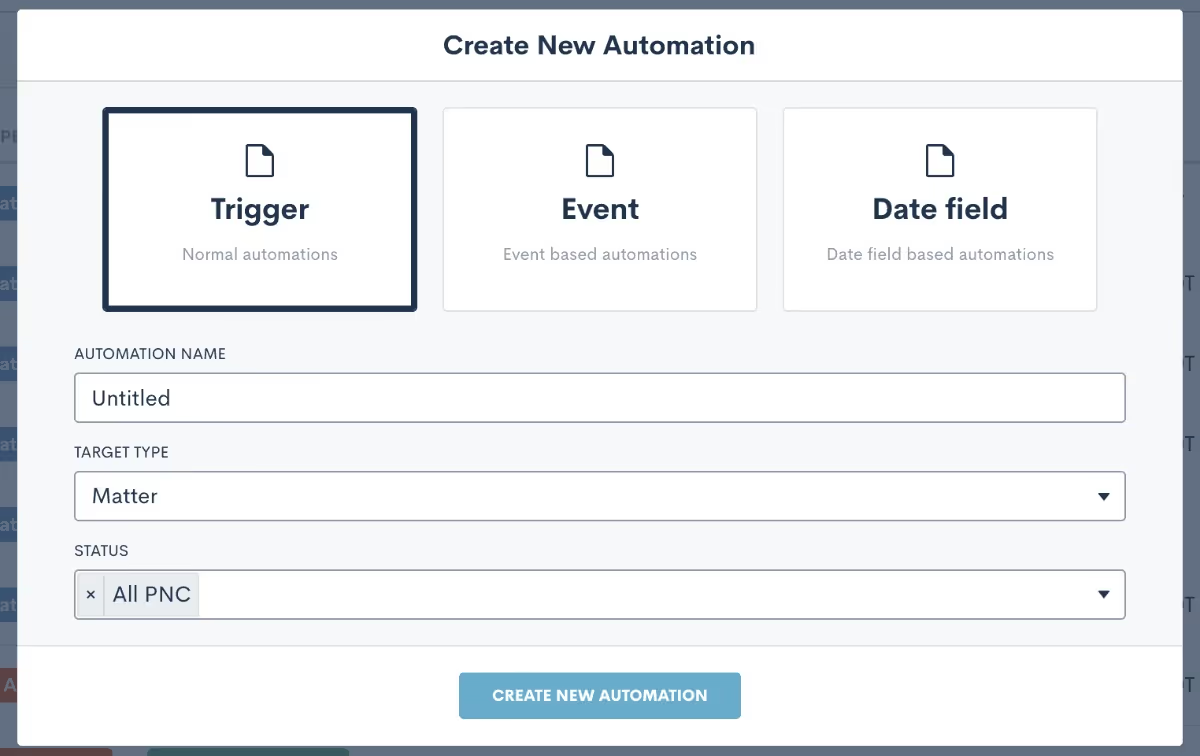
First, select the type of Automation from the options of Trigger, Event, or Date Field. The majority of Automations are trigger-based, meaning that they begin when a specified action occurs. The other two types of Automations are both triggered around the date of either an event on the calendar or populated into a custom date field.Next, you will also need to select the type of your Automation. Most often, the type will be Matter, meaning that the Automation applies to any potential clients or clients. You may sometimes create Automations that are contact type, meaning they could run on plain old contacts like friends, family, colleagues, etc as opposed to only for matters.Last but not least, when the Automation is matter type, you must also select the status that is viable to run in this workflow. If the Automation is purely intake-related, the status will be PNC. Select Hired, Lost, or some combination of the three accordingly.
Pro Tip: Making improper selections at this point can throw your Automation off course, so be sure to pick the proper options or email the Lawmatics support team if you get stuck.
Once you have created your Automation and are in the Automation builder, you will then select your specific entry condition(s). This will be the kickoff or initiator of the workflow. Some of the most common triggers used for intake-related Automations are ‘filled a form’, ‘event created’, ‘match on fields’, and ‘signed a document’.You can also create Automations with more than one entry condition, and choose to give the conditions an “and” or an “or” relationship. In the example below, you see that this Automation will trigger either if the intake form is filled out, or the consultation event is created.
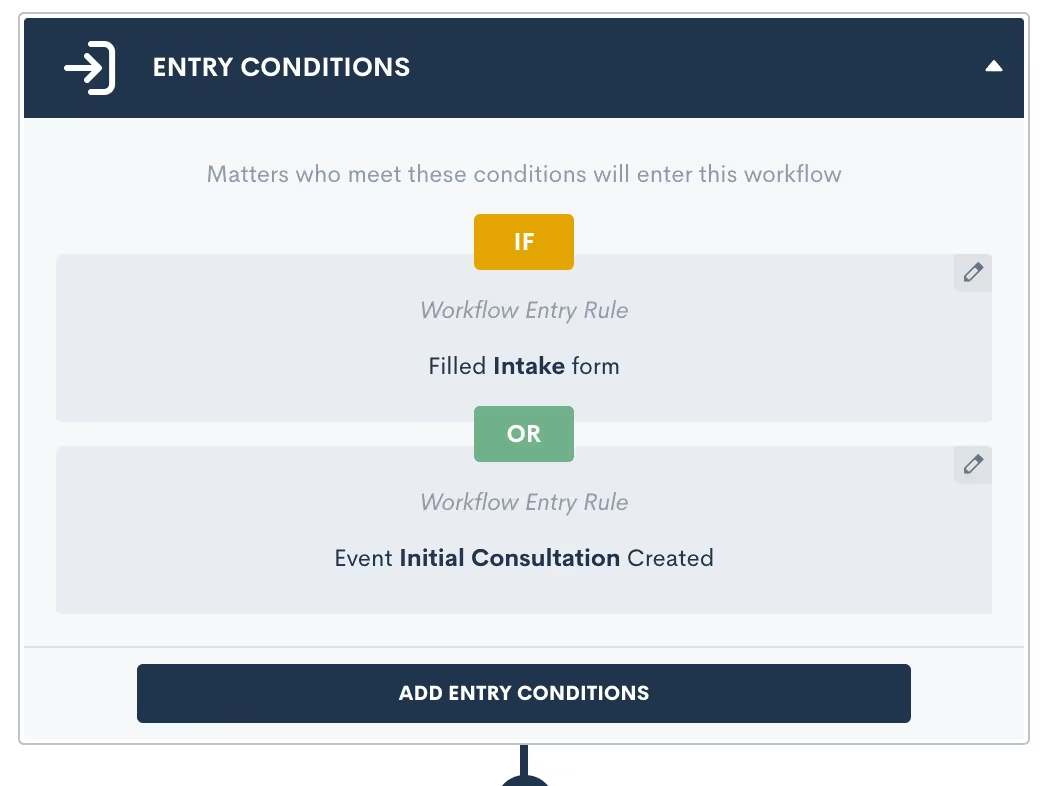
Pro Tip: There are certain entry conditions where it would not make sense to use an “and” relationship, so paying extra attention to the entry condition relationship will help make sure to avoid Automation mishaps. For example, a matter can never be multiple practice areas simultaneously or in different pipeline stages at the same time. For that reason, having an Automation triggered if “practice area = X” AND “practice area = Y” would not be a logical entry condition.
The match on fields entry condition option is a very powerful one, and also one that can cause some confusion and errors when not used properly. This trigger refers to the value of any data field being populated, so the Automation triggers when the specified value is matched.

For example, this Automation (above) will trigger when a matter enters the Missed Consult stage (AKA the stage field is populated as Missed Consult). Remember, Automations that use the match on fields entry condition will trigger as soon as the data is matched.
Pro Tip: Know your triggers! A common cause for Automation misfire is populating a field internally without realizing that this field is in use as an Automation trigger. If you are not familiar with your triggers then you may think you are just populating a field and unbeknownst to you have triggered an Automation. This problem can be easily avoided by keeping tabs on (or documenting) which fields you have selected as triggers throughout your workflow, and by being intentional when populating those fields knowing that they are an Automation trigger.
Action Items
Once you have selected an entry condition for your Automation you are ready to begin adding action items. While this step is overall a straightforward one, with the plug and play colorful interface, there are still several best practices to be aware of that can level up your Automation.One action item that you will undoubtedly use in plenty of your Automations is the time delay. As you may guess, this action creates a pause in your workflow for the duration of your choosing. This is particularly useful for drip campaigns, reminders, etc.
Pro Tip: When using multiple delay action items in an Automation, such as for a drip campaign, the time delays add on from the previous step. In the example below, the second email is sent after a one day time delay, and is then followed by a two day delay. When the next action occurs after that two day delay, it will be three days from the start of the Automation, since it stacks on to that initial one-day delay.
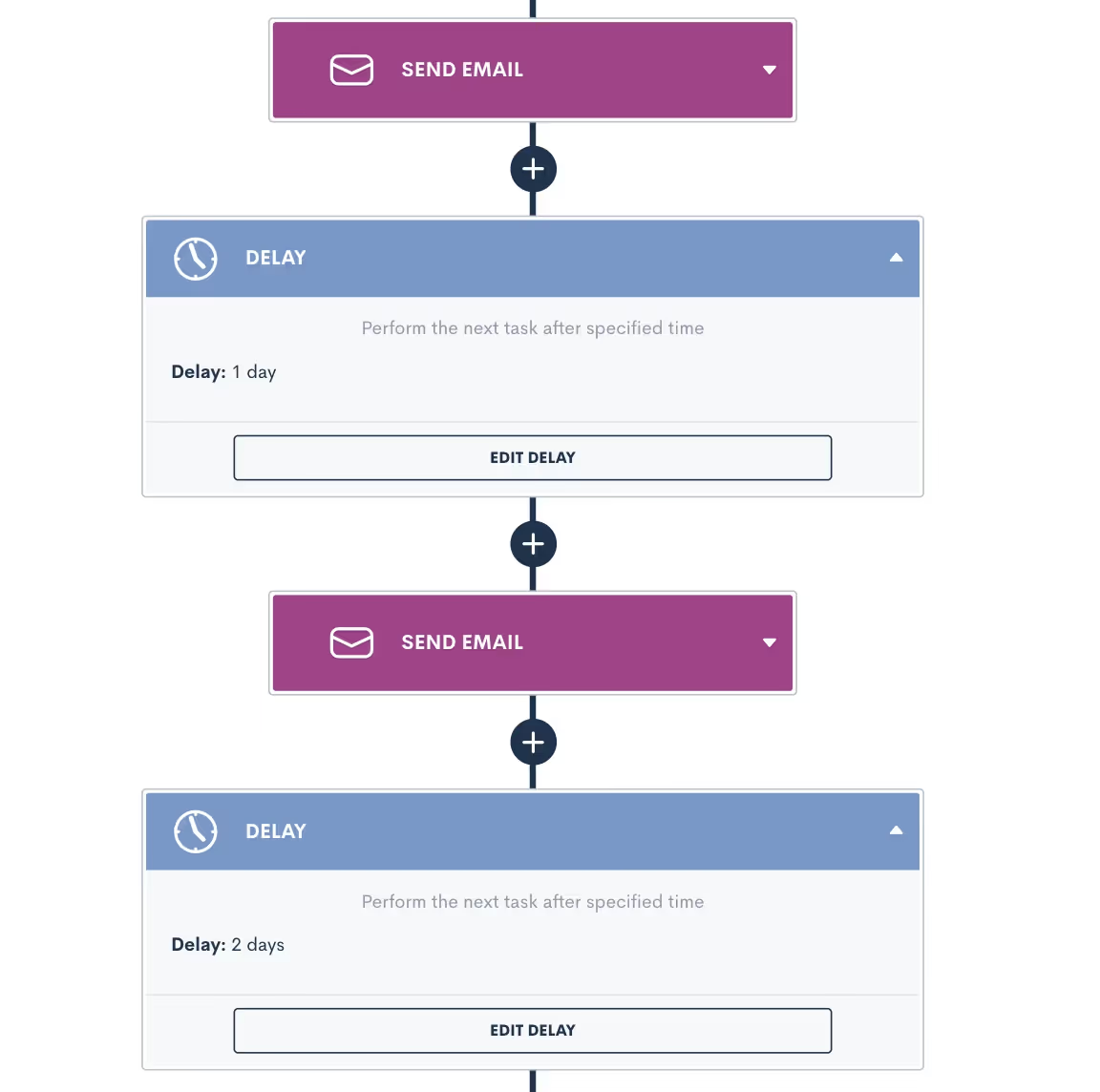
When it comes to the other options for automated actions, most are self explanatory but a few could cause you to slip up. Let’s review some other common mistakes and misconceptions when adding action items.
Create Appointment vs. Request Appointment
These two options may seem the same or similar at a glance, but they are actually very different. The Create Appointment action will book an event on your calendar with the target matter. This action is typically used for webinars or other events, since the event will be scheduled for a static date and time. This action books the appointment for the date that you have selected in the Automation, with no input from the client. Request Appointment on the other hand will send a link to the target and allow them to select their own appointment based on the host’s availability. This is a more commonly used action item in Automations.
Send Documents vs. Request Signature
E-signatures are collected from documents, so the send document action item may seem tempting as the correct one to use, but in actuality it is not the action you would use for e-signature. The Send Document action simply merges the target’s information into the document and sends it as an email attachment, with no e-signature involved. The Request Signature action is what you will use to send a document to someone for collecting an e-signature.
Sending Email to Recipient (Other Than the Automation Target)
By default, an email used in an Automation will be sent to the Automation target (AKA whichever matter is running through the Automation). If you select a recipient other than the target, such as a related contact or internal user, then you must specify whose data fields should be merged into the email, the Automation target or the recipient.
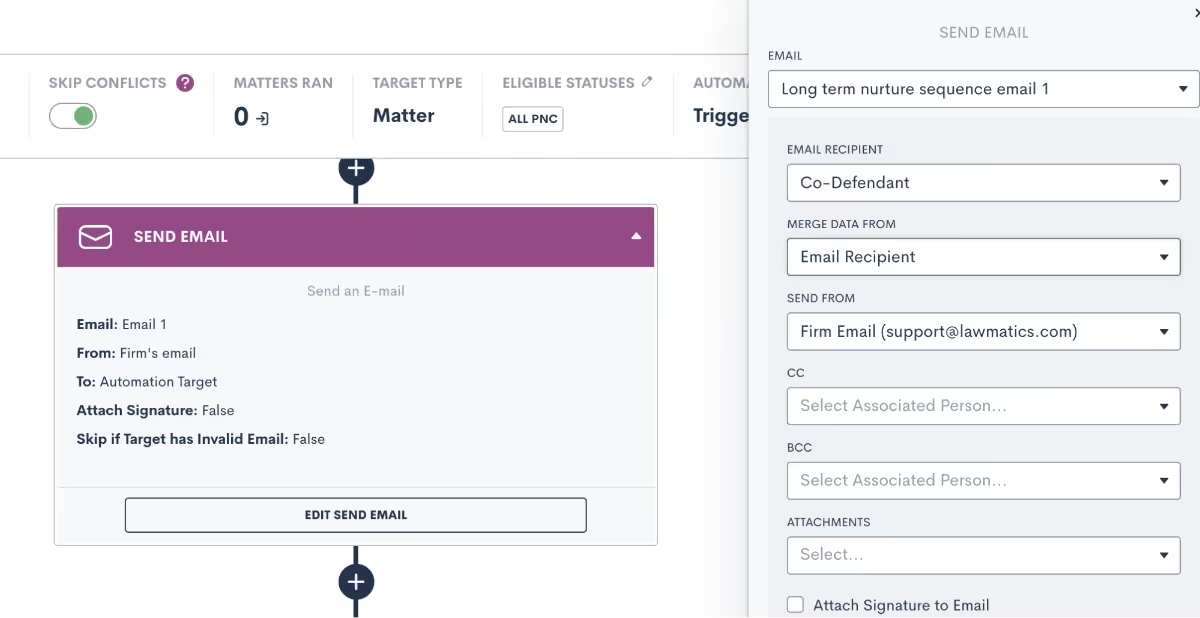
Pro Tip: Make sure you select appropriately so that any fields, such as first name, display the proper values. If you are addressing the email “Dear [first-name]”, then make sure you select the email recipient in the Merge Data From box, so that the recipient’s name will be merged in as opposed to the matter running through the Automation. If you need to reference the matter’s name in the email, for example if you are sending their info to another attorney as a referral, then you would select the Automation Target option for merge data from.
You cannot have some fields in the email template show the target’s info, and others display the recipient’s, so make sure you keep that in mind when building fields into an email template.
Matter Conversion
Use this action item to change a matter’s status from PNC to Hired once they have completed your intake process and hired the firm.
Pro Tip: This action item can only be used at the very end of an Automation, so you will only see it available to select when there are no steps following.
Sharing Items via Portal
The client portal is a useful tool for keeping clients engaged with their forms, documents, and other deliverables. Use an Automation to share any of these items to the client portal.
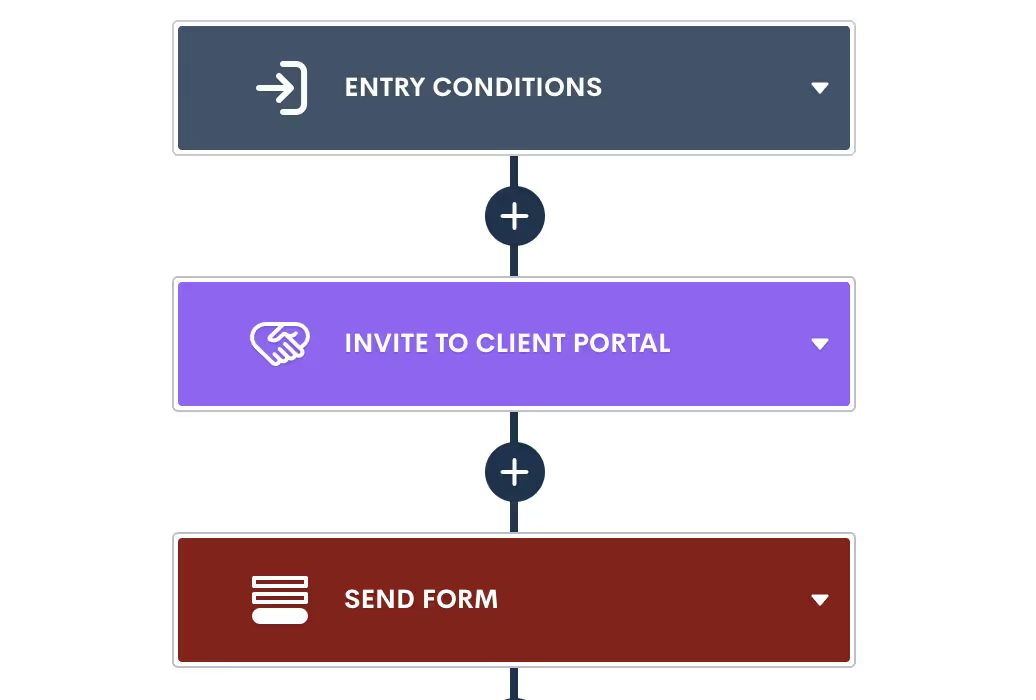
Pro Tip: You must first invite the matter or related contact to have access to the portal before any items, such as forms, can be shared. This can be done via Automation as well, just make sure to use the Invite.
Delivery Windows
As an Automation best practice, we recommend setting delivery windows on most, if not all, of your automated deliverables. Especially if you frequently find yourself burning the midnight oil, delivery windows make sure that your Automations don’t send something out at an off time.It's great to send emails, forms, and documents via Automation, but sending them during business hours can be even more useful to help increase your open rates. This is especially important for documents or other items that require prompt attention from the client or prospect.Delivery windows can be selected for any automated action items that are sent to a target, either via email or SMS. To set up a delivery window, click on the action item, and then select the window as shown below.
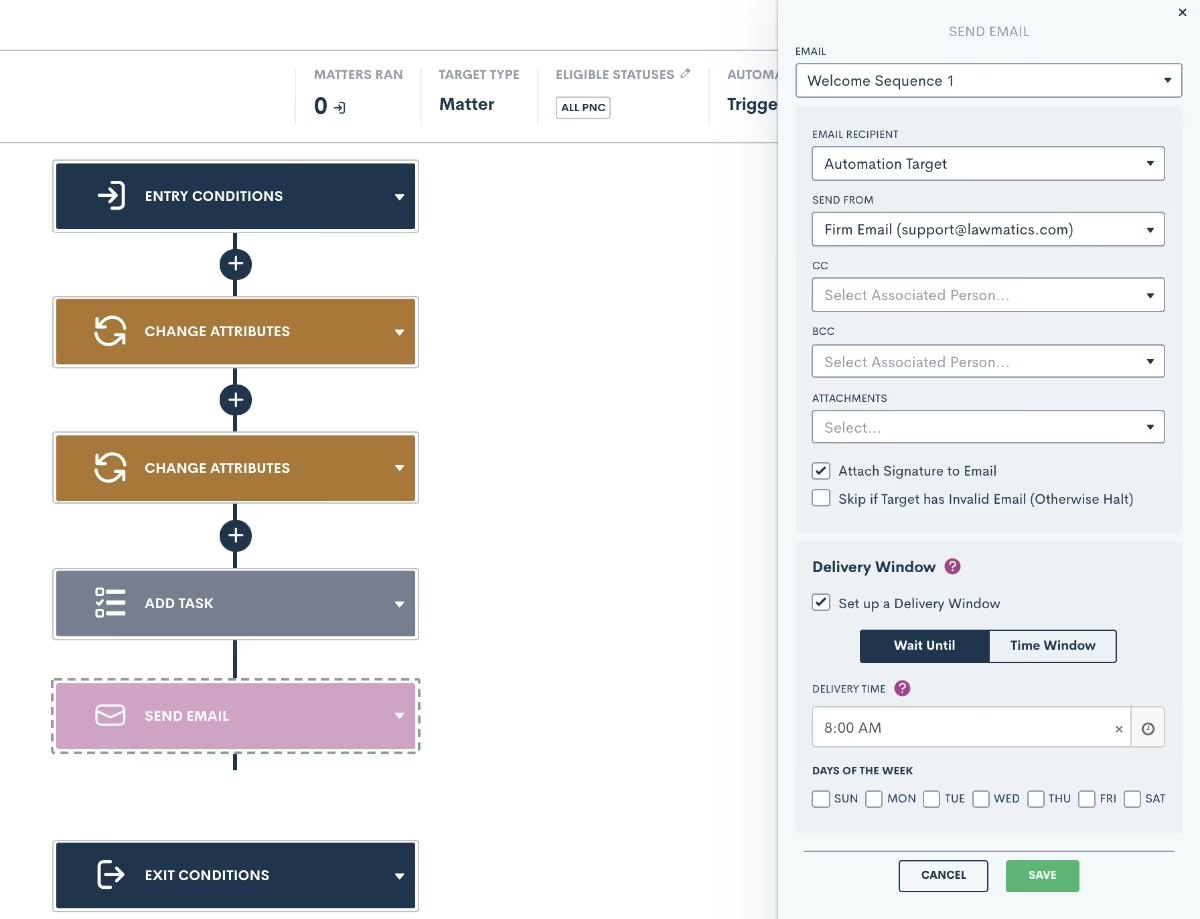
Pro Tip: You may choose the Wait Until option, to make sure the deliverable gets sent at a specific time, or the Time Window, which will allow it to send any time during the window of your choosing.
Conditional Logic
One of the biggest power features within Automations is conditional logic. This feature also has the potential to cause problems when not set up properly. When adding action items to an Automation, you will see the option to Add If Condition.If conditions work similarly to entry conditions in that they check if a particular condition is met, and trigger the appropriate action (side of the branch) when met or not met. When you select the If Condition action, you will see a menu on the right side of the screen to select which conditions should be checked for this branch.
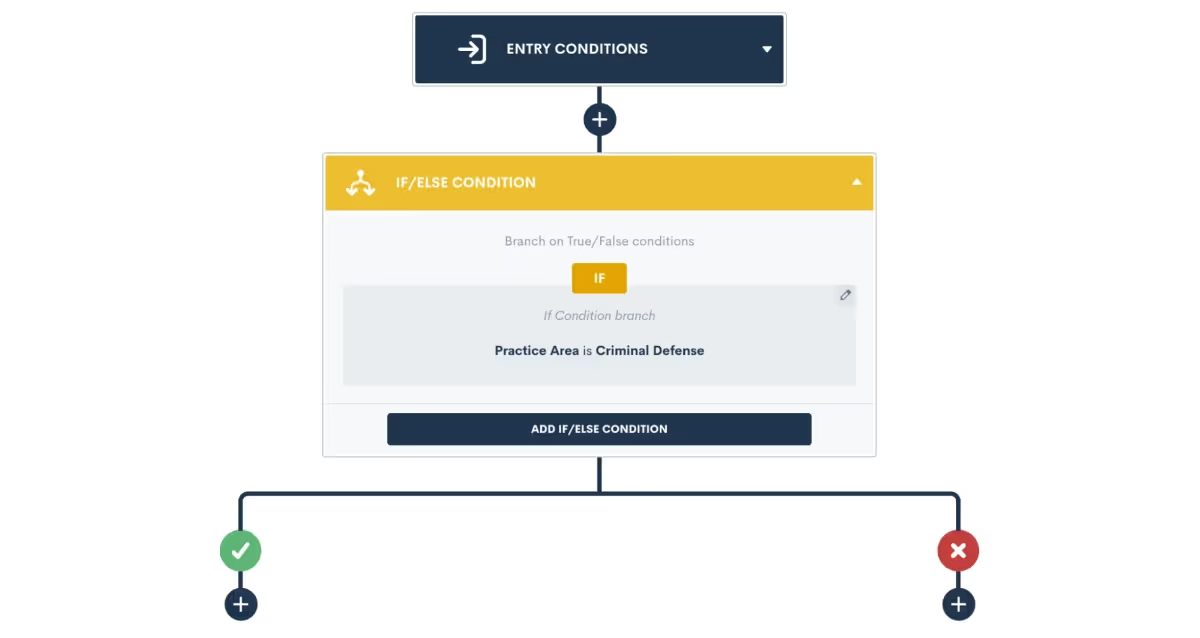
Once you select your condition and click save, you will see a branch created in your Automation. When the condition is met on a target in the Automation, they will flow down the "yes" (green check mark) side of the branch. When the condition is not met, they will head down the "no" side.
Pro Tip: It is very important to note that branches should only be used for conditions that are already determined at the time the Automation triggers, such as practice area, pipeline stage, marital status, etc. You should not use if conditions for sending reminders to fill a form/sign a document/book an appointment etc.
Once the condition is checked at the branch, the matter will flow down one of the two sides. At that point, the condition will never be re-checked (unless you have another if condition further on in the Automation). In other words, once a matter flows down one side of the branch, it will never go back to the other side.
Pro Tip: When editing an Automation, if you delete the if condition then all action items underneath it will also be deleted. For that reason, take caution when deleting a branch!
Exit Conditions
Exit conditions, although sometimes easily overlooked, are a surefire way to level up your Automations. Adding proper exit conditions to a workflow is the best way to ensure that matters only stay in a workflow that is still relevant to them.Let’s say you have an Automation that sends out a series of reminders for a potential client to reschedule their consultation after a no-show. This Automation would likely span over days, weeks, or even months, and would include a cadence of emails and/or text messages prompting them to reschedule. Now at any point if that PNC does in fact reschedule their consultation, you do NOT want them to continue receiving reminders from this workflow. Cue exit conditions.In this example, an exit condition of Event Created would be necessary to make sure that they exit once that appointment is booked. When you add exit conditions into an Automation, these conditions will be checked at each action item, and if the conditions are met, the matter will immediately exit the Automation and no future action items will run on them from that workflow.
Pro Tip: Exit conditions are not continuously checked 24/7, rather they are checked each time a matter hits the next action item. So let’s say you have a 3 day time delay in your Automation, and the matter meets the exit condition on the 2nd day of that time delay, they will not actually exit until the full time delay has run and the next action item is hit.
For that reason, it is crucial to think through your exit conditions carefully. Many users want to use a pipeline stage as an exit condition, but this can sometimes be problematic because the matter may already progress past that stage before the exit conditions are checked.With that in mind, the best exit conditions are ones that are “permanent”, meaning not a temporary status or a pipeline stage. Picklist fields or true/false fields make great exit conditions, since you will typically make a selection for those fields, and it will not change frequently like a pipeline stage would.
Conclusion
When done right, Automations are one of the best tools for saving time while also providing optimum communication with your clients. The best practices laid out here help you avoid any pesky issues that can cause your Automations to become troublesome.While building your Automations, keep in mind all of the various components, from entry conditions to action items to conditional logic to exit conditions, this will allow your Automations to work for you, instead of the other way around.Add these tips to your toolbox for creating your next Automation, and see how Automation can make your life much easier.

The Americans with Disabilities Act was enacted in 1990 to ensure public accommodations were accessible to everyone. But how does the ADA affect the public accommodations that have developed so robustly on the internet in the decades since the law was passed? Is your law firm’s website at risk of violating the ADA?In this webinar, Lawmatics CEO Matt Spiegel welcomes Jeff Lantz and Desire’e Martinelli of Esquire Interactive to explore these questions and more. Here are some of the highlights:
Who may be affected by website accessibility matters?
A broad range of disabilities or impairments may affect a person’s experience of a website. A person with one of the following disabilities or impairments may use assistive technology, such as screen readers or closed captioning, to navigate a website and its contents:.
- Visually impaired (legally or completely blind)
- Colorblind
- Deaf
- Physically impaired (motor/dexterity disabilities)
- Other disabilities (such as those affected by flashing technologies)
Significant uncertainty remains about what exactly must be done for websites to comply with the ADA, however website owners have broad discretion in implementing best practices for website accessibility.
What’s the case history on website accessibility and ADA compliance?
Two recent court cases have given some insight into how websites are to comply with the ADA:
- Robles v. Domino’s Pizza, LLC, No. 17-55504 (9th Cir. 2019) — If you sell goods and services directly on your website, it is critical that customers with different disabilities can understand and purchase the goods and services available.
- Gil v. Winn-Dixie Stores, Inc., No. 17-13467 (11th Cir. 2021) — While it was initially thought that Gil would formalize a distinction between sales and non-sales websites in terms of ADA compliance, a later appellate decision voided such a distinction.
While there are still no compliance standards, the Department of Justice provided guidance in March of 2022 on the flexibility businesses have in making their websites accessible. Businesses should consider the following matters regarding accessibility:
- Color contrast
- Color text cues
- Alternative text
- Video captions
- Online forms
- Text size/zoom
- Keyboard navigation
What are common ways websites violate the ADA?
The lack of specific requirements to make a website comply with the ADA did not stop the DoJ from initiating actions. Common areas of concern are:
- Images, buttons, and form fields are unlabeled or have inaccurate alt text
- Pop-ups are not reported to screen readers
- Tables are missing header information
- Missing or incorrect captions
Are there any guidelines for making my website accessible?
The World Wide Web Consortium (W3C) developed the Web Content Accessibility Guidelines (WCAG) to explain how to make web content more accessible for individuals with disabilities. WCAG covers webpages, applications, and other digital content in the form of “Success Guidelines.”The guidelines cover a wide range of matters, such as text size, contrast, navigation, website structure, alt tags, movement, and more. The guidelines are organized under the following four principles:
- Perceivable (captions, contrast)
- Operable (organization and navigation)
- Understandable (labels, user input matters)
- Robust (coding tags)
An accessibility compliance checker is a handy tool to scan your website for potential gaps in compliance, like missing alternative text or empty links. and should consider adding a way to report accessibility problems to the website owner.
Should I use an accessibility plugin for my website?
An accessibility plugin allows users to modify website features such as text size and color contrast to optimize accessibility. Although such a tool can help users understand how their information is presented, it may interfere with screen readers, ultimately making a website less accessible for some users.
Final notes and takeaways
The first step in evaluating your website’s accessibility is determining what level of compliance will be the standard for your website. This may follow existing guidelines, like WCAG, or you may choose to develop your own standards. Then, decide which of your website’s most frequently visited pages you’ll audit first. After an audit is completed, determine the process you’ll use to remediate any aspects of your website that may be noncompliant with the ADA.Although compliance flexibility gives website owners more choices in how they make their website accessible, some of the resulting ambiguity can make it hard to know where to start. Before you commit to a costly audit or remediation process, understand your risk of noncompliance, and make a strategic decision about your firm’s approach.To learn more about best practices for making your website ADA compliant, and to see more frequently asked questions answered, watch a recording of the full webinar.
Webinar slide deck

We’re delighted to announce that Lawmatics has been recognized by TechnoLawyer as a ‘Hot Product’ in their 2022 Buyer’s Guide. The TechnoLawyer publication reports on the latest in legal technology, law office management, and law firm management.“We’re extremely proud to be identified as a premier tool for helping law firms grow,” said Matt Spiegel, CEO of Lawmatics. “Our software empowers law firms to spend less of their time on administering the business of their practice, and more time focusing on the clients they serve. We know that firms thrive when they can prioritize people rather than paperwork.”This honor is just the latest acknowledgement of how our client relationship management (CRM) software is revolutionizing law firms’ approaches to marketing, lead management, client intake, client reengagement, timekeeping, and billing.TechnoLawyer cited Lawmatics’ powerful and versatile automations as our ‘killer feature.’ Together with the workflow pipeline, Lawmatics automations seamlessly guide firms and clients through every stage of the intake process.
“You can build an unlimited number of automations in Lawmatics, each of which starts with one or more triggers. Triggers include events, completing a task, a form submission from your website, receiving or sending an email message, requesting files, and various client actions such as signing a document or paying an invoice.”
Other features highlighted in the buyer’s guide
- Unlimited custom fields
- Document building
- Email templates to communicate with prospective clients
- Time and expense tracking
Check out the full TechnoLawyer Buyer’s Guide review here. To see these features in action, book a free demo.
An effective legal intake software both accelerates and simplifies the intake process for you and your prospective clients, ultimately leading to a higher close rate. You may be asking yourself how to go about building an approachable yet all-encompassing intake form for all practice areas and matter types in Lawmatics. In this product deep-dive we will examine all the various elements of custom forms that will allow you to accomplish this goal.As you begin to create your one-stop-shop intake form, it is first important to understand the basics of the Lawmatics Custom Form Builder. You will then be able to progress to more advanced options such as relationships and appointments, as well as using conditional logic within the form for branching pathways. Take your process to the next level by using this form to trigger helpful automations based on intake form responses, and finally weave the data collected from the form into your entire intake process like documents and email templates.Here we will walk through each of these elements of creating an intake form to handle every possible intake scenario within your firm.
Form Basics
There are several key aspects of forms that you must be familiar with as you begin creating your intake form. Let’s start with fields. Fields are used to capture the written response to each question on your intake form; the data populated into each field is stored within your CRM.

View all available fields and other form elements on the left sidebar of the form.
There are three different types of fields that can be added to a form:
- Standard fields
- Custom fields
- General fields
Standard Fields
When adding a new question to your form, always check the standard fields section first to see if the field already exists as a default; these are the built-in fields that come standard with your Lawmatics account. In the standard fields section you will find common contact information such as first name, last name, phone, email, address, birthdate, etc.
Custom Fields
As you are building your form you will also need to add fields that are more specific to your firm and/or to your practice areas. These fields will be created as custom fields. When creating a custom field, give your field a name, select the type of field, and select the field visibility.
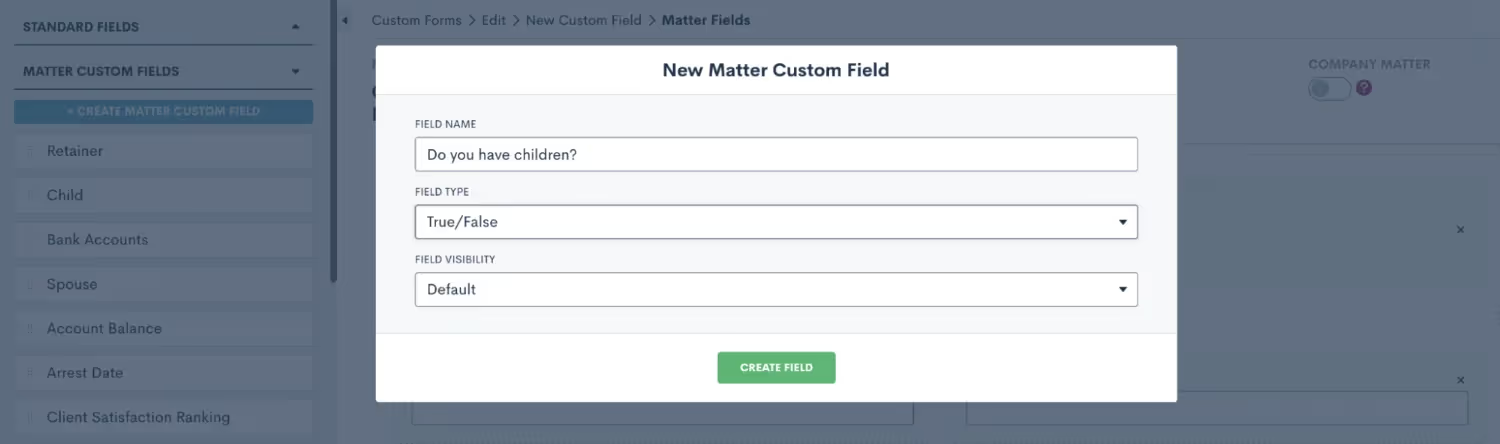
You will see these options when creating a new custom field within your form.
Once you have created your custom field, simply drag and drop it into the form canvas wherever you would like to place that question in the form.
General Fields
General fields are unique in that they do not save data into your CRM, they are only populated within the context of the form itself. Do not use this type of field for any data that you will need to save and use later in the matter, such as merging into a document, triggering an automation, or using in a report. For the purpose of creating your master conditional intake form, you likely will choose not to use any general fields on that form.When creating a new custom form, you have the option to make it internal or external. If you plan to use this form only internally, meaning that it will never be shared with a PNC directly, only an internal staff member will be filling it out, then feel free to make your form internal.
Relationship Blocks
You may want to utilize relationship blocks in your form, especially if you commonly work with married couples or matters concerning multiple clients. A relationship block allows you to create a separate contact related to the matter. This is a great tool for keeping all contacts in your CRM organized. These blocks can also be made repeatable, which is useful in the instance of more than one contact in a particular relationship, such as children or siblings.
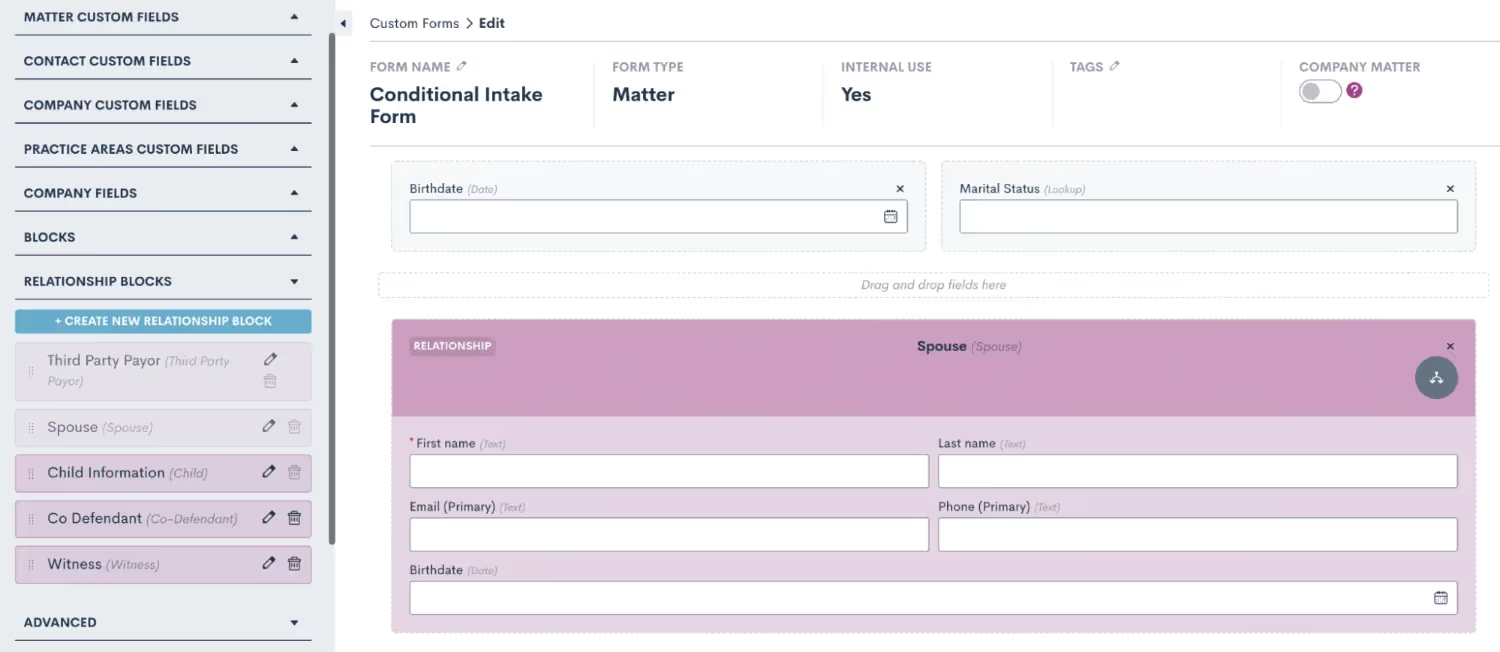
Create custom relationship blocks for your various relationship types, and drag them into the form.
Once you have added fields and blocks to your form, remember that you can click on the field to view additional options in the right side menu. Here you have the option to make fields required or not, as well as add conditional logic (discussed further below). You will also see the option to make a field hidden.

Click on a field to view additional options on the right side, including the option to make a field hidden.
There are several scenarios in which to hide a field:
- You may wish to have a default value populated into a certain field, and you don't want the lead/client to have the opportunity to enter something other than the field default
- You may be triggering something an automation internally with a hidden field, such as assigning a certain practice area or moving the lead to a certain stage on your pipeline
- You may want certain client data to appear in the form submission PDF for your reference, but you don't need the client to re-enter or view that information on multiple forms
Advanced Options
When you expand the Advanced section on the left sidebar of the form builder you will find a number of additional components that can be useful to customize and streamline your intake form. For starters, you can use the Instructions field to add headings, script dialogue, or even insert images into your form. Simply drag over the instructions field and then click on it to add your content.

Drag and drop an instructions block, then click in it to add a section header such as “Case Information” or other instructions.
Another advanced element that you will likely find useful in your intake form is the Note field. This note field is different from a custom or standard field, as opposed to populated data in your CRM the note field will save a note item to the matter’s profile.
Consultation Booking
Since this intake form is often used when a new lead initially calls into your firm, you may wish to book a consultation directly from the form. There are two ways to easily accomplish this:
- Method 1: Drag and drop an Appointment field into your form. This will allow you to book an appointment on the calendar of any of your firm’s Lawmatics users, selecting any date and time that you wish. With this option, you will want to reference the host’s calendar before selecting and booking a time on the calendar widget in the form.
- Method 2: Alternatively, you can use the Booking Request advanced option to add a scheduling widget - this will only reveal time slots that correspond with the host’s availability. This is a great tool for high volume firms, where time is of the essence to get leads booked in your system ASAP without taking the time to reference the consulting attorney’s calendar.
After adding a booking request field into the form, click on it to open the options for this request. Make sure to select the booking options, as shown below, to determine what type of event this will be, who will be the host(s), and what the location of the event will be.

Use a booking request field to allow easy scheduling based on the host’s availability.
It is also important to make sure that all Lawmatics users have synced their calendar in their user settings, so that the system can pull their availability accurately. When an appointment is booked via the scheduling widget, it will automatically appear on that user’s synced calendar.
Conditional Logic
Before you start diving into conditional logic and its many uses, it is first important to understand the mechanics behind it. In its simplest form, conditional logic is simply an “if, then” statement. If a certain condition holds true, then the desired outcome will take place.While conditional logic looks a little different in each different area where it can be used in Lawmatics, the basic concept is the same. Let’s consider the example shown below from an automation.
Rule #1 - Conditional Fields
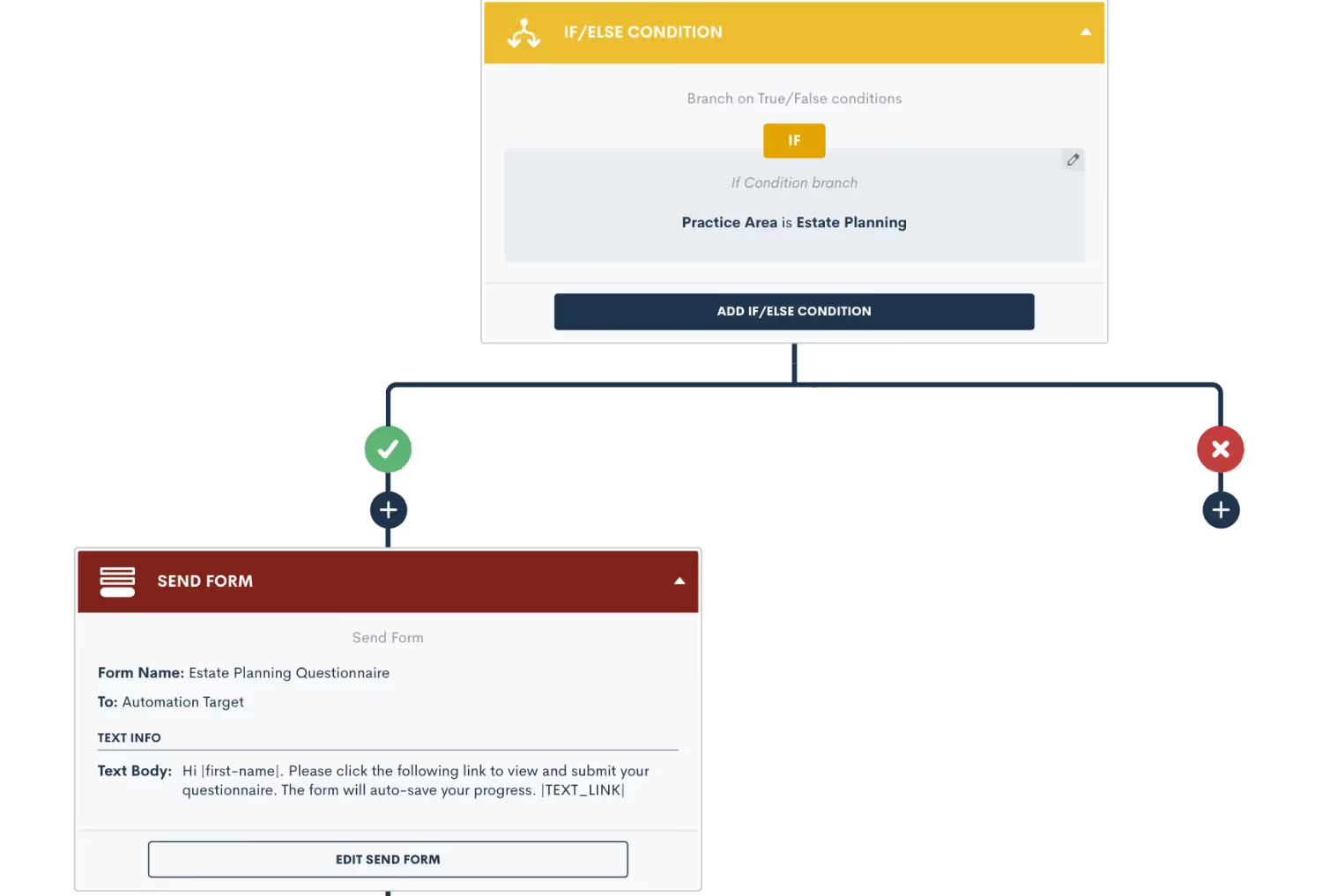
Above you will see that our “if” statement is “if the Practice Area is Estate Planning”. When this condition is found to be true, then the outcome will be that of the affirmative side of the branch. If the if statement is not found to be true, then the outcome will be that of the negative branch.In this particular example, the affirmative outcome is to deliver the Estate Planning Questionnaire to the target matter whereas on the negative side of the branch, nothing will occur — the automation simply ends there.There are also certain instances where multiple conditions can be used as your “if” statement. When this is the case, it is important to give those conditions an “AND” or OR” relationship accordingly.Notice in the image below how we have not added a second condition to our “if” statement but rather have given it an “OR” relationship to our initial condition.
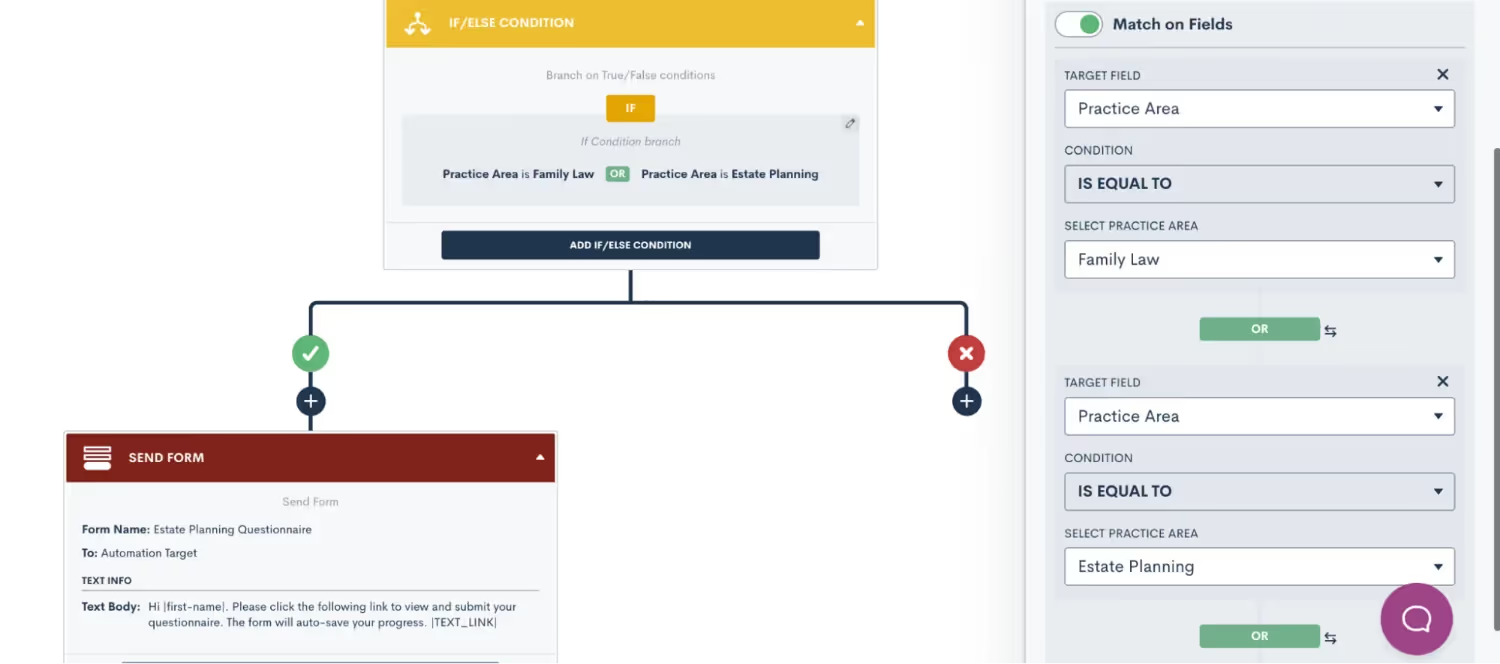
The same concept applies to using conditional logic in your intake form. When setting conditional logic in custom forms, remember that you will set the logic on the field that is conditional, as opposed to the field that sets the condition.Let’s break down how you can go about using this on your intake form. When discussing next steps with the PNC, you may ask the question “Would you like to schedule a consultation?”. This will likely be a boolean (true/false) field or a picklist field with options of Yes and No. If the answer is Yes, then you may want to have a field appear to enter in the consultation fee for that matter.To set up conditional logic in this example, click on the second field, the consultation fee, and turn on conditional logic there. You will then select which field sets the logic for this field, which in this case is the field “Schedule consultation?” being TRUE.
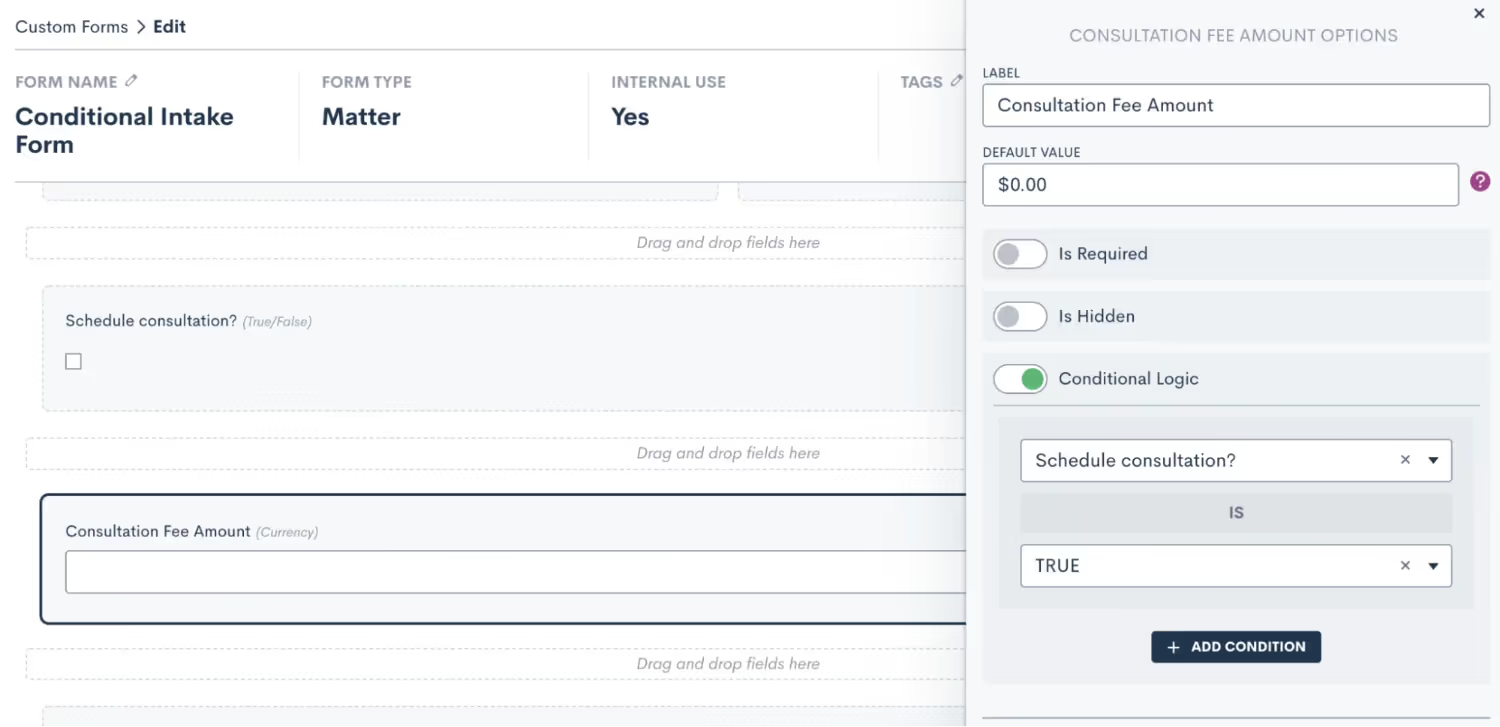
In short, rule number one of using conditional logic in custom forms is to set the logic on the field that is conditional.
Rule #2 - Defined Value Fields
That brings us to rule number two. Conditional logic can only be set using fields that have defined values, such as true/false fields, picklist, or multi picklist fields. You cannot set conditional logic using fields that are open text fields, since these are open-ended and do not have defined responses.To clarify further, this rule pertains to the field that is setting the condition, not the field that is conditional. Returning to our example from earlier, you’ll notice that the conditional field “Consultation Fee Amount” is a currency type field, allowing the user to enter any dollar amount. This is perfectly acceptable, since this is not the field that is setting the condition. The field setting the condition is “Schedule consultation?”, which was created as a true/false field. A picklist field would also suffice in this example.As long as you keep these two rules in mind for using conditional logic in your custom forms, you are sure to create a better customer experience for clients filling out your forms.
What to Include in Your Form
With the baseline knowledge of the various intake form components you’ve acquired, you are ready to start building. Please note that we are merely suggesting what you may wish to include in your form; some of these items may or may not be needed for your practice, and you may also have other elements not mentioned here that make sense for you to include. Use these suggestions as you see fit.
Standard Fields
Begin by determining what standard fields you need to capture initially during your intake. This is typically the person’s first and last name, email address, and phone number. Depending on the type of law you practice, you may also need to know their marital status, citizenship, etc.Locate these fields in the standard fields section, and drag and drop them over to your form. You may also want to use an instructions block to make a section heading, as shown below.
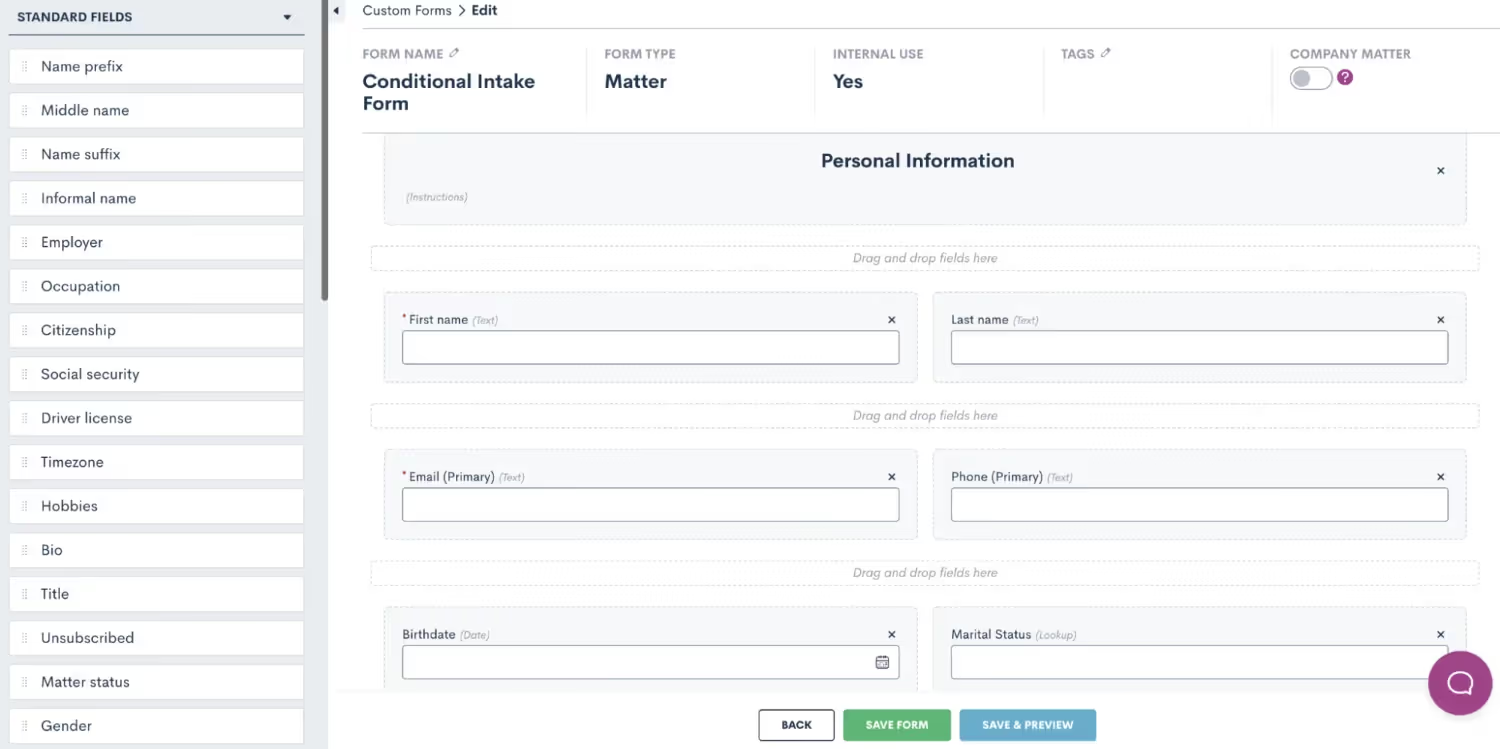
Use an instructions block to make a heading for your basic contact information section.
Relationship Blocks
This is also a good place to include a relationship block in your form. Notice the field Marital Status in the bottom right of the image above. Here we have a great opportunity to implement some conditional logic in your form. Create a relationship block for your Spouse relationship, containing whatever fields you wish to capture for the spouse, and then set that block to only appear if the marital status is married.

Create and drag over a Spouse relationship block, then add conditional logic so it only appears when marital status is married.
Dividers & More
As you move on to the next section of your form, you may find it helpful to add dividers or another instructions field to help with the organization and structure of your form. Additionally, we suggest including the Source and Campaign fields, both found in the standard fields section. These fields allow you to save data on how each lead found your firm, which is critical for capturing valuable marketing data. Additionally, a Note field comes in handy here to collect any other information shared by the PNC that should be saved to their matter.

Use dividers or instructions to separate sections of your form.
Case-specific Fields
Next, you’ll want to start getting into some case-specific information for this PNC. Make sure to include the practice area field to label which type of case this is right off the bat. In our form we have also included our pipeline stage field which allows you to select exactly which stage of your intake pipeline this lead should land in.
Conditional Logic
Conditional logic will come in handy here to pose questions that align with the type of practice area that is selected. In our example, we added a follow up question asking about witnesses which will only appear when “criminal defense” is selected as the practice area. We also added a field to ask the lead how many children they have, and this field is conditional on the practice area being family law.
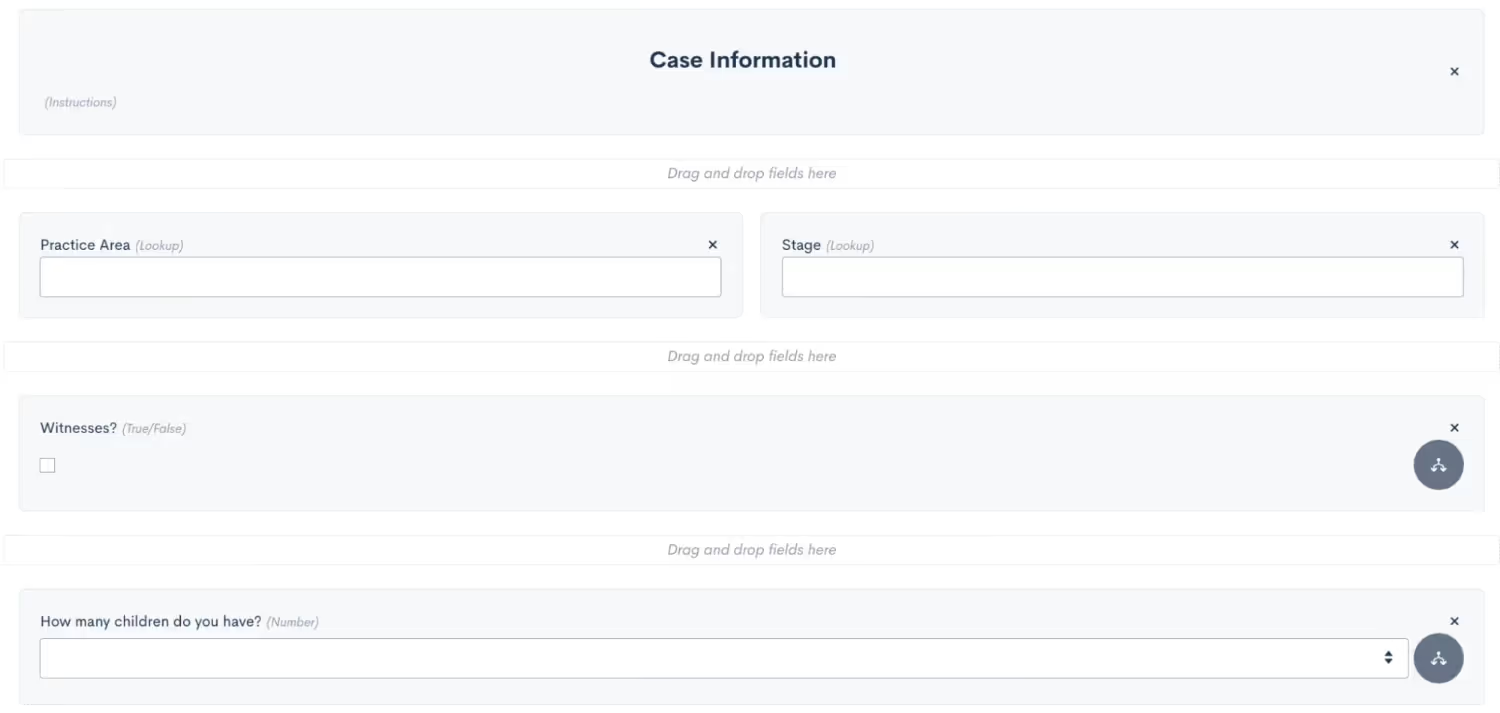
Add practice area specific follow up questions with conditional logic.
The ultimate goal of this form is to automate all possible intake scenarios, the best way to accomplish this is by adding a Next Steps section to your form. This tells the system whether or not this lead is qualified, which automation(s) to trigger, which conditions apply for this particular lead, and anything else that is needed for your process. While there are many different ways to use custom fields to capture this data, you’ll see some suggestions from our team in the image below.

The first question we ask here is whether or not to disqualify the lead. Our additional follow-up questions are conditional on that field being False, meaning that if the lead is disqualified, none of the other questions are relevant so they will not appear in the form.We have also added a possible option for nurturing this lead. This can be useful to trigger an automated nurture sequence spanning over weeks, months, or even years to keep working that lead. Typically, you would select this option if a lead is interested, but not ready to move forward with next steps right at that moment.We have also included the standard Sub Status field in our form. In the scenario of a lost/disqualified lead, this field is particularly useful to capture the reason the lead was lost. As opposed to just labeling a lead as Lost, this field allows you to select a custom reason, such as disqualified, which is useful for future reporting.Last but not least, at the bottom of the image above, you will also see three conditional fields. Depending on your process, these may be slightly different at your firm, but these fields show an example of what some potential next steps for a qualified lead may be. Each of these options will be used to trigger an automation taking the appropriate action, as explained in the following section.
Utilize Data from Your Form in the Rest of Your Process
Now that you have automated your intake form, it’s time to automate the next steps of each possible scenario. Again, these examples may differ from your firm’s actual process, but they are meant to be used as a guideline for creating your own automations.
New Lead Automation
Let’s break down our three possible outcomes for a qualified lead as described in the section above. First, we have the option to Run on New Lead Automation. As you may guess, when this option is selected in the intake form we will use it to trigger our new lead automation. Depending on your clientele and your sales cycle, this automation may vary slightly for you, but for ours we have decided to include an alternating sequence of emails and text messages, with the call to action for the lead being to book their consultation.
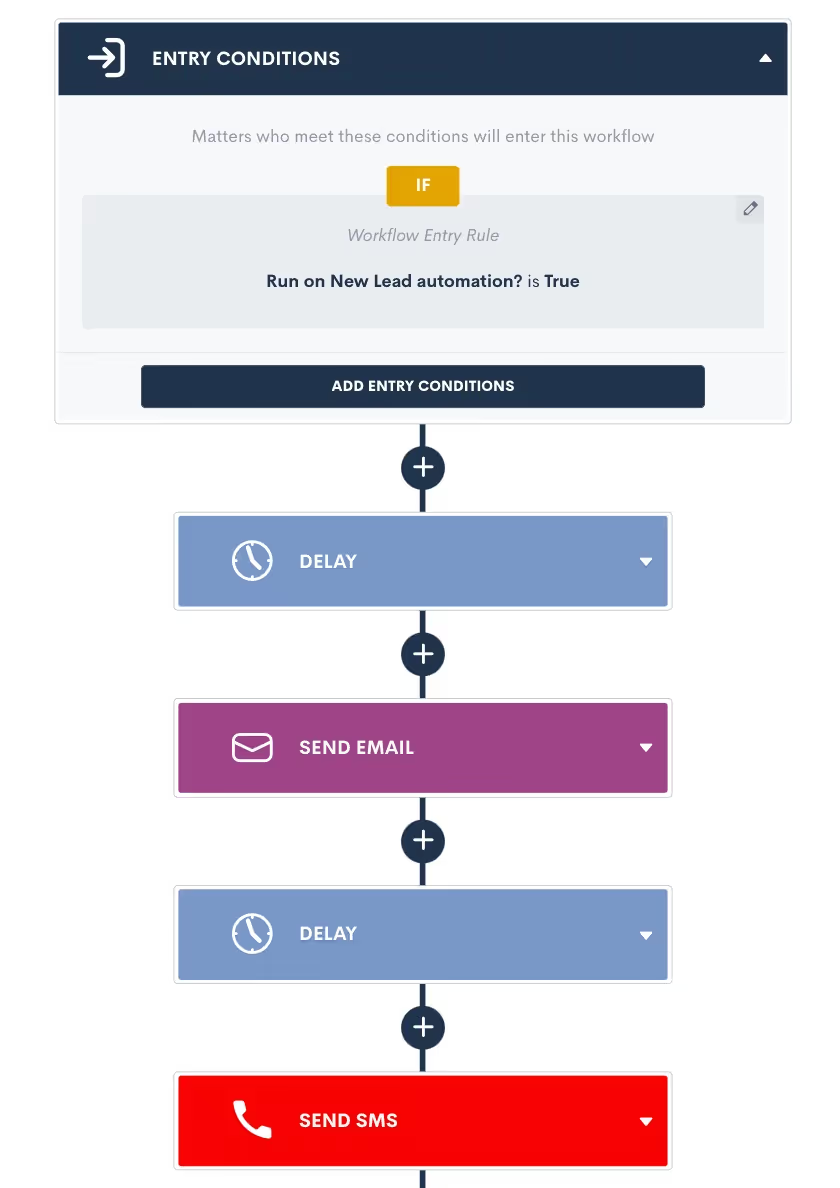
Trigger your new lead automation when the corresponding field is True, and then build out a sequence of automated actions.
Feel free to continue this sequence for as long as you would like, there is no limit to how many action items you can add or how much time this workflow can span. We have also included exit conditions in this automation so that once they book their consultation, they will no longer continue getting outreach from this automation. This is a key step to make sure all communication is relevant to where they are at in the process.
Send Engagement Agreement Automation
When filling out the intake for a new PNC, you may have someone who is ready to sign up on the spot and sign their engagement agreement immediately. When this is the case, you will select the Send EA option in your intake form. We now have an automation that triggers when that field is selected, and we have implemented conditional logic in the automation to check the matter’s practice area, and send the appropriate engagement agreement for e-signature accordingly.
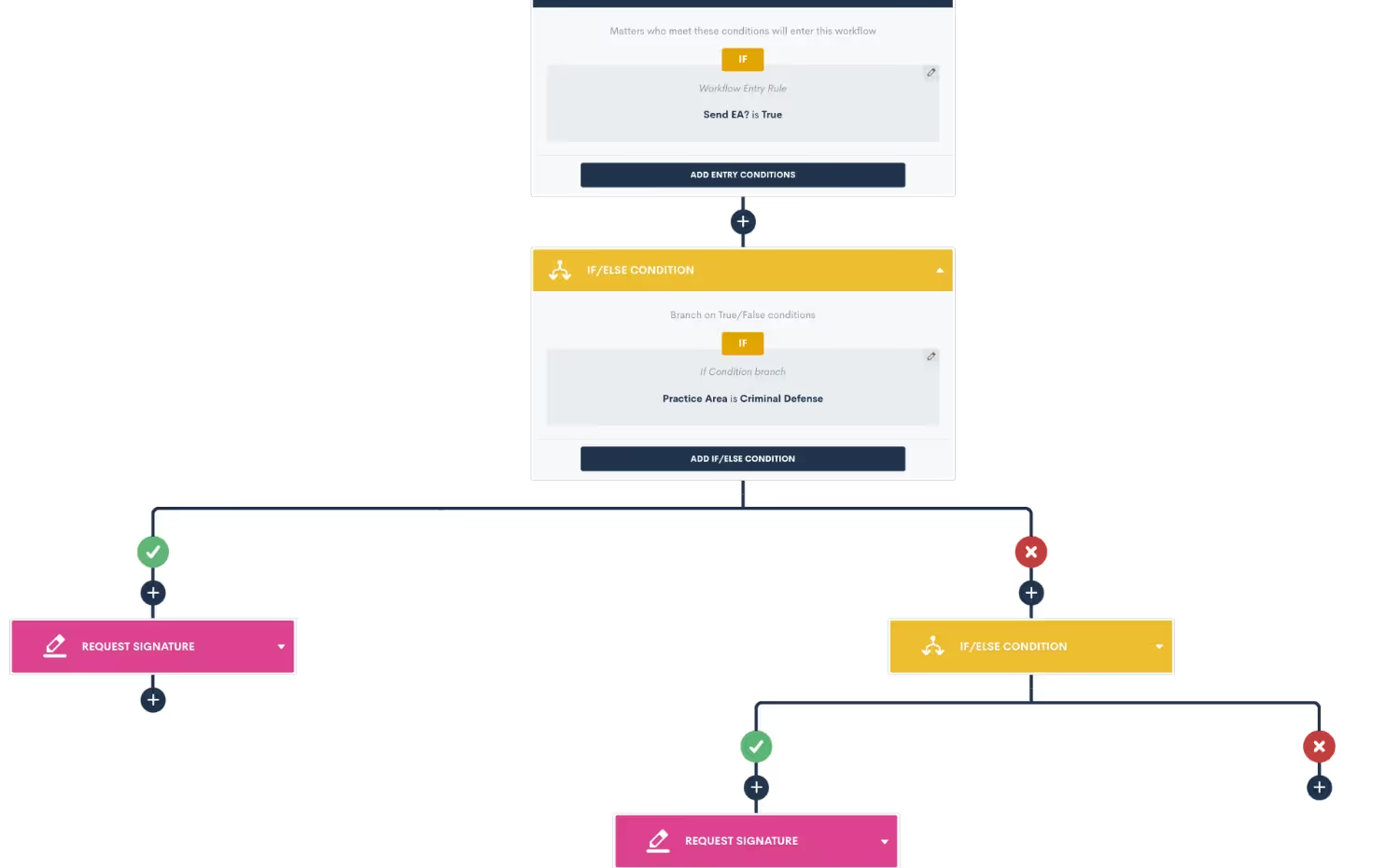
Use if/else condition branches to send the appropriate document for signature depending on the practice area.
In the example above you see just two if branch statements, but feel free to continue adding as many as you need to account for all of your firm’s different practice areas or engagement agreement variations.
Scheduling Consultation Automation
In our intake form we have also built in an option for leads who want to move forward with your intake process, but still need to schedule their consultation. This is a very straightforward scenario to automate using our booking request feature. Simply trigger the automation when the needs to schedule option is selected in your form, and then send out an appointment request action item, making sure to select the appropriate firm user as the host.
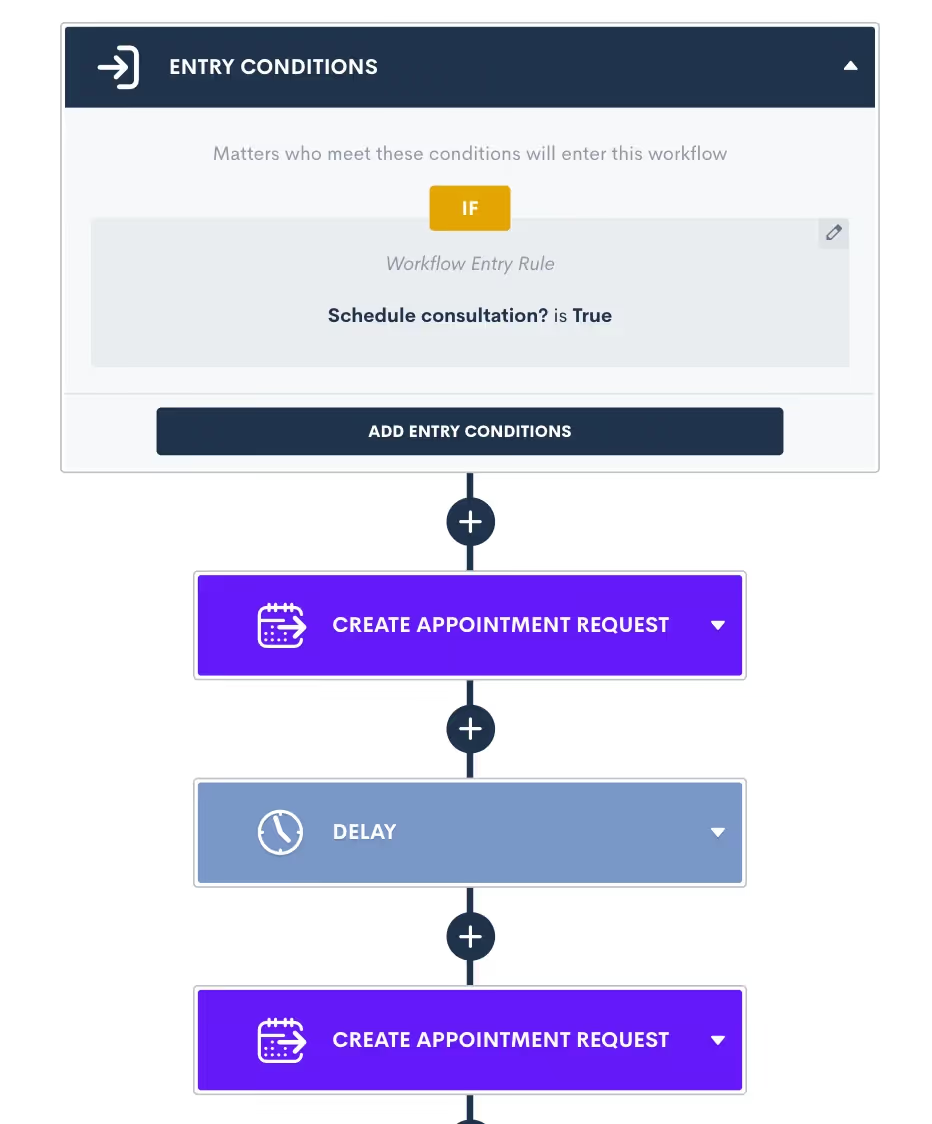
Alternate appointment request action items with time delays to create a cadence of reminders to book their consultation.
Just as mentioned earlier, feel free to include as many reminders to schedule as you would like, sending them at a cadence that makes sense for your clientele. Once again, make sure to include exit conditions so that once the lead books their consultation using the appointment request, they will not continue getting the automated reminders.While these are just a few examples of scenarios that can be automated in Lawmatics based on the intake possibilities from your form, keep in mind that the possibilities are absolutely endless. With the use of conditional logic and our powerful trigger options, you have the ability to create automations for every possibility.
Reporting
In addition to automating your process, the intake form is also useful to capture data that can be tracked in a custom report. For example, in the intake form we have added the option to mark a lead as disqualified, and apply the appropriate sub status. You may find it useful to create a report of all disqualified leads, along with the marketing source they came from, so that you can hopefully work to eliminate getting an influx of unqualified leads from that source.
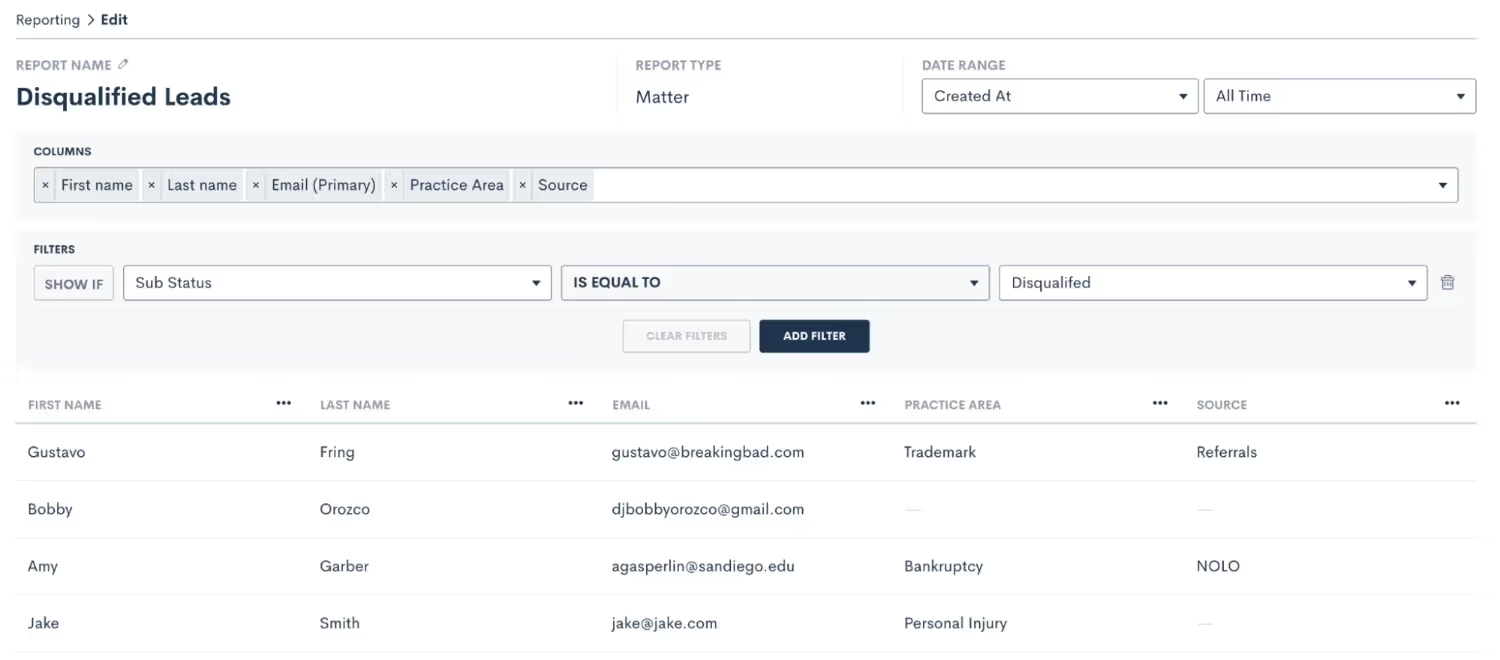
Create a custom report filtered by sub status to easily view disqualified leads from a given time period.
Remember that you will create a report under the Insights tab in Lawmatics. Once you have created it once, by setting your filters and columns as shown above, you can simply save the report and come back to view it any time. You could also set a custom date range so that you can easily check the report weekly or monthly and see only relevant data from that time period.All of this will lead to better insight into your firm’s performance, and help guide you on which marketing sources to invest more highly in.
Conclusion
In summary, there are many benefits to using a conditional intake form to automate your process. Accounting for all of your firm’s potential intake scenarios in a single form will save valuable time for you and your team. It also creates a much smoother experience for both your staff, as well as for your clients. At the end of the day, improving the client journey will always help improve your firm overall.Keeping the future of your firm in mind, your conditional intake form will also help set you up for insightful reporting and analytics down the road. Unlock statistics that you never had access to before, such as rate of leads lost before vs. after a consult, conversion rates by practice area, and of course marketing source performance. Once you have access to all of this data you will be able to easily adapt and adjust your processes to maximize profitability as your firm grows and changes over time.Finally, your all-encompassing intake form, in conjunction with automations, reports, etc. will enable your firm to convert more leads into clients. Use the form to bring in more business while spending less time and effort on your intake process.Ready to unlock the full potential of your firm's client intake process? Learn how Lawmatics legal intake software can revolutionize your firm's efficiency and client experience today!

What is your role at Lawmatics, and what does your job entail?
I am a full-stack engineer. I am responsible for creating the building blocks that form the Lawmatics app as well as bug fixes, feature improvement in all its forms, and managing the user interfaces. Currently, I'm on the Time & Billing team, responsible for managing time tracking, invoices, and payments related to the lawyers' work.
How did you end up working for Lawmatics?
One day I saw the Lawmatics engineer position posted in a developers' Slack group I'm part of. It was posted by our very talented lead engineer, Fred. I filled out the application and soon was contacted to have an interview.
What’s the best part of your job?
When I know someone used the feature I created. Even better is when the feature receives a compliment. My ultimate goal is to create useful features that make the user spend less time on their work.
What opportunities or new hobbies have you uncovered working remotely during COVID-19?
Drinking more… kidding! As many parents with children attending classes digitally at the time, I needed to find a way to be a better teacher to my daughter, explaining the disciplines and homework. And while all the gyms were closed, I made a habit of jogging outside.
Where are you originally from, and how did you end up where you are today?
I am originally from Goiânia, Brazil and have lived here all my life. It's awesome to work with other people and know different cultures, even remotely. In addition to working with a US-based team, I’ve worked with other companies based in the UK and Germany with employees from India, Macau, Russia, Mexico and others.
What do you like to do when you aren’t working?
I like to do weight training during the week; it helps me feel better, reduce stress and anxiety, and exert energy so I can drink and eat junk food at the weekends :D Other than that I like to play video games on my PC and watch movies and TV shows.

What is a fun fact most people may not know about you?
When I was a child there were many stray cats in my neighborhood. I don't remember why, but I convinced my mother to let me raise a mother cat and its 6 kittens from a cardboard box. I don't remember what happened to them, but it’s possible they returned to the streets they came from.
Tell us about one of your craziest or wildest (SFW) experiences.
On one of my vacation travels to the northeast coast of Brazil, I was with my spouse, daughter and siblings and left them to take a walk along the beach, alone. It was so relaxing that before I knew it, an hour had passed. When I returned, I was greeted by police and lifeguards who thought I had possibly drowned. I had completely forgotten to communicate where I was going before I left. 🙈
What is the one thing you can’t live without and why?
I don't have many friends and don’t make new friends easily, but I couldn’t live without the ones I do have. Whether they're from a former job, from college, or close members of my family, I look forward to our hangouts, having drinks and sharing milestones in our lives. My circle of friends from my graduating class meets at least once a year — and those are the most fulfilling (and hilarious) moments.
Do you have a favorite saying, quote, or personal mantra and if so, what is it and why?
"A vingança nunca é plena; mata a alma e envenena." This is a quote from a character named Mr. Madruga on a Mexican family TV show called El Chavo del Ocho, that’s popular in Brazil. It translates into "revenge is never full; it kills the soul and poisons it". It may seem puerile, but after watching this episode as a child countless times, it’s a constant reminder that steering away from revenge is the best way to heal after being wronged. We can only heal if we try to understand why it happened. It will set you free.
What do you love most about being a member of the Lawmatics team?
Everyone is so accessible and eager to help one another, and very polite about 99% of the time. This makes the environment very comfortable, even in difficult situations (like fixing bugs in production, or working on new features). And I'm lucky that we have awesome guidance from our CTO Roey and our tech lead Fred.
What do you love most about the Lawmatics Platform?
The automation part is what makes my eyes light up, and on top of that, I think our interface is very beautiful and smooth, I think the most beautiful software I worked with.
Based on your experience, what words of wisdom or advice do you have for legal professionals looking to help their law firms win more business, impress clients, and be more efficient?
Automate everything you can to spend less time on your work. But simultaneously, make an effort to let your touch in emails, forms and other assets by customizing them and turning you into that unique firm in the market. Gain an advantage by using our many integrations and payment solutions without having to recreate your matters database or cancel the subscription with your helper app.

If your intake process isn’t systemized, odds are you’re losing potential clients to competitors. In 2020 alone, lawyers using intake technology earned nearly 40% more revenue per lawyer compared to firms not using these technologies. And though you can only do so much to influence a prospect’s hiring decision, fine-tuning your intake process with the help of powerful automation tools can significantly increase your close rate while saving more time. In our latest webinar, Lawmatics CEO and co-founder Matt Spiegel teamed up with Jordan Ostroff of LegalEase Marketing to share breakthrough methods of converting more prospects into paying clients that any attorney can implement right away.Some of the key highlights include:
1 Use reporting to identify and maximize your marketing
Actively tracking the performance of your marketing efforts enables you to pinpoint which calls to action, content, and marketing emails are generating the most consultations and close rates, reducing overhead on client acquisition. Furthermore, A/B testing will help you identify your most effective:
- Ad copy & creative
- Ad channels
- Ad placements
- Referral sources
2 Create a frictionless web page that generates results
Strategically design your website or landing pages with all of the key engagement elements that you can in turn track — from your headline, design, and special offer. Even the smallest adjustment can result in a dramatic increase in traffic and conversion.
3 Pre-sell your firm with automated marketing
From social proof to awards and recognitions, sending automated marketing emails (or texts) prior to the consultation can substantially improve the likelihood of a client acquisition. Once a potential client signs up for a consultation, a triggered email confirmation helps to reduce the risk of no-shows or confusion.
4 Pre-screen your clients
Screening your clients with a thorough and automatically delivered digital intake form can spare your firm the hassle of scheduling a consultation with an unqualified or unfit prospect. From geographical area to finances, getting the information you need upfront equates to less hours spent on consultations that don’t yield retained clients.
5 Selling doesn’t stop post-hire
Don’t fall into the trap of thinking the selling stops once onboarding begins. Continue to deliver messages to reinforce your client’s choice to hire you throughout the entire lifecycle of your relationship, particularly post matter resolution.
Webinar slide deck
After two consecutive recognitions in Above The Law— first in 2021 as the most intuitive and robust CRM and client intake platform, and once again in the 2022 Legal Practice Management Buyer’s Guide, Lawmatics is thrilled and honored to announce we’ve made the list yet again, this time in their CRM, Business Development, Virtual Receptionist, Chat & Text Messaging Buyers Guide 2022 Edition .The list of outstanding legal technology solutions and latest developments which Lawmatics offers was determined by gathering reputable supporting articles and product reviews of software in our space.Our goal has always been and continues to be offering you the most comprehensive all in one solution to enrich your workflow and enhance your client relationships. By participating in the Legal Tech Publishing eBook series, we stand with our community of fellow providers. Together we can offer law practices a vetted selection of legal technology solutions for their consideration.Here are some of the highlights from the latest buyers guide that features Lawmatics.
“Lawmatics Enriches Your Workflow Processes and Manages Your Client Relationships From Beginning to End With Automation”
Why legal tech publishing recommends Lawmatics:
- Lawmatics provides a thorough method of managing all client contacts thanks to powerful automation, allowing a law firm to build workflows that take a user through firm-defined processes ensuring no missed steps.
- The custom forms in Lawmatics are highly configurable so that a firm can gather information based on the needs of each client. Fields are highly customizable and can be conditional.
- Lawmatics legal document automation features pulls information from a contact directly into an agreement, eliminating errors and providing a workflow for approvals and signature Collection.
- Lawmatics provides an easily digestible view of visuals that track what's important to a firm in real time.
Check out the full Lawmatics review in Legal Tech Publishing’s CRM, Business Development, Virtual Receptionist, Chat & Text Messaging Buyers Guide 2022 Edition here.
In case summer time wasn’t already hot enough, the latest new features from Lawmatics are sure to fire up your day! We are thrilled to share the new features and improvements that are now live in the platform.
Custom Invoice Reminders
An exciting addition to Lawmatics Payments, you now have the option to send automated invoice reminders to clients with an outstanding balance. Avoid the frustration of seeing past due invoices go unpaid by notifying clients of an impending due date or past due balance. Reminders can be sent relative to the invoice due date, such as the week before or the day before, or anytime after. Customize each invoice reminder by using merge fields in your email reminder template and even create different templates for your different invoice types. Who doesn’t love a feature that helps you get paid more consistently with no extra effort?
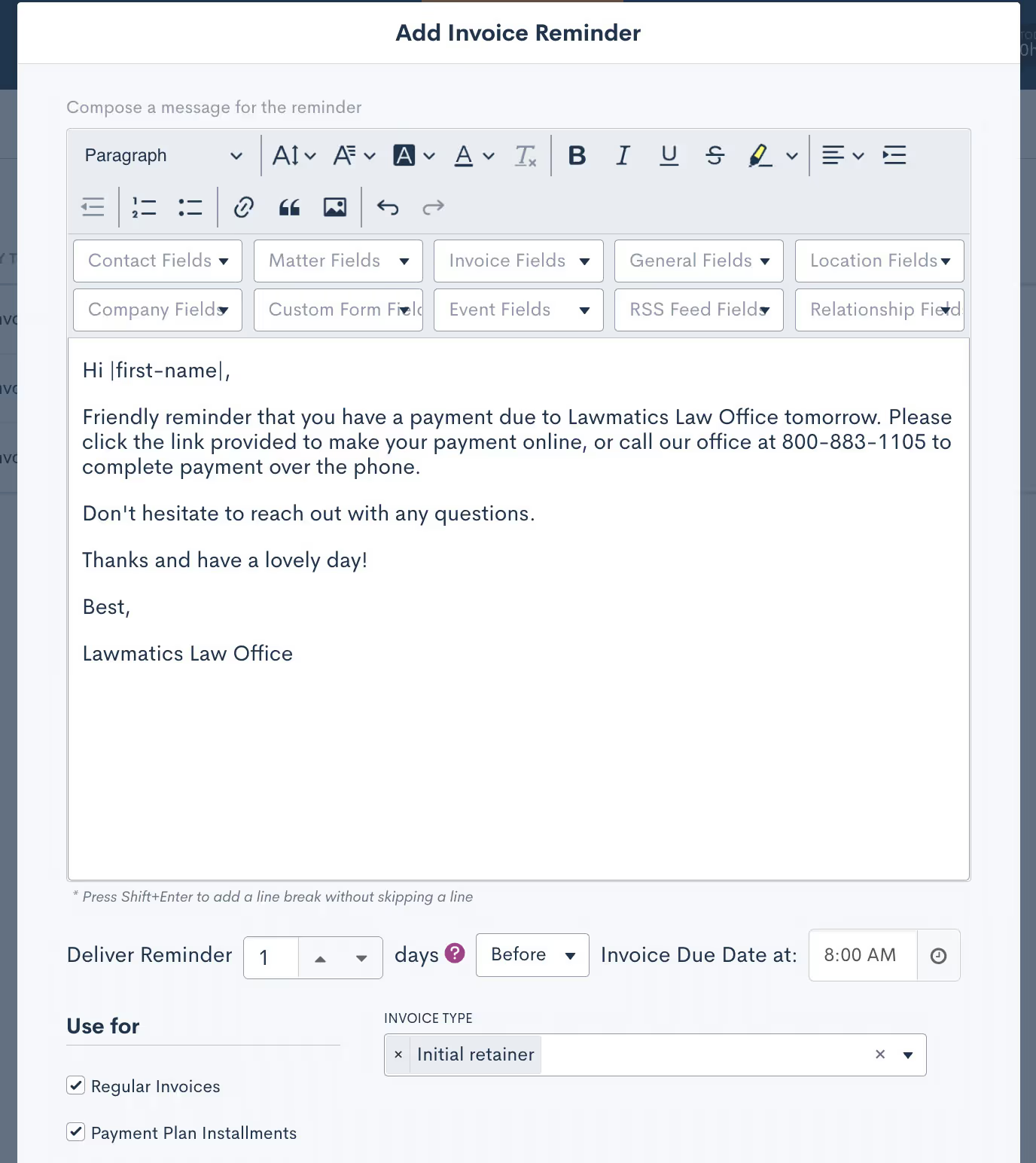
To learn more about Invoice Reminders, click here.
Recovery Bin
We are thrilled to announce the new Recovery Bin feature, allowing you to restore recently deleted data. Anytime a contact, matter, and/or company in Lawmatics is deleted — erroneously or otherwise — it will be moved to the all-new Data Recovery Bin rather than deleted permanently. Simply hover your mouse over the settings gear and select Recovery Bin to view your deleted records and restore as needed. No more stressing over an accidental slip of the mouse on the delete button!
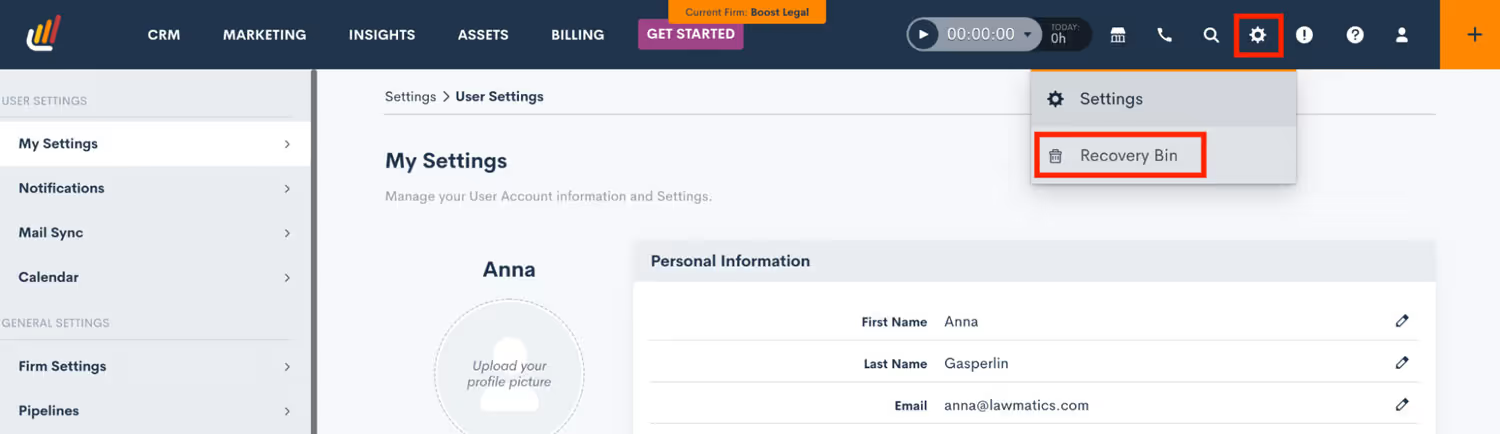
To learn more about Data Recovery Bin, click here.
Trust Balance Transfer
For any matters that have a remaining trust balance after resolution, our new Trust Balance Transfer feature allows you to transfer that balance to another matter. Whereas for some matters you may simply need to refund the trust balance, others that concern clients with more than one ongoing matter can be reconciled with the transfer balance option, where you are able to allocate the remaining balance to the appropriate place.
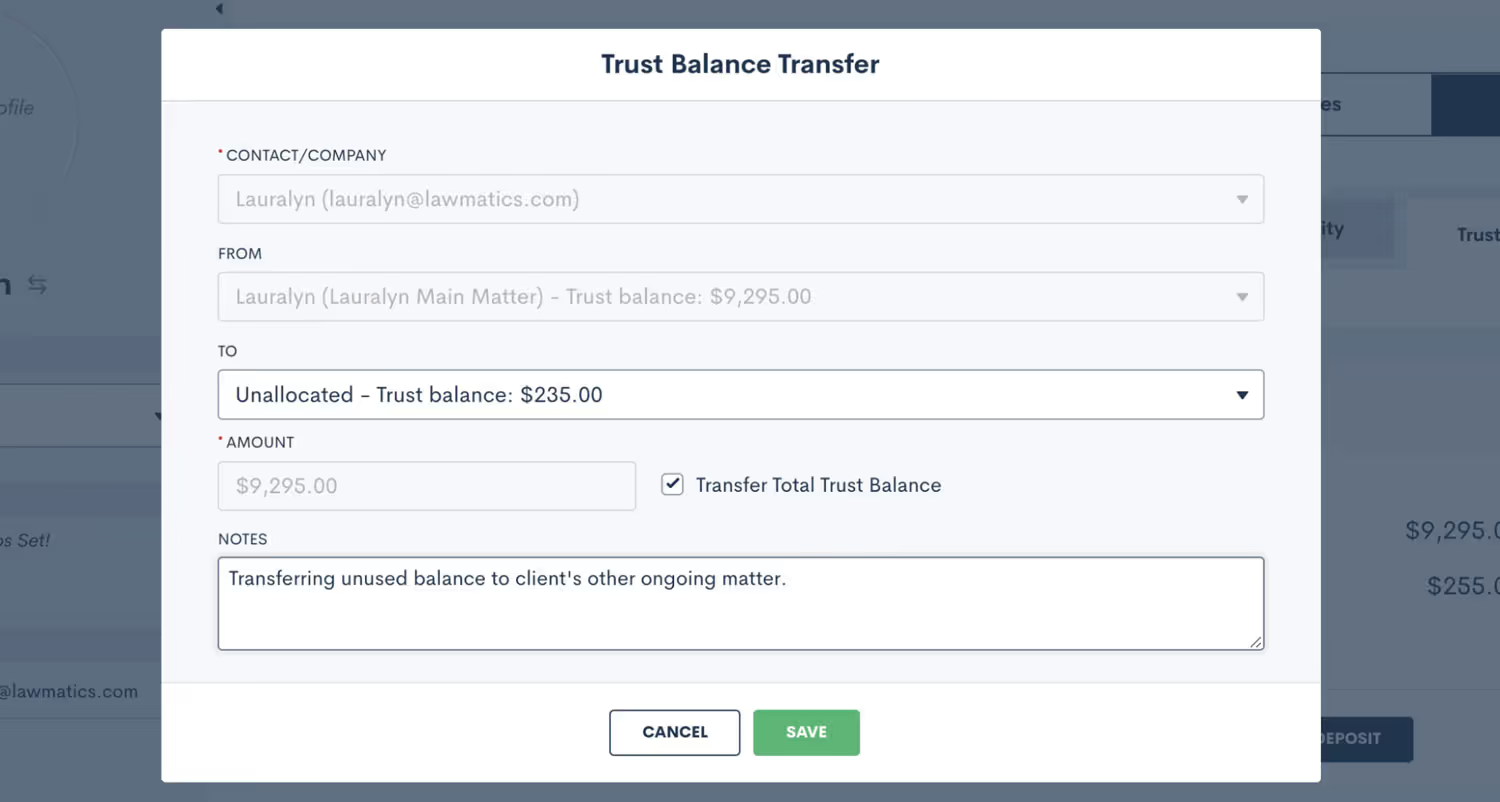
To learn more about Trust Accounting in Lawmatics click here.
Rename Files Upon Upload
You already know and love the Lawmatics file management system, which enables you to automate the process of collecting and saving critical case documents from your clients. For improved case organization and professionalism when it comes to your file storage, you can now rename any files that are uploaded with an informal or nonsensical name. This applies to both files uploaded by clients to their matters as well as internal files saved by members of your firm.
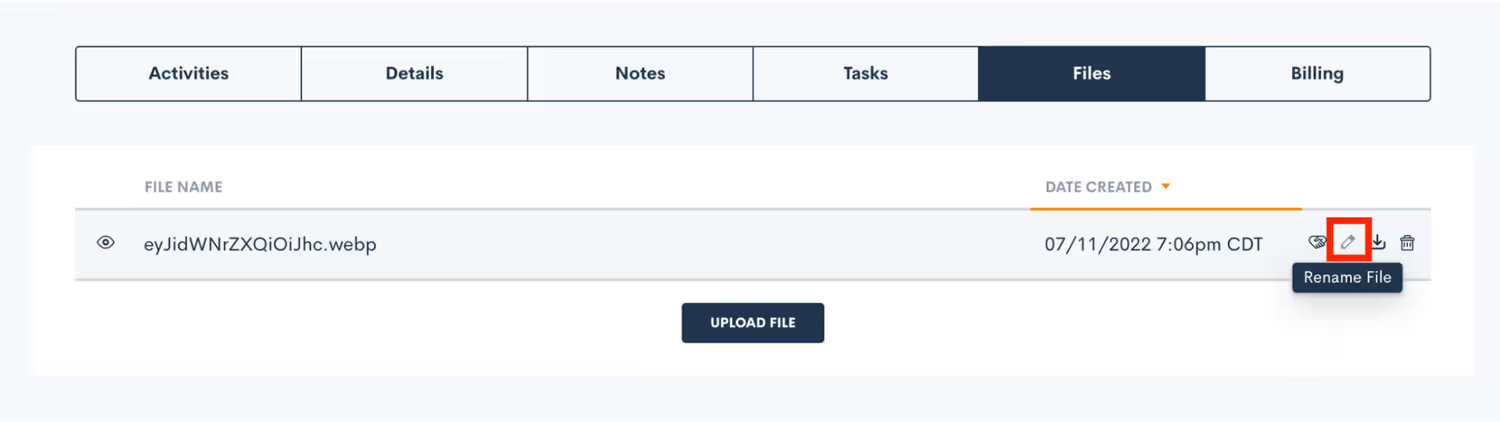
To learn more about how you can manage your files with Lawmatics, click here.
Internal Form Enhancement - Create Matter for Existing Contact/Company
Internal forms have long been a user-preferred way to create new matters for new contacts in Lawmatics. A new dropdown menu option in our internal forms feature now lets you create a new matter for an existing contact or company when filling out a form. Simply select the contact for which you wish to create a new matter and Lawmatics will pre-fill the form with their existing contact information. Upon form submission, a new matter will be created for said contact.

Not yet familiar with internal vs. external forms? Read up on them here.
Flat Fee Duration
We love giving Lawmatics users new customization options when it comes to billing transparency with your clients. With this new feature you can now choose whether or not your flat-fee invoices show the time duration of each time entry. Alternatively, toggle this setting off to show only the amount billed for all time entries while hiding the number of hours.
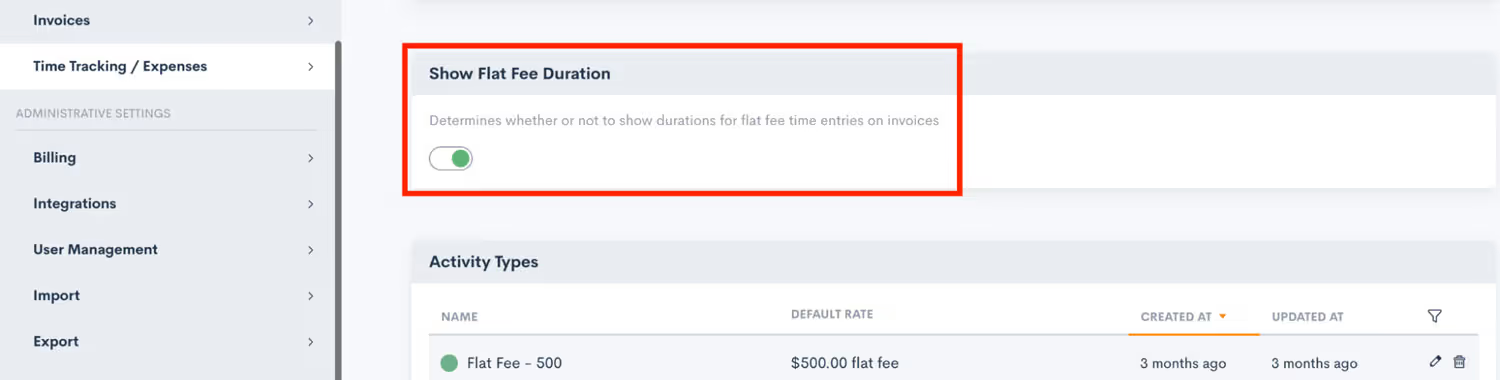
For a rundown of all time & billing settings options and customizations, click here.—Thanks for checking out our latest updates! We hope you’ll enjoy each of these new features. As always, stay tuned for what else is coming this Summer in Lawmatics!

We are thrilled to announce that G2 has once again ranked Lawmatics as a high performer for the 4th quarter in a row for their Summer 2022 Grid®️ Report for Legal Practice Management Software. After working so hard to deliver the best possible product to our customers, it goes without saying that the recognition is an honor!
What is G2?
G2, formally known as G2 Crowd, is a peer-to-peer review site that collects user reviews of all types of business software. G2 is a trusted third-party source for reviews when researching software solutions.
How are companies selected for the G2 Summer 2022 Grid®️ report for legal practice management software?
G2 defines legal practice management software as software designed to assist legal professionals with their day-to-day law firm operations. It is a bit of an umbrella term as the products can include features like legal intake software, appointment scheduling, document storage and sharing, contact databases, and reporting.To qualify for the quarterly G2 Grid®️ Report in the Legal Practice Management category, a product must:
- Manage law firm client information
- Store relevant legal documents
- Integrate with or provide functionality similar to legal case management solutions
- Be designed for independent law firm use
All of the companies featured in the report received a minimum of 10 G2 reviews within the qualifying time frame. Customer satisfaction scores and market presence determine the grid rankings. Our customer reviews have landed us in the coveted High Performer quadrant of the grid.To our delight, Lawmatics has been named among other outstanding legal management solutions like Clio, Smokeball, and Practice Panther—all of which we have extremely robust integrations with! Our goal is not only to deliver a unique product that elevates and streamlines your law practice but that also seamlessly integrates with all of your other favorite tech applications.
Highlights from the Summer 2022 Grid® report
In addition to a high overall satisfaction rating, other highlights from the grid® report include:
- 100% of Lawmatics customers rated us 4 or 5 stars
- 92% of Lawmatics customers are likely to recommend Lawmatics to their peers
- 90% of Lawmatics customers believe our quality of support goes above and beyond
What our customers are saying about Lawmatics on G2
“Lawmatics has allowed me to become more efficient. I am able to create tasks and workflow to a high level of details - including communications, and follow up with clients and internally for processing a case.”
“Lawmatics offers a creative, out of the box way to conquer the daily tasks that legal work demands.”
“Anytime we have ever had questions or concerns we have had extremely prompt responses from the Lawmatics Customer Support team or Johnny directly. This type of care and concern we wish we had from all vendors.”
“Lawmatics is an incredibly powerful tool that's constantly getting better.”
“We have 10 people at our firm, and could easily have 14-15 to do the same work without Lawmatics.”
“Lawmatics has been key to automating my law practice.”
“The Lawmatics customer support we've received throughout the onboarding process has been professional and top notch as well.”
“Lawmatics is the best law firm software around!”
“Lawmatics is magic for your law firm because it automates everything so that you save so much time and effort on routine tasks, and it allows you to track data for your firm so that you can maximize your marketing efforts, spending, and case screening.”
“Lawmatics is focused squarely on client service, which we love because we love our clients.”
“Lawmatics is a well-organized platform that is attractive and easy to use. Excellent support staff who provide Zoom meetings to help you build out a custom system and video tutorials to answer your questions.”
“Lawmatics is a great way to increase efficiency with your law firm and reduce costs!”
“Lawmatics has changed the way we do intake drastically.”
“I can’t imagine my practice without Lawmatics.”

The tech industry embodies innovation, creativity, and revolution. And while “tech” can be seen as a broad term that comes with many sub-sectors, all of them come down to the same goal: to make humans stronger, wiser, faster, and more agile than they would be in the absence of these tools. So, isn’t it wild to think that in our journey towards humanity as a whole through technology, there is predominantly one gender leading the show? After all, how can we hope to develop and design technology that represents all walks of life if it’s not being created by all types of people who will use these products? In the male-dominated industry of tech, women are more important than ever—not only to represent a larger user base of tech products but also to provide fresh ideas and greater diversity that can help shape richer ideas.Because if you develop a product that only consists of one type of person, you run the risk of missing the mark. That’s why we at Lawmatics are proud to be a diverse team, breaking the mold of technical positions, and in turn developing products that are represented by all kinds of people with varying perspectives — with the goal of creating a product that works for everyone.We want to do our part in representing the women in tech. So, we’ve asked our own women team members to share their thoughts on what being a woman in tech means to them.

I love being part of a market that creates innovation for people. I also love interacting with so many intelligent, creative and fun individuals. Being a woman in tech means I can participate in this solution-oriented world, learn and contribute with what I am. This environment is becoming more inclusive and more diverse, so everyone benefits and grows from this opportunity.
— Erika Beaudette, Customer Success Specialist

Being a woman in tech is a learning experience. Not only do you learn so much about tech and the industry itself, but you learn so much about yourself as well. There are challenges women face when coming into a male dominated industry, such as being overlooked due to biases based on gender, race, age, and even appearance. We also have internal challenges we struggle with like confidence or feeling like we need to be more masculine in order to be taken seriously. Although I struggled with some of these internal challenges, I feel stronger now that I have overcome them. This is also why I'm so grateful to be a woman in tech, because I was lucky to find a company that supported me and let me be who I am.
— Val Kirsch, Implementation Team Lead

It's empowering to be a woman in tech, especially in sales. We're flipping the script and showing that we can come into an organization that's predominantly male and provide a fresh outlook, boost productivity, and be successful.
— Rachel Koscil, Sales Development Representative

To be a woman in tech in 2022 means to be mindful of the struggle of women of past generations to make space in all workplaces for future generations of women, while at the same time having confidence in our ability and never losing sight of the fact that our space in these places is well deserved. This also means embodying the ideals of diversity and inclusion that have allowed us our place in these spaces; to be an advocate of other groups who may not be represented fully, not just in the workplace but in all aspects of our lives.
— Mahnoor Mian, Customer Success Team Lead

Being a woman in tech to me means having a positive and diverse impact on the company and industry and empowering other women professionally. I love offering a different perspective and encouraging others to do the same.
— Sarah Bottorff, Senior Vice President
Being a woman in tech means being able to share a different perspective and come up with more solutions to problems. There's no one size fits all approach to problem solving and the solution could be a combination of input that comes from multiple people, regardless of gender!
— Anonymous

B.D.E. = Boss Diva Energy
— Kaia Dobbs, Account Executive

Being a woman in tech in 2022 means working to create a collaborative, diverse and inclusive workplace for everyone. At Lawmatics I love having the ability to work with my team on building a strong network of professionals who support one another, learn and grow together. Everyone working together towards the same common goal while striving to make a positive impact on the organization and tech industry. My hope is that this means working towards a future in which this no longer has to be a question that is asked.
— Monique Padilla, Talent & People Ops Leader