Deep Dive Recap: Get More Done Without Leaving the Matter Page
Learn how custom matter views in Lawmatics help law firms trigger automations, surface reporting fields, and tailor layouts by role and practice area — all from the Matter page.


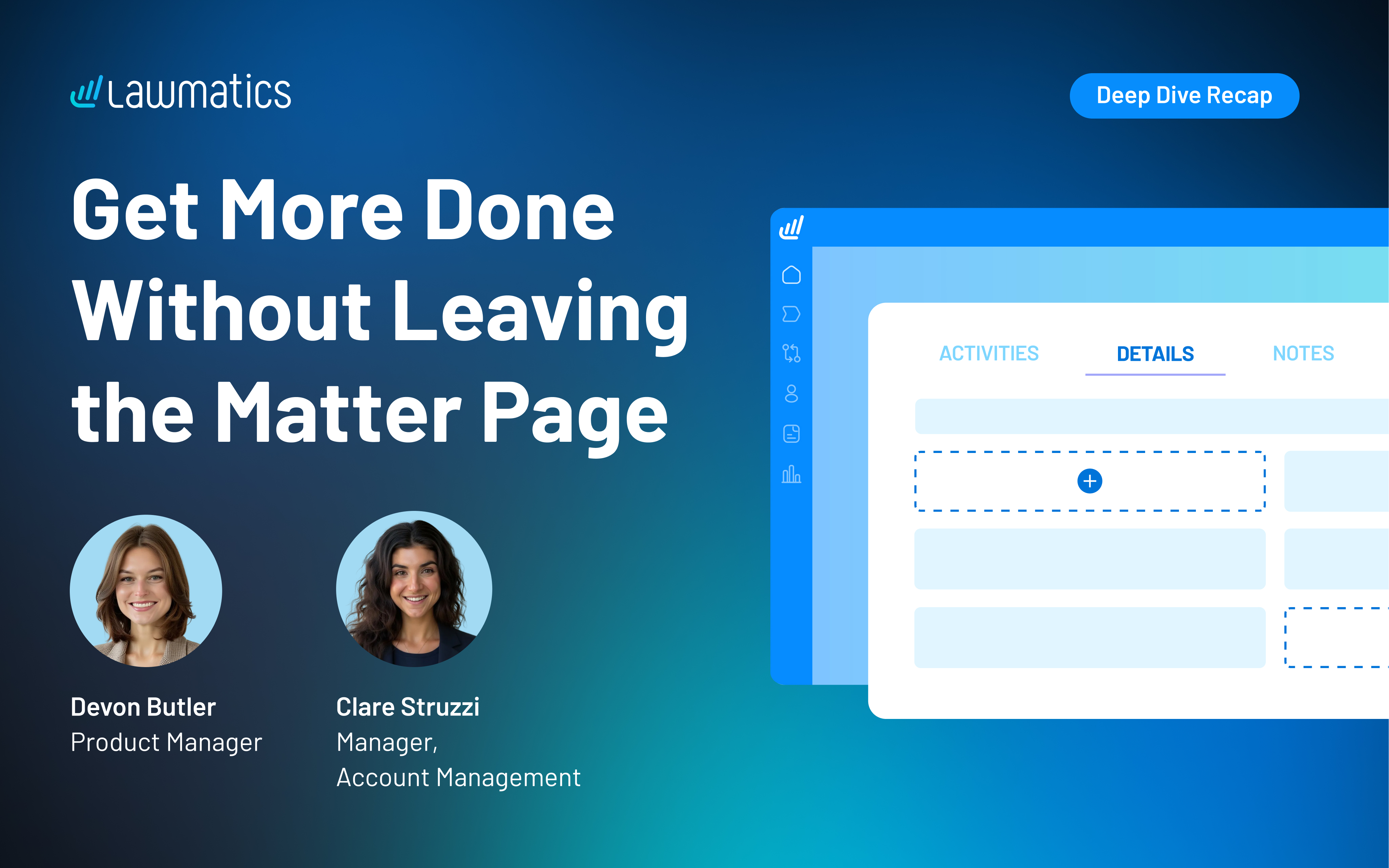
Table of contents
Last month, we walked through how to set up custom matter views. But building views is only half the equation — the real value comes from putting them to work. When intake staff, attorneys, and admins are all looking at the same long list of fields, it's easy to miss what matters, waste time hunting for the right information, or forget to fill out a field before firing off a contract.
In this Deep Dive webinar, Devon Butler, product manager at Lawmatics, and Clare Struzzi, who leads the account management team, showed how firms can use custom matter views to trigger automations, surface reporting fields, and tailor layouts by role and practice area.
Time stamps of key takeaways
5:53 – Why customize your Matter pages
Devon kicked off with four reasons to invest in custom matter views: cutting through the noise so each role only sees what they need, supporting cleaner reporting, strengthening team handoffs between intake and attorneys, and working faster directly from the Matter page without having to search for fields.
9:48 – Building practice-area-specific views
Clare walked through an estate planning intake view built specifically for intake specialists, showing how organized sections replace the old starred-fields approach. She highlighted how a field like "Next Steps Pre-Consult" can live right at the top of the view so the intake team can trigger automations directly from the details page — no need to reopen a form.
14:58 – Creating role-specific views
Devon and Clare showed how the attorney view for the same estate planning practice area includes different fields at the top — like "Next Steps Post-Consult" and a dedicated contract fields section where merge fields for engagement agreements can be reviewed and completed before sending. Clare also pointed out that sensitive information like Social Security numbers can be placed in sections that default to a collapsed view.
25:00 – Triggering automations and managing contract workflows
Devon walked through a live example of building an automation that fires when the "Next Steps Post-Consult" field is updated — automatically moving the matter to the correct pipeline stage and sending the engagement agreement. She also showed how duplicating automations makes it simple to handle variations, like sending a single-signer versus a joint estate plan document.
35:09 – Surfacing fields for cleaner reporting
The session wrapped with a look at how the reporting fields on custom views — source, campaign, estimated value, actual value — feed directly into the analytics page and custom reports. Devon demonstrated grouping a report by source to quickly see which referral sources are converting and where data gaps need attention.
Webinar slide deck
.avif)
Ready to grow your law firm with Lawmatics?
Schedule a demo of legal’s most trusted growth platform.