Deep Dive Recap: Getting Paid Faster with Time & Billing in Lawmatics
See how Lawmatics' Time & Billing add-on handles invoicing, installment plans, automated reminders, and reporting, all from one connected platform.


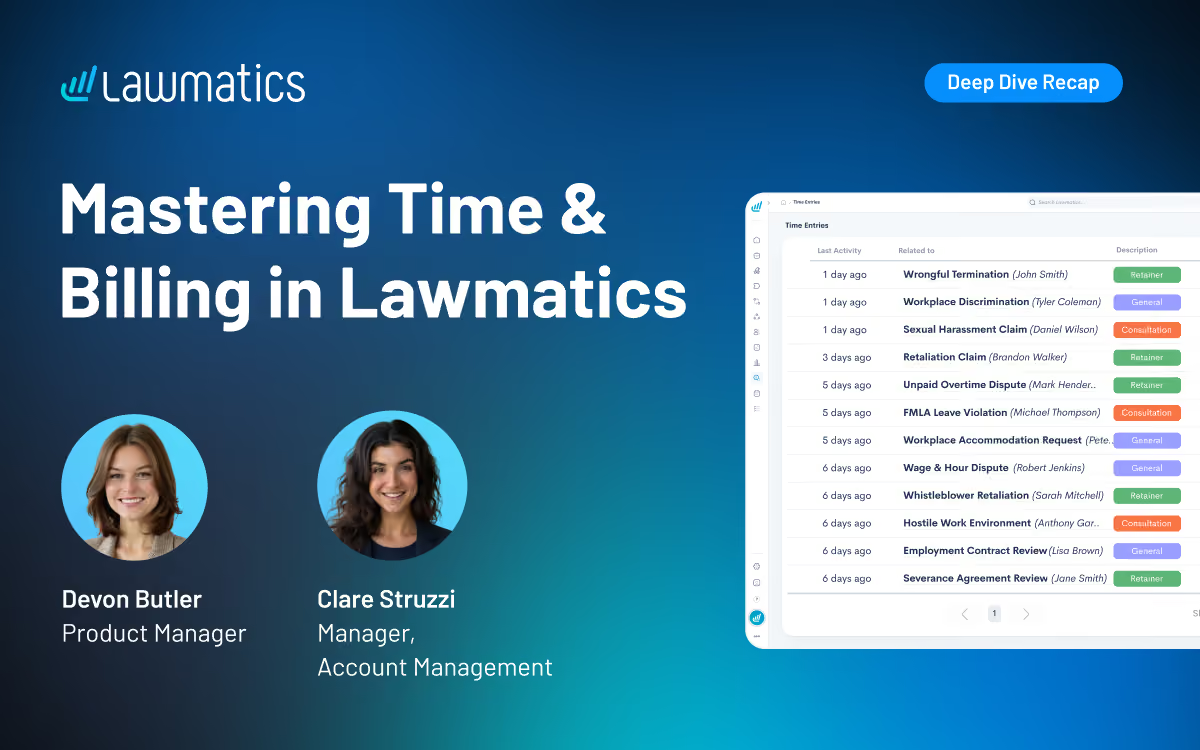
Table of contents
Chasing down payments and bouncing between separate billing tools slows down intake and adds friction to the client experience. This month's Deep Dive covered the Time & Billing add-on in Lawmatics, from setting up invoice and activity types through invoicing, installment plans, automated reminders, and reporting.
In this Deep Dive webinar, Devon Butler, product manager at Lawmatics, and Clare Struzzi, who manages the Account Management team, walked through the full Time & Billing workflow: getting set up with LMPay and invoice types, creating time entries and invoices, offering installment plans and subscription billing, sending automatic payment reminders, and tracking revenue with built-in and custom reports.
Time Stamps of Key Takeaways
3:46 – Why use Lawmatics for time and billing
Devon opened with the core benefits of billing directly from Lawmatics: invoicing clients without bouncing between separate tools, keeping billing tied to the same matters, contacts, and automations already set up, reducing the need to chase down payments thanks to automatic reminders, and getting a clear view of revenue and firm performance through billing reports.
5:42 – Setting up LMPay, invoice types, and activity types
Before creating time entries or invoices, firms need to apply for LMPay to take online payments, and set up invoice types and activity types. Devon explained that invoice types matter most for flat fee billing: naming one "Retainer," for example, creates a matching custom field that can be filled in on a form (like a consultation notes form) and automatically pulled into an invoice sent through an automation.
13:34 – Creating time entries
Devon showed how to log a time entry against a matter, choosing the staff member, activity type, and whether to bill hourly or at a flat rate. She also demonstrated the built-in timer, which can be started for an activity and completed later to auto-fill a time entry, and mentioned the bulk time entry option for adding several entries at once.
17:45 – Creating and sending an invoice manually
Devon built an invoice from existing time entries, covering the settings available: target bank account, who to bill (including a designated billing point of contact, like a spouse or guardian), invoice status, invoice type, due date, and optional adjustments like discounts or added fees. Clare noted that marking an invoice "sent" in Lawmatics is for manual recordkeeping only, since it doesn't trigger an actual send.
27:31 – Installment plans and subscription payments
Devon set up a payment plan on an invoice, choosing a start date, payment frequency, first payment amount, and number of installments. Once the invoice is sent, clients can opt in to auto-pay by checking a box themselves, since firms cannot enable it on their behalf. If an automatic charge fails, the payment schedule pauses until the client catches up rather than continuing to attempt new charges.
38:23 – Creating and sending an invoice from an automation
Devon showed the Create Invoice action item, commonly used at a send engagement agreement or retainer stage. She recommended setting the invoice type field to a fallback amount, in case a custom field is left blank, and adding an entry condition that checks for a minimum invoice amount before the automation fires, as a safeguard against sending an invoice with no value attached.
45:54 – Setting up automatic payment reminders
Reminders live separately from workflow automations and can be scheduled before or after an invoice's due date. Devon highlighted the checkbox for payment plan installment wording, which lets the reminder reference the current installment amount rather than the invoice total, and reiterated that invoice types determine which invoices a given reminder applies to. Lawmatics automatically stops sending reminders once an invoice is paid.
49:15 – Tracking revenue with billing reports
Devon closed with a look at Lawmatics' pre-built time & billing pages (time entries, expenses, invoices, trust accounting, and accounts receivable) and its custom reports for invoices, time entries, expenses, and transactions. Custom reports allow grouping and subgrouping by fields like practice area or lead attorney, along with sum and average totals, and can be set up as recurring report subscriptions so firms get an unpaid invoice summary sent automatically each month.
Webinar Slide Deck
.avif)
Ready to grow your law firm with Lawmatics?
Schedule a demo of legal’s most trusted growth platform.