Deep Dive Recap: Managing Your Team's Workload with Tasks in Lawmatics
See how Lawmatics tasks keep work moving with automated task creation, task-driven workflows, kanban views, and new task reports.


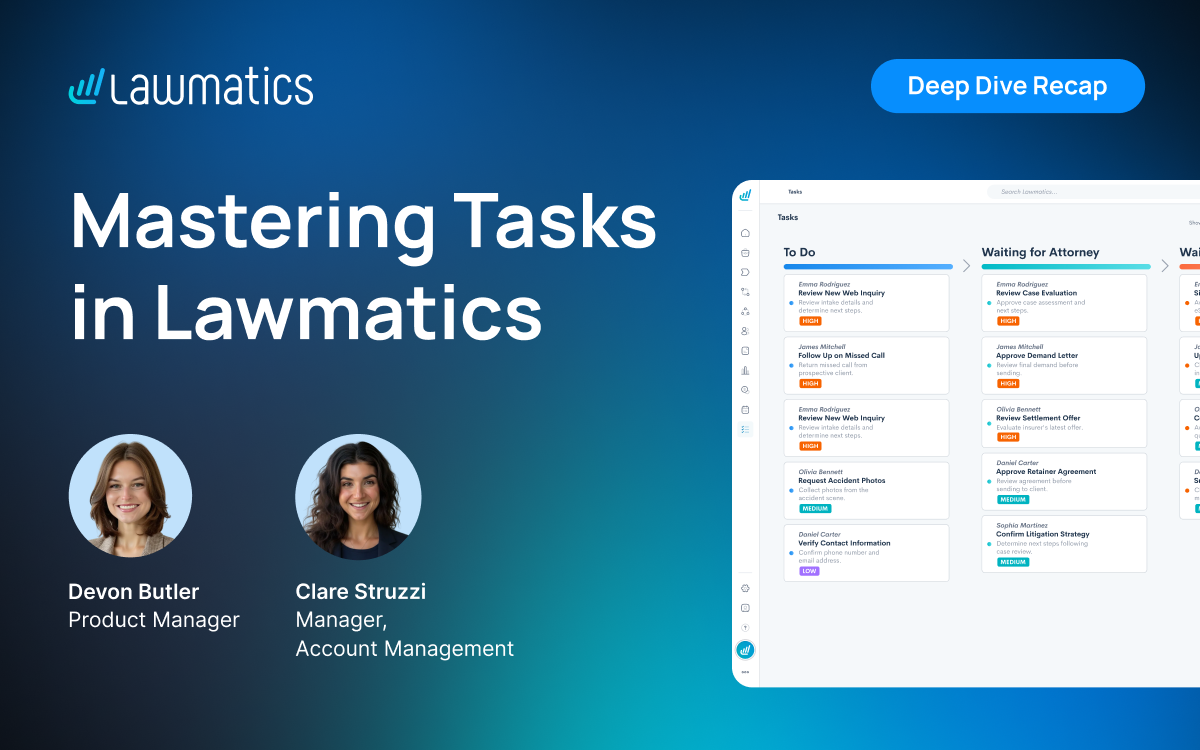
Table of contents
To-dos scattered across platforms and tasks created by hand make it easy for work to slip through the cracks, and hard to see who's keeping up. This month's Deep Dive covered tasks in Lawmatics, from creating them automatically in automations through managing them from the Tasks page and measuring performance with the new task reporting feature.
In this Deep Dive webinar, Devon Butler, product manager at Lawmatics, and Clare Struzzi, who manages the Account Management team, walked through the full task workflow: creating tasks in automations and by hand, chaining tasks into workflows, managing workload from the Tasks page, and tracking performance with new custom task reports and dashboard panels.
Time Stamps of Key Takeaways
4:38 – Why use tasks in Lawmatics
Devon and Clare kicked things off with the core benefits: every to-do lives in one place so nothing slips through the cracks, built-in accountability shows who owns what and what's overdue, automations cut down on manual assignments, and the new task reporting feature turns your team's workload into data you can act on.
6:52 – Creating tasks in an automation
Devon recommended automations as the go-to way to create tasks, since they can trigger off any field, stage, or status. Clare shared use cases like checking on a new lead or reviewing a signed engagement agreement. Devon covered best practices for naming tasks, setting due dates, and assignments. Clare added that subtasks keep multi-step work in one task and declutter the Kanban view.
18:20 – Chaining tasks with delays and entry conditions
The ‘delay until action occurs’ option pauses an automation until a task created in that automation moves to a given status, then fires the next step. Devon called it a drip campaign for tasks, and Clare recommended it when firms want separate tasks rather than subtasks. They also cover how to use tags to start an automation, based on activity entry conditions, like when a task is completed.
23:17 – Creating tasks manually
Devon showed how to create one-off tasks from the Create New menu, a matter page, or the Tasks page. Devon and Clare noted that associating a manual task with a matter, contact, company, or user is optional, and that manual tasks support file uploads, like a document someone needs to review.
27:21 – Managing tasks from the Tasks page
The Tasks page offers preset filters (incomplete, past due, completed, no due date) plus filters for status, priority, assignee, and tags. Devon showed each task's activity timeline, subtasks, and comments, and Clare noted that many firms use @mentions in comments to loop in teammates. Firms can toggle between the kanban view, Clare's pick for seeing statuses at a glance, and a sortable table view.
33:19 – Customizing task statuses
Clare compared task statuses to pipeline stages, and Devon showed how to create custom statuses in task settings and reorder them to set the column order on the kanban view. The Complete status is always present and can't be edited. A separate toggle automatically marks a task complete once its final subtask is checked off.
35:32 – Building custom task reports
Task reporting, a highly requested new feature, works like any other custom report. Devon showed adding fields like completed date, tags, practice area, and date ranges. Clare suggested pairing task reports with report subscriptions so team members get their open tasks emailed daily or weekly, with a monthly summary for managers.
44:49 – Adding task reports to custom dashboards
Any custom task report can now power a dashboard panel as a value card, bar chart, or pie chart. Clare offers some tips about set up, including setting the panel's own date range, since it can differ from the report's.
Webinar Slide Deck
Want to keep learning? Lawmatics is hosting a follow-up Tasks workshop the week after this webinar.
You can also find step-by-step help articles on Tasks in the Lawmatics Help Center.
.avif)
Ready to grow your law firm with Lawmatics?
Schedule a demo of legal’s most trusted growth platform.