Deep Dive Recap: From Draft to Signed: Building a Seamless Document Workflow
Learn how Lawmatics' new draft and approval feature helps law firms catch errors before sending, build in internal review, and get documents signed faster.


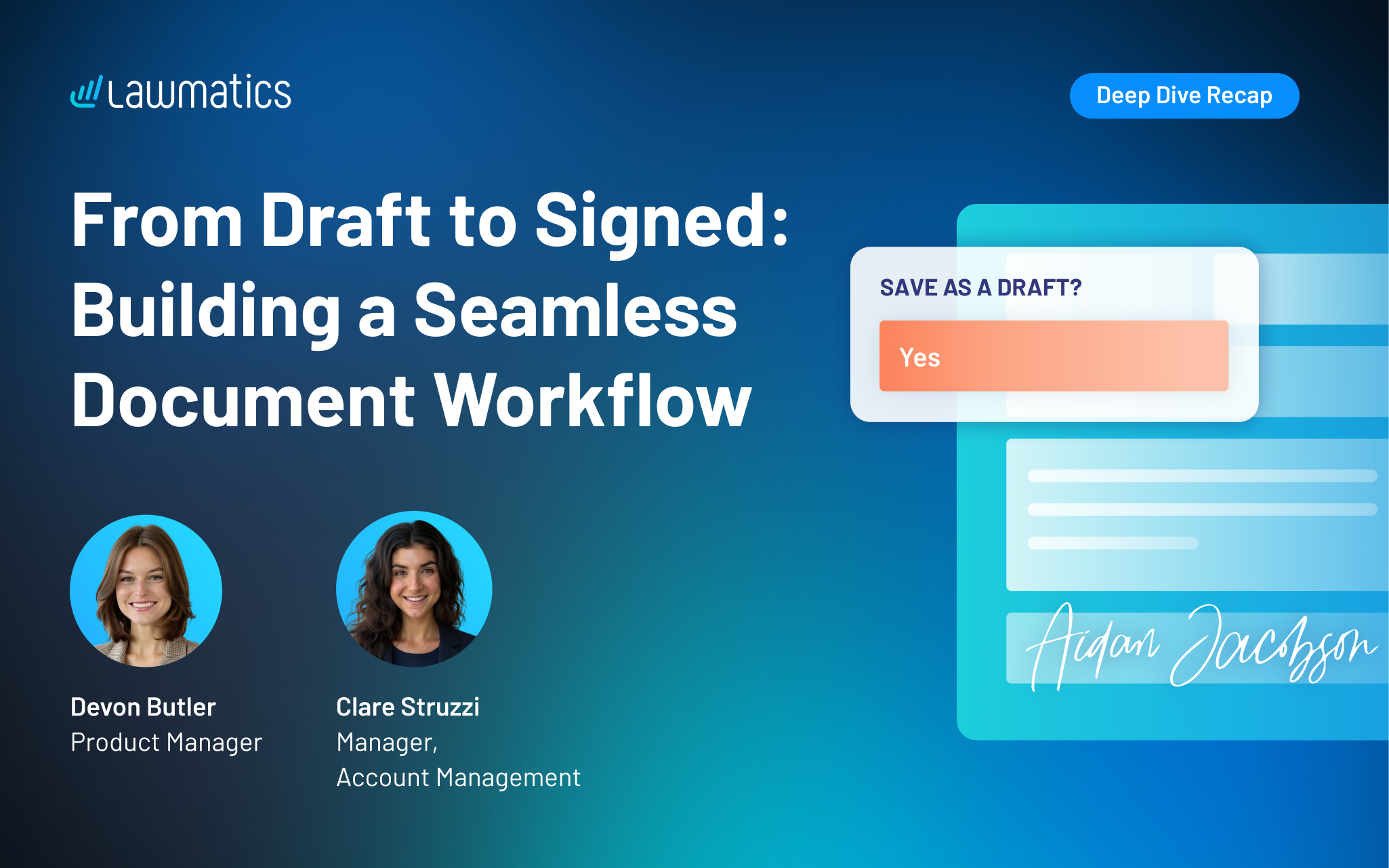
Table of contents
If your firm has ever sent an e-signature document before someone got the chance to double check it, you know how quickly a small mistake can turn into an awkward follow-up email. This month's Deep Dive introduced a fix for that exact problem: the ability to draft, review, and approve documents in Lawmatics before they ever reach your client.
In this Deep Dive webinar, Devon Butler, Product Manager at Lawmatics, and Clare Struzzi, who manages the Account Management team, walked through how law firms can use the new draft and approval workflow to build internal review into their e-signature process. The session covered manual and automated draft creation, approvals, and document reminders, all from within Lawmatics.
Time Stamps of Key Takeaway
4:56 – Why use Lawmatics for e-signatures
Devon opened by framing the three reasons firms benefit from this update: one connected workflow that keeps drafting, approving, sending, and signing in a single platform, fewer errors thanks to internal review before sending, and faster signing through manual, automatic, and reminder-based sending options.
9:17 – Creating a document draft manually
Devon showed how to build a draft directly from a Start Fresh document template, with merge fields and conditional logic populating automatically. Clare added an important clarification: this feature works only with Start Fresh custom documents, not uploaded PDFs or DocX files, since Lawmatics can't edit text within those formats after upload.
19:03 – Managing drafts from the matter page
Clare explained that the same draft and approval workflow is available directly from the Matter page, so firms don't have to leave where they're already working. She also pointed out the new e-signature tab on the Matter page, which brings all of a client's e-signature activity into one place, along with notification settings that alert approvers when a draft needs their attention.
22:14 – Automating draft creation and approval tasks
Devon demonstrated how to update an existing automation to create a draft instead of sending it automatically, and to simultaneously assign a review task to the appropriate team member. This lets firms keep the efficiency of automation while adding a required approval step for every document.
30:29 – From approval to signature: The full document lifecycle
Devon walked through what happens after a draft is created: reviewers can edit missing fields, approve, and send in one step, and every stage (created, edited, approved, sent, signed) is logged on the e-signature activity timeline. He also confirmed that once a draft is created, it's a snapshot of the matter at that moment, so any updates to matter fields need to be made in the draft itself to appear on the document.
36:29 – Setting up e-signature reminders
Devon and Clare covered how to configure automated reminders once a document has been sent for signature, including email and text options, and exit conditions so contacts marked as lost or hired stop receiving them. Clare noted that reminders need to be set up individually for each interval (for example, one reminder at one day, another at three days), since they don't repeat automatically.
Webinar Slide Deck
Want to keep learning? Lawmatics is hosting a follow-up Collections Workshop the week after this webinar.
You can also find step-by-step help articles on Collections in the Lawmatics Help Center at lawmatics.com, or email support@lawmatics.com with any questions.
.avif)
Ready to grow your law firm with Lawmatics?
Schedule a demo of legal’s most trusted growth platform.